TL;DR: If your phone connects to Wi-Fi but your laptop doesn’t, your internet connection is likely working properly, and so is your router. The issue is usually with the laptop itself, such as the Wi-Fi driver, network settings, or wireless adapter. A quick restart or reconnecting to the network fixes it surprisingly often, but there are other things worth checking if it doesn’t.
In this guide
- Why does Wi-Fi work on your phone but not on your laptop?
- How to fix a laptop that won’t connect to Wi-Fi
- 1. Restart your laptop
- 2. Forget the Wi-Fi network and connect again
- 3. Restart your router
- 4. Switch between the 2.4 GHz and 5 GHz bands
- 5. Renew your IP address and flush DNS
- 6. Restart or update your Wi-Fi adapter
- 7. Run the Windows network troubleshooter
- 8. Try a public DNS server
- 9. Turn off your VPN or antivirus for a minute
- 10. Make sure Airplane Mode isn’t on
- 11. Reset your network settings
- When it might be a hardware problem
- What if your phone is the one that won’t connect?
- Wrapping up
- FAQs
Ever noticed that your phone, tablet, or even your TV connects to Wi-Fi without any issues, but your laptop suddenly says “No Internet” or refuses to connect at all? Well, you’d probably feel like the Wi-Fi is broken, but that’s usually not what’s happening. If other devices are online, your router is already doing its job. But your laptop is simply having trouble talking to it.
Sometimes it’s something as simple as a driver that stopped working after an update. Other times it’s a network setting that got corrupted, or the laptop is trying to use an old IP address that no longer works. Whatever the reason, it’s usually a laptop-specific problem, not an internet outage.
In this guide, we’ll start with the easiest fixes first and then move on to the less obvious ones if the problem sticks around. And if it’s your phone that won’t connect while your computer is working fine, you’ll also find troubleshooting steps for iPhone and Android.
Why does Wi-Fi work on your phone but not on your laptop?
Your phone and your laptop each have their own wireless hardware, software, and network settings. Your phone might be running the latest version of iOS or the Android OS, while your computer still relies on a wireless driver that hasn’t been updated in months. That’s why it’s completely possible for your phone to work perfectly while your laptop struggles to connect.
Some of the most common reasons include:
- The saved Wi-Fi profile became glitched.
- The wireless driver is outdated or stopped working properly.
- The laptop has an IP or DNS conflict.
- The Wi-Fi adapter isn’t responding.
- A VPN, firewall, or antivirus is blocking the connection.
- Your router configuration, such as a device limit or MAC address filtering, may be preventing the laptop from connecting.
- The wireless card or antenna is starting to fail (this is much less common).
The good news is that most of these problems don’t mean your laptop is permanently damaged; they’re usually software-related, and many can be fixed in just a few minutes.
How to fix a laptop that won’t connect to Wi-Fi
Before trying more advanced solutions, start with the basics. A laptop that can’t even see your Wi-Fi usually has a different issue than one that connects but won’t load websites.
The good news is that many laptop Wi-Fi problems are fixed after just one or two of the steps below, so it’s worth working through the simple ones first. Keep your phone nearby, too. If it stays connected while you go through these troubleshooting steps, you’ll know the problem is still on the computer side and not with your router.
1. Restart your laptop

It sounds obvious, but you’d be surprised how often this works. This happens because sometimes Windows gets stuck after waking from sleep, installing an update, or switching between different networks.
So, a restart clears those temporary glitches and gives the wireless adapter a fresh start: Go to Start > Power and choose the option to restart the computer instead of just closing the lid, since closing the lid usually puts it to sleep rather than shutting it down.
2. Forget the Wi-Fi network and connect again
You can also try to disconnect the Wi-Fi from your laptop and then connect it again. Your laptop remembers every Wi-Fi network you’ve joined before. Every now and then, that saved information stops working correctly, especially after you change your router password.
When that happens, Windows may keep trying to use old settings, even if your Wi-Fi is working perfectly.
Start by turning Wi-Fi off, waiting a few seconds, and turning it back on. If that doesn’t work, forget the network and start fresh: open Settings > Network & Internet > Wi-Fi > Manage known networks, select your network, and choose Forget. Then reconnect and enter your Wi-Fi password again. If reconnecting doesn’t solve the issue, follow our complete Wi-Fi troubleshooting guide to rule out other common connection problems.
3. Restart your router
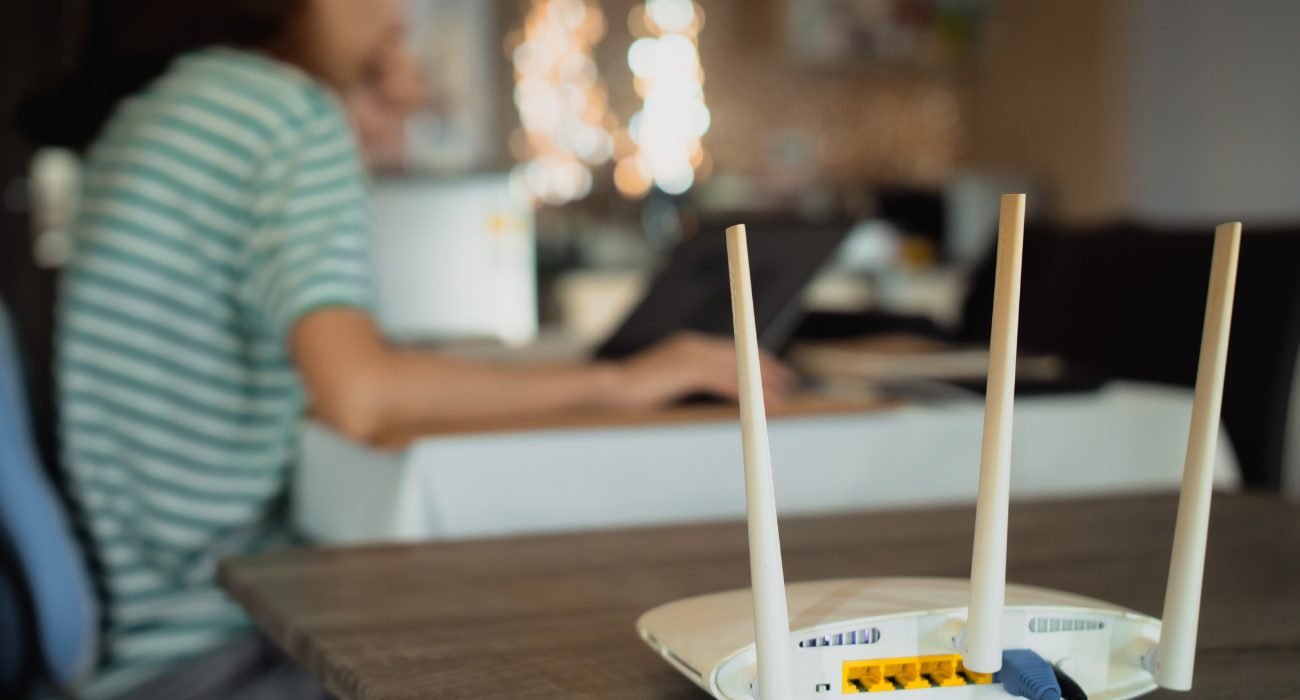
Even if your phone is working, it’s still worth trying. Sometimes the router has trouble communicating with just one device, while everything else stays online. Your router keeps track of the devices connected to it, and a device limit or temporary router issue can sometimes prevent your laptop from joining even while your phone and other devices stay online. What you can do is unplug it from power for about a minute, plug it back in, wait until the lights stop flashing, and then try connecting your laptop again.
4. Switch between the 2.4 GHz and 5 GHz bands
Most modern routers broadcast both 2.4 GHz and 5 GHz Wi-Fi bands, allowing your devices to connect to either one depending on signal strength and compatibility. The 2.4 GHz band generally reaches farther and handles walls better, although it tends to be slower because more devices use it. While the 5 GHz band is faster, its signal doesn’t reach as far, so it may not perform as well if you’re farther away from your router.
The 2.4 GHz band also picks up more interference from microwaves, cordless phones, Bluetooth gadgets, and your neighbors’ networks. That interference can make a laptop drop the signal more often than a phone sitting right next to the router.
Phones usually switch between the two automatically but laptops don’t always switch as smoothly. If you see two network names, try the other one, and make sure you’re picking the right network, since many routers simply add “5G” or “_5GHz” to the end of the name. If you only see one, forgetting the network and connecting again sometimes helps your laptop pick the better signal.
🤓 Keep reading How to Quickly Determine: Is My WiFi 2.4 or 5 GHz?
5. Renew your IP address and flush DNS
If your laptop says it’s connected but whenever you try to open a new page, it still won’t open, the Wi-Fi may not be the problem. Sometimes your laptop just needs a fresh network connection. Try this instead:
If you’re using Windows, try opening Command Prompt as Administrator and run:
- ipconfig /release
- ipconfig /renew
- ipconfig /flushdns
These commands give your laptop a new IP address and clear old DNS information that could be getting in the way. Once they finish, test your internet access again to see whether the connection has been restored.
For Mac users:
- Open System Settings and go to Wi-Fi.
- Click on Details next to your connected network.
- Select TCP/IP in the sidebar and click Renew DHCP Lease.
To flush your DNS: Open Terminal and run this command (you’ll need to enter your Mac password):
Bash
sudo dscacheutil -flushcache; sudo killall -HUP mDNSResponder
These steps renew your Mac’s IP address and clear old DNS information that could be getting in the way.
6. Restart or update your Wi-Fi adapter
Think of the Wi-Fi adapter as the part of your laptop that talks to your router. Every now and then it just stops responding, especially after a Windows update or if the laptop has been running for a long time.
Open Device Manager, expand Network adapters, right-click your Wi-Fi adapter, and choose Disable device. Wait a few seconds, then enable it again.
If that doesn’t help, right-click it once more and select Update driver. Windows will look for a newer version automatically. If it can’t find one, visit your computer manufacturer’s support page and download the latest wireless driver for your exact model.
If you own a Mac, try restarting your Wi-Fi connection. Open Control Center, turn Wi-Fi off, wait a few seconds, and turn it back on. Unlike Windows, Mac hardware drivers are included with macOS, so you don’t need to update the Wi-Fi driver separately. To make sure macOS is up to date, go to System Settings > General > Software Update and install any available updates. Installing software updates as they become available can also prevent some connectivity problems before they start.
7. Run the Windows network troubleshooter
Most people skip this tool because they assume it won’t find anything. Surprisingly, it does fix simple network issues from time to time, and it only takes a minute to run.
Open the Get Help app, search for connection to network and internet, and select Run network diagnostics. Follow the prompts and apply any recommended fixes.
On a Mac, you can use Wireless Diagnostics instead. Hold the Option key, click the Wi-Fi icon in the top right corner of your screen, and choose Open Wireless Diagnostics.
8. Try a public DNS server
If Wi-Fi shows as connected but websites refuse to load, your laptop may be having trouble reaching your current DNS server.
You can switch to a public DNS service like:
| Google DNS OR | Cloudflare DNS |
| 8.8.8.8 OR | 1.1.1.1 OR |
| 8.8.4.4 | 1.0.0.1 |
On Windows 11, open Settings > Network & internet > Wi-Fi > Hardware properties and click Edit next to DNS server assignment. You can also change it in your router settings so connected devices use the new DNS by default.
It only takes a couple of minutes to change, and it’s an easy way to rule out DNS-related problems.
9. Turn off your VPN or antivirus for a minute
If you recently installed a VPN or changed your antivirus settings, don’t rule them out. Sometimes they end up blocking internet access even though your laptop still shows it’s connected to Wi-Fi.
Temporarily pause the VPN or third-party antivirus protection and check whether the connection returns. Avoid downloading files or visiting unfamiliar websites while protection is turned off, and turn it back on as soon as you finish testing. If internet access returns, check the app for a firewall or protection feature that may be treating your home Wi-Fi as unsafe.
10. Make sure Airplane Mode isn’t on
It sounds obvious, but it happens more often than you’d think. Many laptops have a keyboard shortcut for Airplane Mode, and it’s surprisingly easy to press it without noticing.
Check that Airplane Mode is turned off in Windows Settings, then take a quick look at your keyboard in case it was enabled with a function key.
11. Reset your network settings
If you’ve tried everything else and your laptop still won’t connect, resetting your network settings is worth a shot. Think of it as giving Windows a clean slate for everything related to networking.
Just open Settings, select Network & Internet, click Advanced network settings, and then choose Network reset. Mac computers don’t have a single button for this, but removing your saved networks and re-adding the Wi-Fi service in System Settings > Network works in a similar way.
Keep in mind this removes your saved Wi-Fi networks and their passwords, so you’ll need to connect to them again afterward.
⭐ If networking issues started after a major Windows problem and nothing else works, a factory reset without losing your files may be worth considering as a last resort.
When it might be a hardware problem
If you’ve made it this far and your laptop still won’t connect, there’s a chance the issue isn’t with Windows, macOS, or your network settings anymore.
A few signs usually point to a hardware problem:
- No Wi-Fi networks show up at all.
- The Wi-Fi adapter is missing from Device Manager.
- The laptop only connects with an Ethernet cable.
- A USB Wi-Fi adapter works, but the built-in one doesn’t.
Another quick test is to connect the laptop to other networks, like your phone’s hotspot or the one at a coffee shop. If it can’t join any of them, the problem is almost certainly inside the computer and not your router.
If one or more of these sounds familiar, the wireless card or antenna inside the laptop could be damaged or starting to fail. At that point, it’s usually worth having the laptop checked instead of spending more time trying different software fixes.
✏️ If your laptop is also running unusually hot, you may want to check your CPU temperature to rule out overheating before assuming the Wi-Fi hardware has failed.
What if your phone is the one that won’t connect?
Wi-Fi not working on phones but working on other devices? It happens too. Your laptop and TV may be online while your phone won’t connect or keeps dropping the signal. The same logic applies here: if everything else stays online, the issue is likely specific to the phone, and the fix may be somewhere in your phone settings. Most of the time it comes down to a glitchy saved profile, a privacy setting, or a bug from a recent update.
A good first check is to see how other phones in your home are doing. If other phones connect without trouble, the issue is limited to yours. If none of them can connect, the router configuration is more likely to blame, especially a device limit, MAC address filtering, or parental controls that block certain devices.
Toggle Wi-Fi and restart your phone
On an iPhone, swipe down from the top right corner of the screen to open Control Center, turn the wireless connection off, wait a few seconds, and turn it back on. On Android, swipe down from the top of the screen and do the same from the wireless control in Quick Settings. If that doesn’t help, restart the phone by holding the power button (on newer models, the side button and either volume button) until the power off slider appears.
Forget the network on your phone and reconnect
On an iPhone, go to Settings > Wi-Fi, tap the info icon next to your network, and choose Forget This Network. On Android, open Settings > Connections > Wi-Fi (or Network & internet > Internet on a Pixel), tap the gear icon next to the network, and choose Forget. Then select the right network from the list and type the password again. Take your time with the password, since one wrong character is enough to block the connection.
Turn off the private Wi-Fi address
Most phones use a random, private address for each network to protect your privacy. It’s a useful feature, but if your router only allows devices it already knows, it may stop recognizing your phone. On an iPhone, tap the info icon next to the network and set Private Wi-Fi Address to Off. On Android, tap the gear icon next to the network, open Privacy (sometimes under Advanced), and choose Use device MAC.
Install software updates
Phone makers fix wireless bugs through regular updates, so an outdated phone can have trouble with a newer router. On an iPhone, go to Settings > General > Software Update. On other brands, look for Software update or System update in Settings. If the problem started right after an update, check for another software update over the next few days, since follow-up fixes for these glitches can arrive quickly.
Reset your phone’s network settings
If nothing else works, resetting your phone’s network settings clears out old Wi-Fi, Bluetooth, and cellular configurations so the phone can start fresh. On an iPhone, go to Settings > General > Transfer or Reset iPhone > Reset > Reset Network Settings. On a Samsung phone, go to Settings > General management > Reset and choose Reset network settings (newer versions may call it Reset Wi-Fi and Bluetooth settings). On a Pixel, look under Settings > System > Reset options.
This won’t delete your photos, apps, or other data, but it will erase your saved Wi-Fi networks, so keep your passwords handy.
Go back to factory settings as a last resort
If your phone still won’t join another wireless network after trying the steps above, restoring factory settings may be a last-resort software option. It wipes everything on the device, so back up your data to iCloud or Google first. On iOS, the option is called Erase All Content and Settings. On Android, it’s usually listed as Factory data reset. If the phone still can’t connect after that, the wireless antenna may be damaged, and it’s time to have it checked.
Wrapping up
When your phone connects to Wi-Fi but your laptop doesn’t, it’s easy to think your internet is down. In reality, if every other device is working, the problem is usually limited to the laptop itself.
More often than not, the fix is surprisingly simple. Restarting the laptop, reconnecting to the Wi-Fi network, updating the driver, or refreshing your network settings is often enough to get things working again. And if your phone is the only device having trouble, the solution may be just as simple: reconnecting it or refreshing its wireless configuration.
If you’ve gone through all the steps above and nothing has helped, Geeks on Site can take a closer look. An expert technician can figure out whether the problem is coming from the Wi-Fi card, the antenna, your router, or another internal component, so you know exactly what needs to be repaired instead of guessing.
FAQs
Why is only my laptop not connecting to Wi-Fi?
If every other device is online, your internet service is probably working fine. The problem is usually something on the laptop itself, like the Wi-Fi driver, network settings, the wireless adapter, or even a VPN that’s getting in the way.
Why is my laptop connected to Wi-Fi but says "No Internet"?
Your laptop may be connected to the router even though something is preventing it from reaching the internet. The cause is often an IP or DNS issue rather than the Wi-Fi signal itself. Renewing your IP address and flushing the DNS cache are good places to start.
Why can't my laptop find my Wi-Fi network when my phone can?
If your phone finds the Wi-Fi network without any issues but your laptop doesn’t, the issue is most likely with the laptop itself. Make sure Airplane Mode isn’t turned on, check that the Wi-Fi adapter is enabled in Device Manager, and see if the driver needs an update.
How do I force my laptop to reconnect to Wi-Fi?
The easiest way is to forget the network and connect again. Your laptop will create a fresh connection using your current Wi-Fi settings, which can fix problems caused by old or incorrect network information.
Should I use 2.4 GHz or 5 GHz on my laptop?
It depends on where you’re using it. If you’re in the same room as your router, 5 GHz is usually the better choice because it’s faster. If you’re farther away or there are a few walls in between, 2.4 GHz often gives you a stronger, more stable connection.
Why does my iPhone show Wi-Fi but have no internet access?
That usually means the phone is connected to the router but can’t reach the internet. Open Settings > Wi-Fi and look for a “No Internet Connection” message under the network name. If you see it, restart the router first. If other devices are also offline, the issue may be with your router, modem, or internet service rather than the iPhone itself. If only the phone is affected, check that a VPN profile or Screen Time content restrictions aren’t limiting internet access.
Last Updated on September 29, 2026