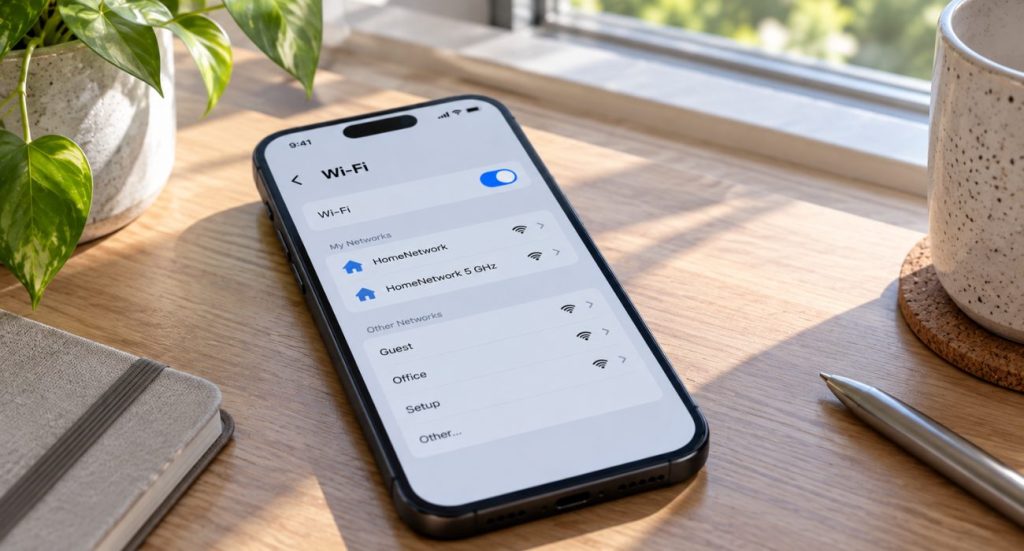
TL;DR: If your printer won’t connect to your phone or tablet, the problem is usually a Wi-Fi issue, an incomplete setup, missing app permissions, or an offline printer. Make sure your phone and printer are connected to the same Wi-Fi network, then check the printer’s connection, app settings, and print queue before trying more advanced fixes.

You were about to print something from your phone, and suddenly your printer won’t connect. Of course, it always seems to happen when you’re in a hurry, especially when you need a boarding pass, homework assignment, work document, or a couple of photos.
In this guide, we’ll go over the most common reasons your printer isn’t connecting to your phone and what you can do to get everything working again. While every brand has its own app and settings, the troubleshooting steps are very similar for HP, Epson, Canon, Brother, and most other wireless printers, with similar fixes for an iPhone, Android phone, or tablet.
Quick troubleshooting guide
Not sure which problem you have? Find the symptom that best matches what you’re seeing on your mobile device, then select the likely cause to jump to the detailed fix.
| If you’re seeing this… | The most likely cause |
|---|---|
| Your phone can’t find the printer, or it doesn’t appear in the printer list | Your phone and printer aren’t connected to the same Wi-Fi network |
| Your printer was working before but suddenly disappeared | Your printer disconnected from Wi-Fi |
| This is the first time you’re connecting the printer to your phone | Your printer hasn’t been set up yet |
| Your phone connects to Wi-Fi, but the printer won’t connect during setup | Your printer doesn’t support 5 GHz Wi-Fi |
| The printer appears on your phone but says “Offline” | Your printer is turned on, but it still shows as “Offline” |
| The printer doesn’t respond until you press a button | Your printer is in sleep mode |
| The printer app can’t detect your printer or asks for permissions | Your printer app doesn’t have permission to access your network |
| Your document stays on “Printing…” or nothing happens after you tap Print | A stuck print job is blocking new documents |
| Your home Wi-Fi is down, or you need to print without a router | You need to print without your home Wi-Fi |
1. Your phone and printer aren’t connected to the same Wi-Fi network
This is probably the most common reason your phone can’t find your printer.
Even if both devices say they’re connected to Wi-Fi, they may actually be on different networks. For example, some routers isolate traffic between the two wireless bands or treat them as separate networks during device discovery, which can prevent your phone from finding the printer.
It can also happen after changing your Wi-Fi password, replacing your Wi-Fi router, or if your phone automatically connects to a guest network instead of your main home network.
How to fix it
- Open Settings > Wi-Fi on your phone and note the exact network name (SSID) you’re connected to. On an Android phone, the Wi-Fi menu is usually under Settings > Network & internet > Internet or Settings > Connections > Wi-Fi, depending on the device.
- Check which Wi-Fi network your printer is using.
- If your printer has a display, open its Wireless or Network Settings menu.
- If it doesn’t have a screen, many printers let you print a Network Configuration or Wireless Status page by pressing a button combination. (The exact method depends on the brand.) For example, on many HP printer models without a screen, you can press the Wireless and Information buttons at the same time. If you’re not sure, refer to your printer’s manual or the manufacturer’s support site.
- Compare the network names on both devices. Look closely, since names like “Home,” “Home-5G,” and “Home_EXT” may represent different Wi-Fi bands or an extender network, even when both devices appear to be connected.
- If they’re different, reconnect the printer to the same Wi-Fi network your phone is using.
- Once both devices are on the same network, reopen your printing app and try printing again.
✨ Tip: If your router broadcasts separate 2.4 GHz and 5 GHz Wi-Fi names, try connecting both your phone and your printer to the same one. Many older printers only support 2.4 GHz networks.
2. Your printer disconnected from Wi-Fi
If everything looks fine on your phone, don’t assume it’s the problem. Printers occasionally lose their Wi-Fi connection on their own, especially after a router restart or power outage.
This can happen after a power outage, restarting your router, changing your Wi-Fi password, replacing your router, or even after the printer has been sitting unused for many weeks. When that happens, your mobile device can’t find the printer because it’s no longer connected to your home network.
One easy clue is that other devices in your home still have internet access, but your printer suddenly appears as Offline, Unavailable, or simply doesn’t show up when you try to print. This is a common issue for users after a power outage or router reset.
How to fix it
- Check if your printer still shows a Wi-Fi connection.
- If it has a display, look for the Wi-Fi icon or open Network or Wireless Settings.
- If the Wi-Fi icon is missing or shows a warning symbol, the printer has likely disconnected.
- Reconnect the printer to your home Wi-Fi.
- Use the printer’s control panel to select your Wi-Fi network and enter the password again. Double-check the password as you type it. An incorrect password can prevent the printer from reconnecting, and many printers don’t show a clear error message when that happens.
- Many brands also let you reconnect through their mobile app, such as HP Smart, Canon PRINT, Epson Smart Panel, or Brother Mobile Connect.
- Once the printer reconnects, wait about a minute for it to obtain a new network address.
- If the printer still won’t reconnect, restart both the printer and your Wi-Fi router. Turn them off, wait about 30 seconds, then turn the router back on first. After the Wi-Fi is fully working again, turn the printer back on and reconnect it if needed.
✏️ Note: If your printer disconnects from Wi-Fi regularly, check for printer firmware updates. Manufacturers often release updates that improve wireless stability and fix connection issues.
You can usually run the update from the printer’s control panel, the manufacturer’s app, or a computer connected to the same network. On an HP printer, for example, check for updates through the HP Smart app or the manufacturer’s support page for your model.
3. Your printer hasn’t been set up yet
Many phones support built-in printing features like AirPrint on iPhone and Mopria on Android. However, those features only work after your printer has been properly set up and connected to your network.
If this is a new printer, or you’ve never used it with your phone before, you may need to install the manufacturer’s app first. The app helps your phone discover the printer, connect it to Wi-Fi, and register it for future printing.
How to fix it
- Download your printer manufacturer’s official app from the App Store or Google Play.
- Open the app and choose Add Printer or Set Up a New Printer.
- Follow the on-screen instructions to connect the printer to your Wi-Fi network. Keep your phone close to the printer during setup, and have your Wi-Fi password ready.
- If setup fails partway through, often because of an incorrect Wi-Fi password or a weak signal, close the app, restart the printer, and run the setup again.
- Once setup is complete, try printing again from your phone.
Common printer apps include:
| Brand | Official app |
| HP | HP Smart |
| Canon | Canon PRINT |
| Epson | Epson Smart Panel |
| Brother | Brother Mobile Connect |
If your printer supports AirPrint or Mopria, you may only need the manufacturer’s app the first time you set it up. Always download the app from the official app store rather than a third-party site to avoid fake printer apps or driver pages.
4. Your printer doesn’t support 5 GHz Wi-Fi
Many newer routers broadcast both 2.4 GHz and 5 GHz Wi-Fi networks. While your phone can usually connect to either one, many older printers only support 2.4 GHz.
If you try to connect the printer to a 5 GHz-only network, the setup may fail or the printer may never appear in your phone’s printer list.
How to fix it
- Check if your printer supports 5 GHz Wi-Fi. Many older models only work on 2.4 GHz. You’ll find this in the printer’s specifications on the manufacturer’s support page or in the user manual.
- During setup, connect the printer to your 2.4 GHz home network.
- If your router broadcasts separate Wi-Fi names, choose the one labeled 2.4 GHz.
- If your router uses a single network name for both bands, you usually don’t need to change anything. However, if the printer can’t connect, temporarily enable a dedicated 2.4 GHz network in your router settings or refer to your router manufacturer’s instructions for connecting older smart devices. If you can’t find the setting, contact your internet provider for further assistance with the router configuration.
Once the printer is connected to your home network, your phone can often stay on 5 GHz and still print normally, as long as both devices are connected to the same router.
5. Your printer is turned on, but it still shows as “Offline”
The lights are on, the screen is awake, and everything looks normal, yet your phone still says it’s offline.
Being turned on isn’t the same as being connected. Your printer may be offline because it has lost its network connection, gotten stuck after a software update, or stopped responding even though it appears to be working normally.
If your printer shows Offline, Unavailable, or never appears in your phone’s print menu, it’s usually a sign that it isn’t communicating with your phone anymore.
How to fix it
- Turn the printer off and unplug it, if possible.
- Wait about 30 seconds before turning it back on.
- Restart your phone as well to clear any temporary connection issues.
- Open your printer app and check if the printer appears as Online.
- If it still shows Offline, remove the printer from the app and add it again. On an Android phone or tablet, you can also clear the print cache by going to Settings > Apps, opening the option to show system apps, and selecting Print Spooler > Storage > Clear cache.
✍️ Tip: If restarting doesn’t help, check that your printer is still connected to your home Wi-Fi. A printer that’s powered on but disconnected from the network will often appear offline.
6. Your printer is in sleep mode
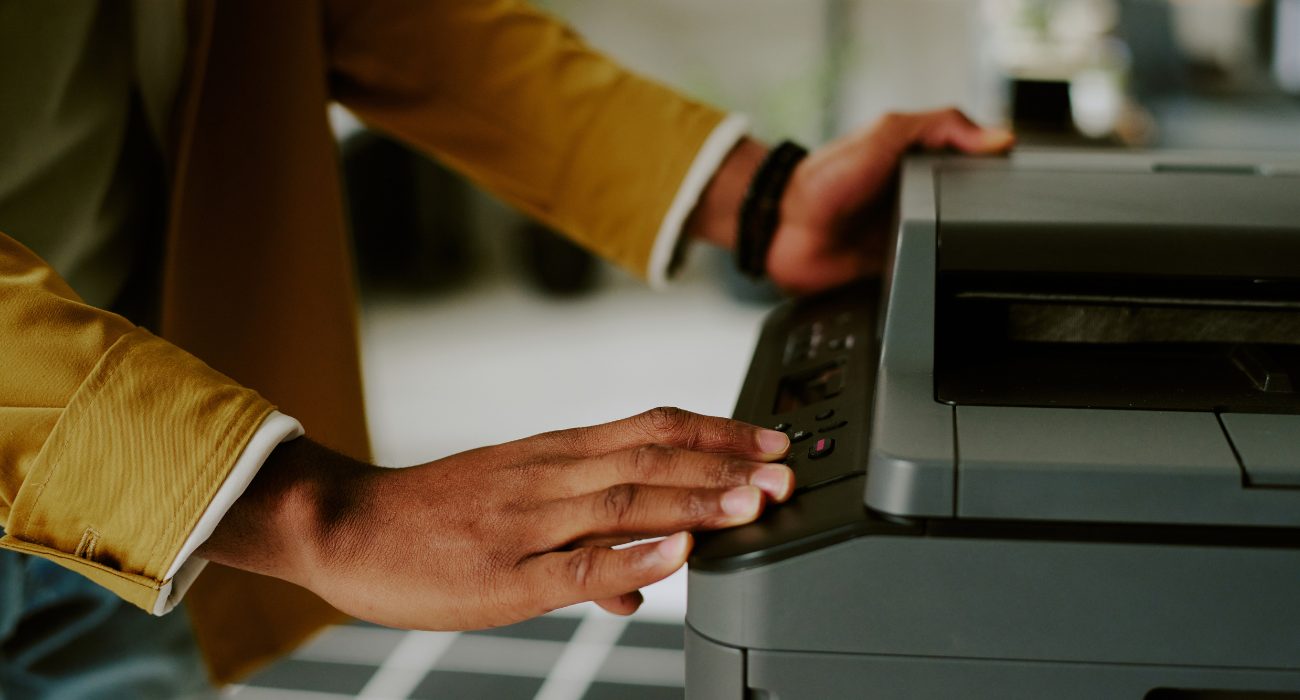
Many modern printers automatically enter sleep mode after sitting idle for a while to save energy. While the printer is still turned on, it may temporarily stop responding to your phone or take longer to appear in the printer list.
This is especially common if you haven’t printed anything for a day or two. You might think your phone can’t find the printer, when in reality the printer simply hasn’t “woken up” yet. Some models go a step further and turn off their wireless connection during deep sleep, so your mobile device won’t see them at all until they wake up.
How to fix it
- Press the printer’s Power, Home, or OK button to wake it up. On many models, pressing almost any button is enough.
- Wait a few seconds for the printer to reconnect to your network.
- Open your printer app again and check if the printer appears.
- If it still doesn’t respond, restart the printer and try printing again.
⭐ Tip: If your printer frequently goes to sleep and becomes difficult to find, check its Power Settings. Many models let you adjust how long they wait before entering sleep mode.
7. Your printer app doesn’t have permission to access your network
When you first install a printer app, your phone or tablet asks if it can access your local network, nearby devices, or Bluetooth. Those permissions let the app search for printers connected to your home network.
If you accidentally tapped Don’t Allow, the app may open normally but never detect your printer. It’s easy for iPhone and Android users to miss this request because it can appear quickly during setup.
How to fix it
On iPhone
- Open Settings.
- Scroll down and tap your printer app (such as HP Smart or Canon PRINT).
- Make sure Local Network is turned on.
- If the app also requests Bluetooth, enable that as well.
On Android
- Open Settings > Apps.
- Select your printer app.
- Tap Permissions.
- Allow Nearby Devices if available. Some phones may also require Bluetooth or Location permissions to discover printers during setup.
After changing the permissions, completely close the app and open it again before searching for your printer. If you never saw a permissions request, reinstalling the app usually prompts your phone to ask again. While you’re at it, download the latest version of the app. An outdated printer app may stop detecting printers correctly after your phone gets a software update.
8. A stuck print job is blocking new documents
If a previous print job failed because of a temporary Wi-Fi interruption, low ink, a paper jam, or the printer being turned off, it may remain stuck in the print queue and block any new documents you send.
When that happens, your phone keeps trying to send new documents behind the failed job. As a result, your printer may appear to be connected, but nothing prints, or your document stays on “Printing…” without making any progress.
This issue is especially common if you canceled a print job halfway through or your Wi-Fi disconnected while the document was being sent.
How to fix it
- Open your phone’s print queue or the printer manufacturer’s app and cancel any pending print jobs. On an Android device, swipe down to open your notifications, then tap the print job to cancel it. On an iPhone, open the App Switcher while the print job is active and select Print Center.
- Restart the printer to clear any jobs still stored in its memory.
- Turn your phone’s Wi-Fi off for a few seconds, then turn it back on to refresh the connection between the two devices.
- Send the document again and wait to see if it prints normally.
- If the same job gets stuck again, try printing a different document to determine if the problem is with the file itself.
If you can print from a computer but not from your phone, the issue is most likely the phone or the app rather than the printer, so focus on the permission and app steps above.
9. You Need to Print Without Your Home Wi-Fi
If your Wi-Fi router is down, your home network keeps dropping, or you’re somewhere without internet access, you can still print by connecting your phone straight to the printer. Many modern wireless printers support Wi-Fi Direct, which creates a private connection between the printer and your mobile device without using your home router.
It’s also a handy workaround when your phone and printer keep landing on different networks, or when you just need one quick print and don’t want to troubleshoot your whole network first.
How to fix it
- On the printer, open the Wireless or Network Settings menu and turn on the direct printing option. On many HP printer models, it’s labeled HP Wireless Direct or Wi-Fi Direct.
- Find the printer’s direct network name and password. Most printers show them on the display, or you can print a network configuration page.
- On your phone or tablet, open your Wi-Fi settings and connect to the printer’s network. The name usually includes the printer brand or model.
- Open the printer app or your phone’s built-in print option and send your document.
- When you’re done, reconnect your phone to your home Wi-Fi.
✏️ Note: While your phone is connected to the printer’s direct network, it won’t have internet through Wi-Fi. If it switches to mobile data for a moment, that’s normal.
Wrapping up
Most printer connection problems are easier to fix than they first appear. In many cases, the issue is simply that your phone and printer aren’t on the same Wi-Fi network, the printer lost its connection, or it just needs to be set up again.
Start with the simplest fixes first and work your way through the troubleshooting steps in this guide. In most cases, you won’t need to change advanced settings or spend hours troubleshooting before your printer is back online.
Still can’t get your printer to connect? If you’ve worked through the steps above and nothing has changed, the issue may be deeper than a simple Wi-Fi problem. If you need further assistance or have a question about your specific printer model, Geeks on Site can help with printer setup, troubleshooting, and repairs for virtually any brand. Help is available through remote support or an in-home visit, so you can get back to printing without the frustration.
FAQs
Can I print from my phone without installing the manufacturer's app?
Yes. If your printer supports AirPrint (iPhone) or Mopria (Android), you can often print without installing any additional software. However, many printers still require the manufacturer’s app for the initial setup or to access advanced features such as scanning, maintenance tools, or firmware updates.
How do I put my printer into pairing mode?
Most printers enter pairing or setup mode automatically when you start the setup process through the manufacturer’s app. However, some models require you to enable it manually before your phone can find the printer.
Look for a Wi-Fi, Wireless, or Pair button on the printer and hold it for a few seconds until the wireless light starts blinking. If you’re not sure which button to use, check your printer’s user manual or the manufacturer’s support website, since the steps vary by brand and model.
Why is my Bluetooth printer not connecting?
Bluetooth printers can fail to connect if Bluetooth is turned off, the printer is already paired with another device, or the previous pairing became corrupted.
Make sure Bluetooth is enabled on both your phone and the printer, then check whether the printer is already connected to another nearby device. If it still won’t pair, remove the printer from your phone’s Bluetooth settings and pair it again from scratch.
Why is my iPhone blocking printing?
In most cases, your iPhone isn’t actually blocking printing. The problem is usually that the printer app doesn’t have permission to communicate with devices on your local network.
Go to Settings > Privacy & Security > Local Network and make sure your printer app has permission enabled. If the problem started after an iOS update, try closing and reopening the app or restarting your iPhone before trying again.
Last Updated on October 1, 2026