

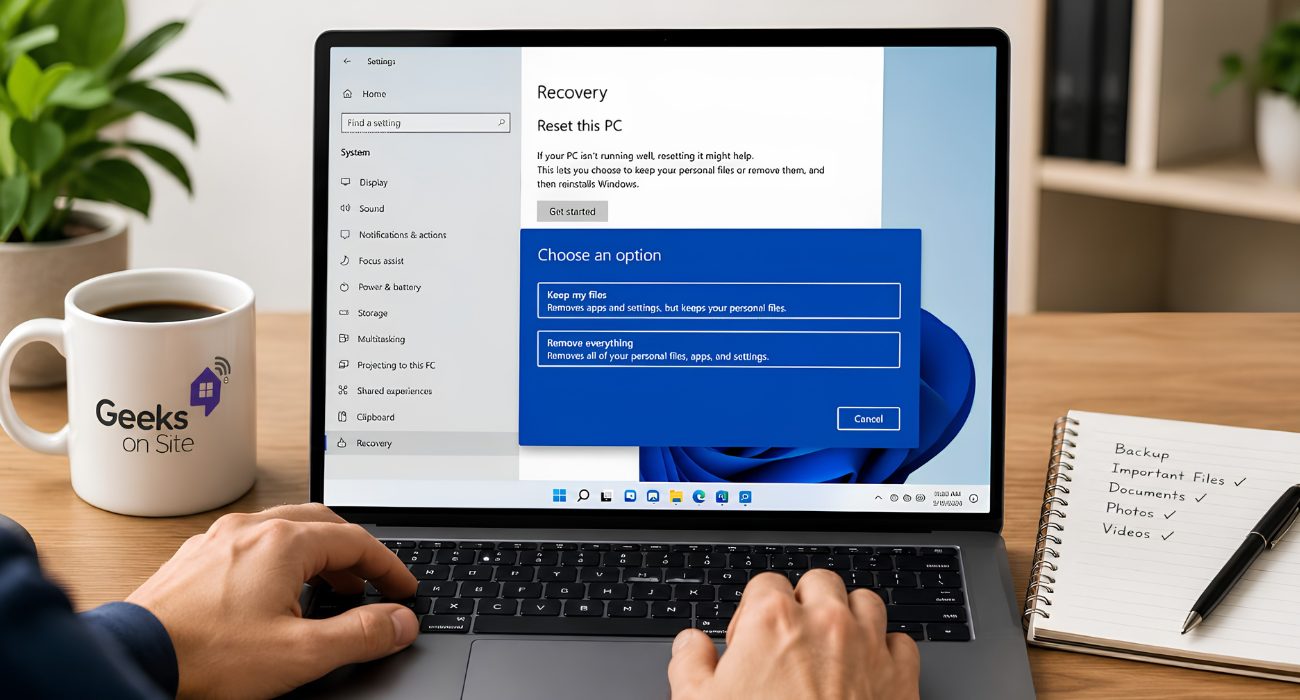
TL;DR: To factory reset Windows 11 without losing files, go to Settings > System > Recovery > Reset PC, then choose Keep my files. Windows reinstalls the operating system while preserving your personal files, although your apps, drivers, and custom settings will be removed. If you’re selling or giving away the PC, choose Remove everything instead. The process usually takes between 30 and 90 minutes.
In this guide:
- Before you start, create a backup
- How to factory reset Windows 11: A step-by-step guide
- What to expect after the reset
- Things to do after resetting Windows 11
- How to reset Windows 11 if it won’t start
- What to do if the reset fails or freezes
- Need help resetting Windows 11?
- FAQs
If your Windows 11 PC has become slow, keeps crashing, or just isn’t running like it used to, a factory reset can often solve the problem. The good news is that you don’t necessarily have to lose your personal files in the process.
Most people don’t realize that choosing Keep my files only preserves personal data. Your installed apps, drivers, and custom settings will still be removed, so it’s worth knowing exactly what to expect before you begin. Here’s how to factory reset Windows 11 safely, step by step.
Before you start, create a backup
Before you start, back up anything you can’t afford to lose. Although the Keep my files option is designed to preserve your personal data, unexpected issues can happen during the reset, and having a backup is the easiest way to avoid losing anything important.
- Copy your most critical folders to OneDrive or an external hard drive.
- Note down your app logins, software product keys, and licenses because you will have to reinstall your programs later.
- If you’re on a laptop, plug it into wall power right now so it doesn’t die mid-reset.
Spending ten minutes on a backup now can save you hours of frustration later. However, if your system is too slow to even create a backup, you might want to check out our guide on how to speed up a slow computer before deciding to reset your PC.
How to factory reset Windows 11: A step-by-step guide
Follow these steps to reset Windows 11 while keeping your personal files:
- Open your Settings app (or press the Windows key + I).
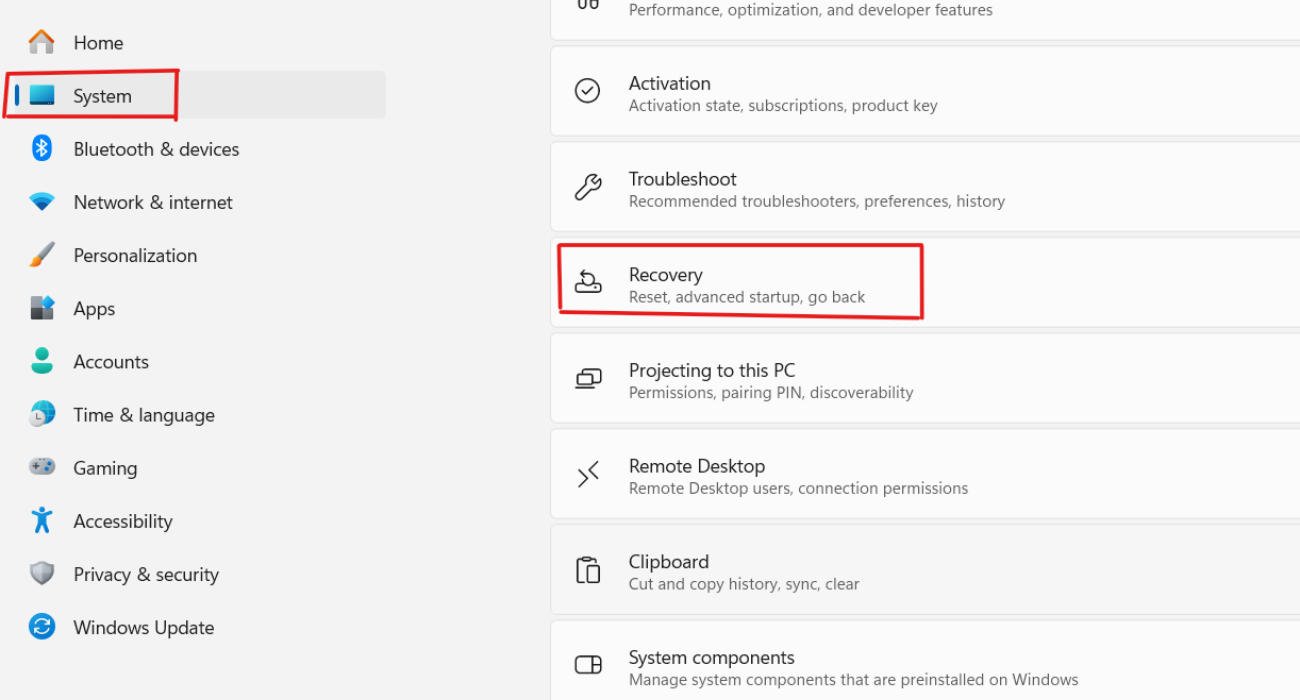
- Navigate to System, then scroll down and click on Recovery.
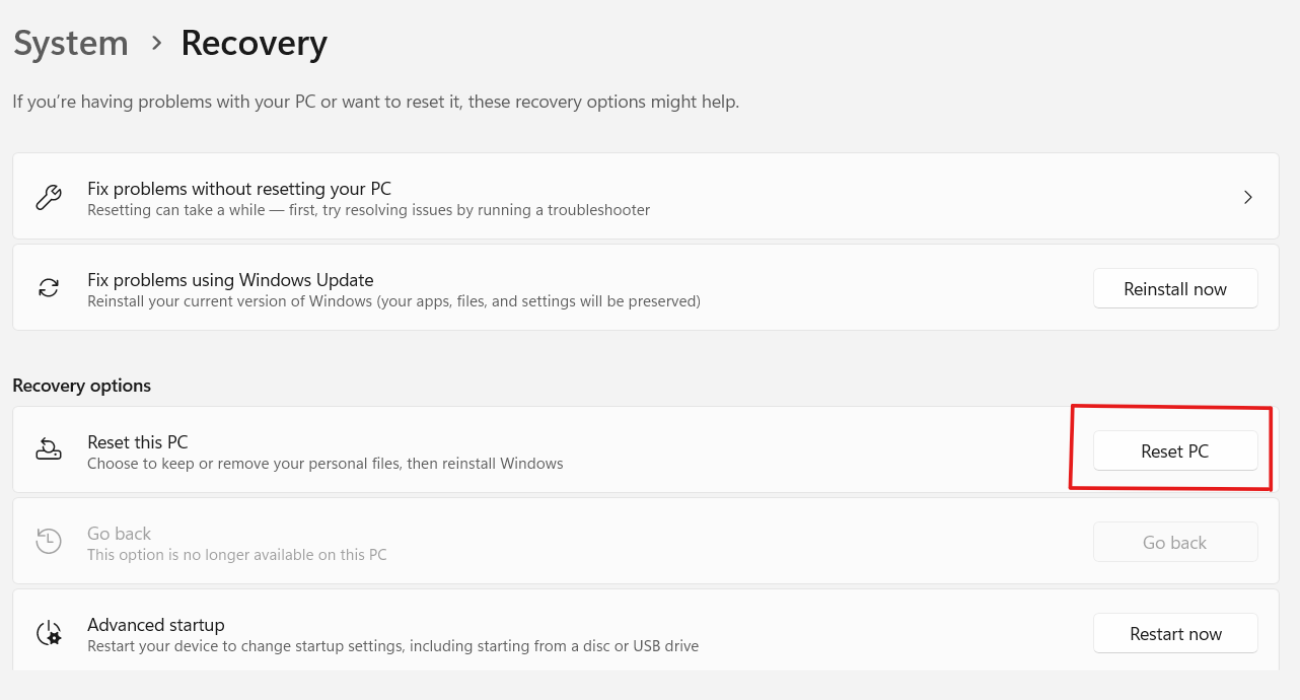
- Under the “Recovery options” section, look for “Reset this PC” and click Reset PC.
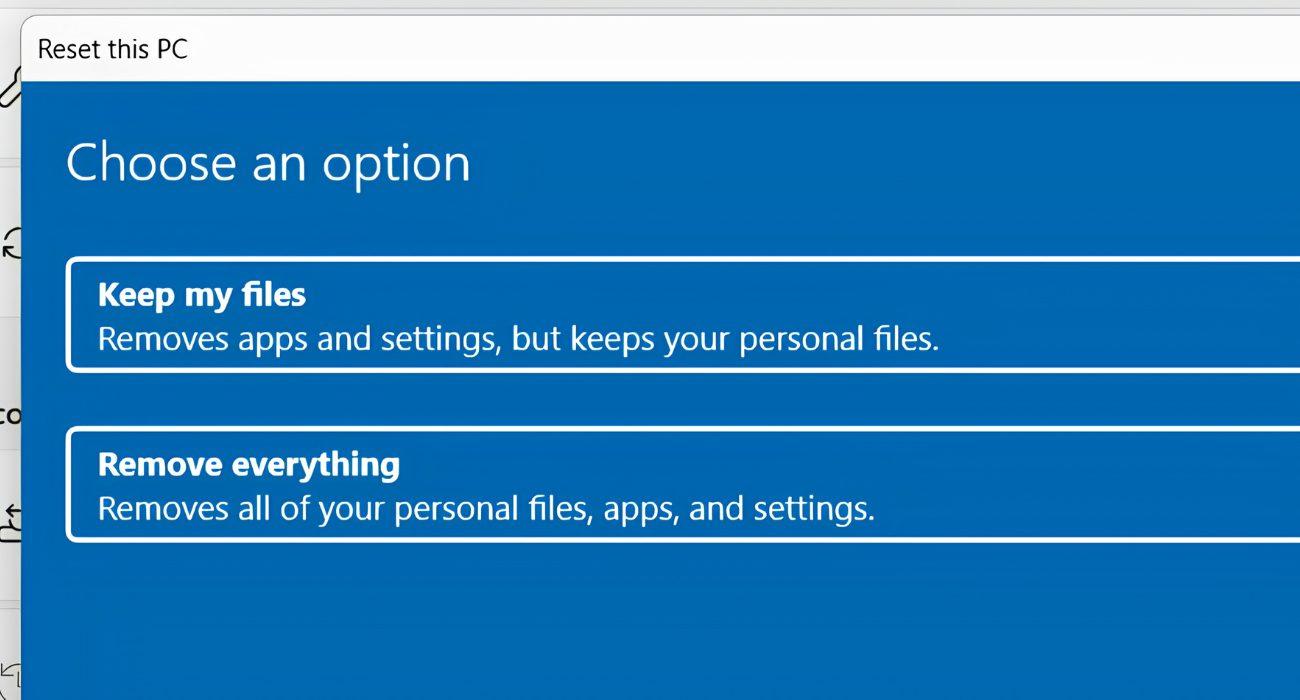
- A blue window will pop up. Click Keep my files.
What “Keep My Files” Actually Does
This is the part people misunderstand the most, so let’s break down exactly what stays and what goes when you choose to reset your PC.
- [KEEPS]: Your personal files, including documents, photos, videos, music, and downloads stored in your main user folders. These files should remain in place after the reset.
- [REMOVES]: Installed apps, third-party drivers, and any custom settings you’ve changed since setting up the PC.
Choosing Remove everything wipes your personal files too. That option is better suited for selling, donating, or giving away the PC, rather than troubleshooting a computer you plan to keep.
| Option | Keeps Files? | Keeps Apps? | Best For |
| Keep my files | Yes | No | Fixing a slow or buggy PC that you plan on keeping. |
| Remove everything | No | No | Selling, donating, or giving the computer a completely fresh start. |
- Pick how you want to reinstall Windows:
- Cloud download: Downloads a fresh copy of Windows directly from Microsoft. It requires a stable internet connection and uses many gigabytes of data.
- Local reinstall: Rebuilds the operating system using the recovery files already sitting on your computer’s drive.
🤓 Quick tip: If you’re on a limited or metered internet connection, go with the Local reinstall option to avoid a massive data download.
- Review your final settings summary, then click Reset.
- Your PC will automatically restart and begin to reset Windows 11 to factory defaults.
Do not turn your PC off or unplug it during the reset. Once it finishes, sign back into your profile and begin reinstalling your applications.
I am text block. Click edit button to change this text. Lorem ipsum dolor sit amet, consectetur adipiscing elit. Ut elit tellus, luctus nec ullamcorper mattis, pulvinar dapibus leo.
What to expect after the reset
Once the reset is complete, Windows will walk you through a few familiar setup screens, like choosing your region, keyboard layout, and network connection. After that, sign back in with your Microsoft account or local password and give Windows a few minutes to finish setting everything up.
If you chose Keep my files, your desktop may look different because shortcuts for removed apps will be gone. Your documents, photos, and videos should still be available in folders such as This PC > Documents and This PC > Pictures. Windows may also create a file called Removed Apps.html on your desktop, showing which programs were uninstalled.
Either way, this is the point where you start reinstalling your applications and, if needed, restoring files from the backup you made earlier.
Things to do after resetting Windows 11

✨ Check for Windows Updates
Open Settings > Windows Update and install any available updates. This can also reinstall missing drivers and security patches.
🌟 Reinstall the apps you use most
Windows removes installed programs during the reset, so you’ll need to download and reinstall the ones you still use. If you’re not sure what was removed, check the Removed Apps.html file saved on your desktop.
📁 Restore your backup (if needed)
If you backed up files before resetting your PC, now’s the time to copy them back. If you chose Keep my files, you probably won’t need this step, but it’s helpful if anything didn’t transfer as expected.
💡 If your screen still looks stretched or oversized after resetting Windows, your display resolution or scaling settings may need to be adjusted manually. Here’s how to get your computer screen back to normal size.
How to reset Windows 11 if it won’t start
If your PC is working normally and you can reach the desktop, use the standard reset steps above. But if Windows won’t boot, freezes during startup, or never makes it past the loading screen, you’ll need to access the Windows Recovery Environment (WinRE) instead.
Here’s how to open WinRE and reset Windows 11 when you can’t reach the desktop.
- From the sign-in screen: Hold down the Shift key on your keyboard while clicking the Power icon > Restart on the screen.
- If it won’t even boot to the sign-in screen: Turn your PC completely off. Turn it on, and the second the manufacturer’s logo appears, hold the physical power button down until it forces off again. Do this three times in a row. On the fourth boot, Windows will automatically trigger Recovery Mode.
- Once the blue screen appears, navigate to: Troubleshoot > Reset this PC > Keep my files, and then follow the standard setup prompts.
If your computer refuses to even load into Recovery Mode, you’re likely dealing with a deeper drive failure or physical hardware issue. At that stage, you’ll need to hand it over to a professional computer repair service to extract your data safely.
What to do if the reset fails or freezes
Sometimes a Windows 11 reset doesn’t go as planned. It may freeze, get stuck at a certain percentage, or display an error before it finishes.
This usually happens because of heavily corrupted system files, a physically failing hard drive, an interrupted background update, or malware that’s interfering with the reset process.
If it happens to you, here is what to do:
- Force the computer to reboot into Recovery Mode.
- Try the reset one more time, but make sure to select Cloud download instead of Local reinstall to bypass any corrupted local system images.
- If the second attempt also fails, freezes, or returns another error, stop and avoid restarting the reset repeatedly.
Repeated failed attempts can make recovering your files more difficult. At that point, it’s best to have a computer repair technician check the drive, back up any recoverable data, and reinstall Windows safely.
Need help resetting Windows 11?
A factory reset usually fixes a slow or glitchy PC, but if it freezes, fails, or you’re just plain unsure if your data is truly safe, Geeks on Site can help. Our experts securely back up your data, execute a clean reset, and restore your computer the right way.
FAQs
How long does a Windows 11 reset take?
A standard reset generally takes anywhere from 30 to 90 minutes. The exact timing depends heavily on whether your computer uses a fast SSD or an older hard drive, as well as whether you choose the cloud download option or local reinstallation.
Is resetting Windows 11 the same as reinstalling Windows?
Not exactly. Resetting Windows uses a built-in recovery tool that reinstalls the operating system for you, with the option to keep your personal files. A clean reinstall requires creating installation media, booting from a USB drive, and installing Windows from scratch. For most people trying to fix a slow or unstable PC, a reset is the easier and safer option.
Can I reset Windows 11 from Recovery Mode?
Yes, you can easily reset Windows 11 to factory settings from Recovery Mode. You can access this menu by holding down the Shift key while clicking Restart on your login screen, then choosing Troubleshoot followed by Reset this PC.
Does a factory reset remove viruses from Windows 11?
In most cases, yes, especially if you choose “Remove everything,” which wipes the partition clean and destroys most standard malware. But it’s not a guarantee. For example, threats like rootkits can bury themselves in your PC’s firmware or recovery partition and survive a reset, and if you choose “Keep my files,” an infected file hiding in your Downloads folder can survive right along with it. Restoring an unverified backup afterward can reinfect your clean system, too. For deep or persistent infections, a virus and malware removal service is the safer bet.
Last Updated on July 15, 2026



