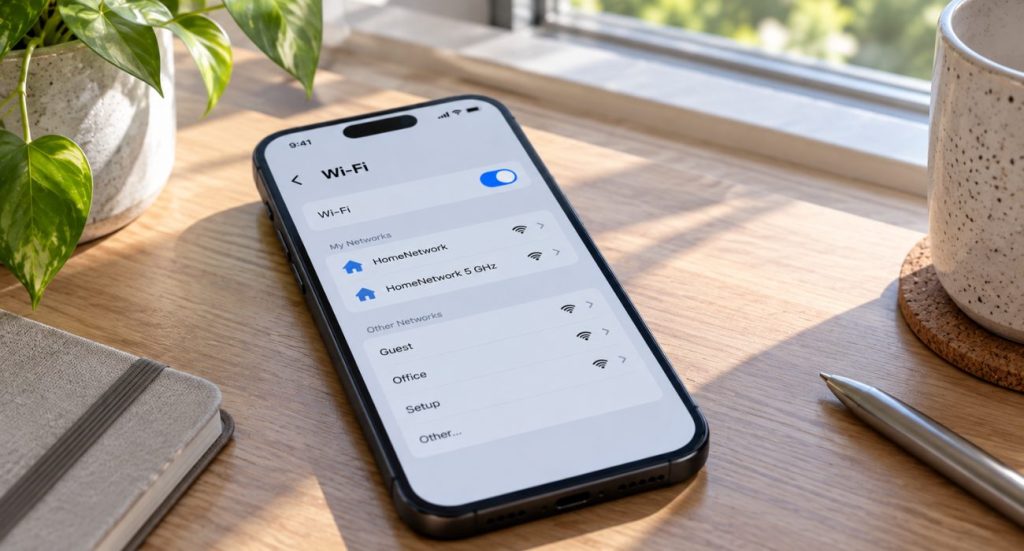
Wi-Fi is an essential part of our routine, keeping us connected at home, work, and everywhere in between. But what if your computer suddenly won’t connect? Looking for no signal or an error message can be frustrating, but don’t worry—there are solutions.
In this article, we’ll go over common points why your computer might not be connecting to Wi-Fi and learn how to fix them. If you have little tech experience or know your way around a computer, these simple steps can guide you to get back online faster.
What’s Behind Your PC’s Reluctance to Connect to Wi-Fi?
Wi-Fi is an important part of current life, but sometimes it can be temperamental. Before you begin complicated troubleshooting procedures, it’s important to get to know what might be causing the issue. In many cases, it’s something as simple as a small problem in the network settings or issues with the adapter that prevents your computer from connecting.
Navigating Wi-Fi Woes: First Connection Steps
When you face Wi-Fi issues, it’s easy to start troubleshooting right away. But before going into the advanced settings, try reconnecting first. Sometimes, small problems can cause brief glitches, and a simple reconnection can solve the problem. Double-check your Wi-Fi settings and make sure you’re within the router’s range. Often, the easiest solutions are the most effective.
Have You Checked Your Network Adapter?
The network adapter is the link between your computer and the Wi-Fi network. If it’s not working, you won’t be able to connect. Open the Device Manager on Windows 10 and make sure that your device adapter drivers are up-to-date. Sometimes, a straight update can rectify connectivity issues.
Is Your Wi-Fi Network Playing Hide and Seek?
There are instances where your Wi-Fi network might vanish from the list of available networks. When this happens you can try to restart your device, straighten wires, or re-configure the settings. Make sure, your Wi-Fi network’s name is present on all computers.
Navigating Connectivity Challenges
When trying to connect to the internet, many users may often find their computer struggling when connecting to the internet. Such issues can arise from a ton of issues, ranging from a misconfigured network to settings that need adjustments in the device manager. It’s very important to diagnose the reason, moreover, make sure that it’s online.
Navigating Internet Connection Challenges on Laptops
At times, your laptop may frustratingly refuse to connect to the internet. One common fix after a system or software update is making sure that your device drivers, particularly for the network card, are up-to-date.
Going into the device settings and having automatic updates for drivers can often solve this issue. Regular maintenance and trying to keep up with updates are important for a smoother online experience.
Wondering why your laptop might not connect even if your phone does? Read our guide.
The Restart Mantra: Does It Work?
When in doubt, restart! It’s a first step in troubleshooting. A quick start can often reset your system and fix minor glitches. Though, if the problem persists after a restart, it might be time to dig deeper into the issue.
Airplane Mode Accidentally On?
It may sound basic, but at times the airplane mode gets accidentally turned on, cutting off every network connection. Check if the airplane mode is enabled. If you see the airplane icon on your taskbar, turn it off to restore your internet connection.
Why Windows 10’s Network Troubleshooter Might Be Your Best Friend
Windows 10 includes a useful tool: the Network Troubleshooter. This tool detects and resolves common network issues, such as incorrect settings or issues with the network adapter. It’s a valuable step in your troubleshooting process.
Has Your Wi-Fi Adapter Gone Rogue?
The Wi-Fi adapter connects your PC to the wireless device. If it’s not functioning, your connection might drop. Check for outdated drivers or hardware issues. Updating your network adapter driver with the Device Manager may fix the issue and regain connectivity.
What Role Does Your Internet Service Provider Play?
Sometimes, the problem lies with your Internet Service Provider (ISP) rather than your device. Service interruptions from your ISP can disrupt your connection. Before diving into any difficult solutions, it’s a good idea to contact your ISP. They can make sure that there’s an outer wire or any service-related problems on their end.
Unveiling the Mystery Behind Random Restarts
Random restarts can be worse, and the cause is often connected to your network settings. Take a look at the ‘Advanced Charge Settings’ on your PC to make sure that everything is configured correctly. A wrong setting here might be the core reason for the disruptions. Adjusting these settings could help eliminate random restarts.
The Essence of a Fresh Start: Reboot and Reconnect
Sometimes, the easiest solution to connectivity issues is simply restarting your computer. A reboot can fix minor glitches that may be blocking your internet connection. If you’re having trouble connecting to Wi-Fi, try restarting and reconnecting. You can also try selecting a different network (if available) and then returning to your preferred one. Additionally, ensure your software and drivers are up-to-date to avoid recurring connectivity problems.
Overcoming Connection Hurdles: Post-Windows Update
Many users may experience wireless connectivity problems after a Windows update. Settings can be altered, or drivers may become outdated, causing your laptop to struggle with Wi-Fi connectivity. If this works, check your system settings for driver updates or any multiple updates to configurations. While it’s necessary to keep your system updated, it’s equally essential to ensure that everything is running smoothly after an update.
The Final Tweak: Resetting Your Network Settings
If you’ve tried all the steps and are still facing issues, resetting your network settings might be the last solution. This will remove all your saved networks and configurations, giving you a fresh start. However, use this as a final option, as it will require you to re-enter your Wi-Fi details and reconfigure settings.
Conclusion
Dealing with Wi-Fi issues can feel overwhelming, especially with all the settings and primary details. However, with a methodical approach and the right steps, most connection problems can be resolved quickly.
This guide provides you with the tools and knowledge to address common Wi-Fi connectivity issues on your Windows 10 PC. Remember, technology can sometimes fail, but by understanding the causes and solutions, you can ensure a smoother, more reliable connection in your everyday digital activities.
For the best and most affordable services, contact us here!
Last Updated on July 20, 2026