

On Windows, your best bet is Performance Monitor, or downloading Core Temp or HWiNFO if you have admin access. On Mac, free apps like Stats or Hot show it directly in your menu bar in seconds.
TL;DR: On Windows you have four options: Performance Monitor (no install needed), BIOS/UEFI, your manufacturer’s app (like Lenovo Vantage or HP Command Center), or a third-party app like Core Temp or HWiNFO. On Mac, you can use Terminal (Intel only), or go straight to a free app, Stats and Hot are the most reliable ones, and iStat Menus if you want a more complete paid option.
If you feel like your computer has been feeling slow lately or you just want to make sure everything’s running fine, checking your CPU temperature is easier than you think (we promise), and you don’t need to be a tech person to do it.
Why is monitoring CPU temperature important?
While this sounds a bit technical, especially for everyday users, your cpu temp is actually more important than you think. For example, have you ever noticed that your laptop tends to be slower than usual? Well, there are different reasons, but one of them is heat. When the CPU gets too hot, your device reduces its speed as a defense mechanism to avoid damage (in the tech world this is called thermal throttling). That’s why your device sometimes feels sluggish, whether you’re doing everyday tasks or playing a game online.
Another thing to keep in mind is that a computer won’t perform the same when it’s running cool versus when it’s overheating. Extreme heat can wear out components over time, and in some cases the device will shut down completely to protect itself. Think of it like this: starting work early in the morning, fresh and rested, versus late at night after a long day when you still have to write a long document, it’s not the same, right? Your computer works the same way.
✏️ If your CPU temperature looks perfectly normal but your computer still freezes, stutters, or shows visual glitches, the graphics card could be the real problem. Learn how to check your GPU health to rule out hardware issues.
What temperature should your CPU be?
Experts suggest that the ideal range is between 30 and 50°C during normal use.
If you’re playing online games, editing a video, or doing something more demanding, anywhere between 60 and 85°C is still acceptable.
But if it’s hitting around 90°C, that’s when alarms should go off. In that scenario, it’s best to call a professional computer repair team like Geeks on Site (😉) to help with these issues.
And if it’s above 95°C, don’t wait to look for professional help.
How to tell if your CPU is overheating
These might seem obvious, but here are the signs to watch out for. For example:
- Your device gets unusually noisy, with fans running loud constantly
- It suddenly slows down even for basic tasks
- The device or even the keyboard feels hot to the touch
- Your battery doesn’t last as long as it used to
- It shuts down out of nowhere

How to check your CPU temperature (Step by step)
Now that we’ve covered the basics of why CPU temperature matters, let’s see how you can check it, whether just for peace of mind or to take action if something’s off. The methods vary depending on your operating system.
On Windows
If you’re on Windows, you’ve got a few options. Some people say you can check it through Task Manager, but it just doesn’t show temperature. So here are some methods to try:

1) Using Performance Monitor
This is a good alternative when you don’t want to download heavy software or simply don’t have administrator permissions.
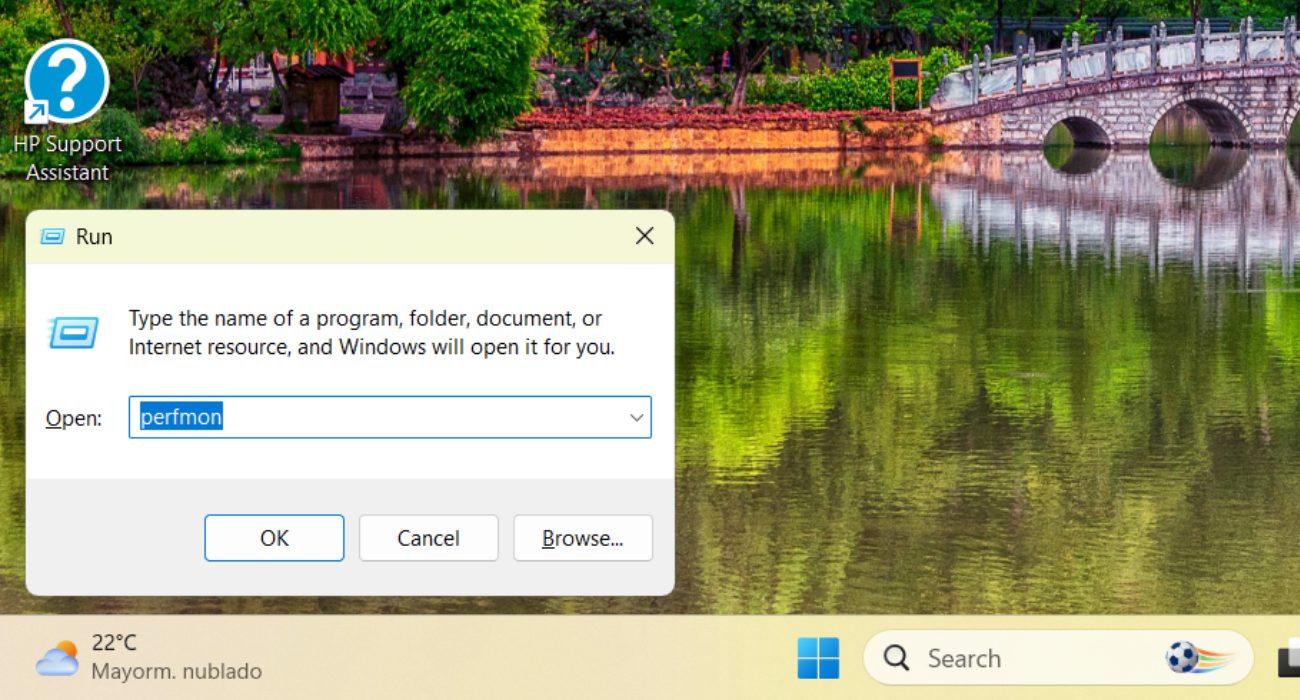
1. On your desktop or wallpaper, press Windows + “R”, type perfmon and hit Enter
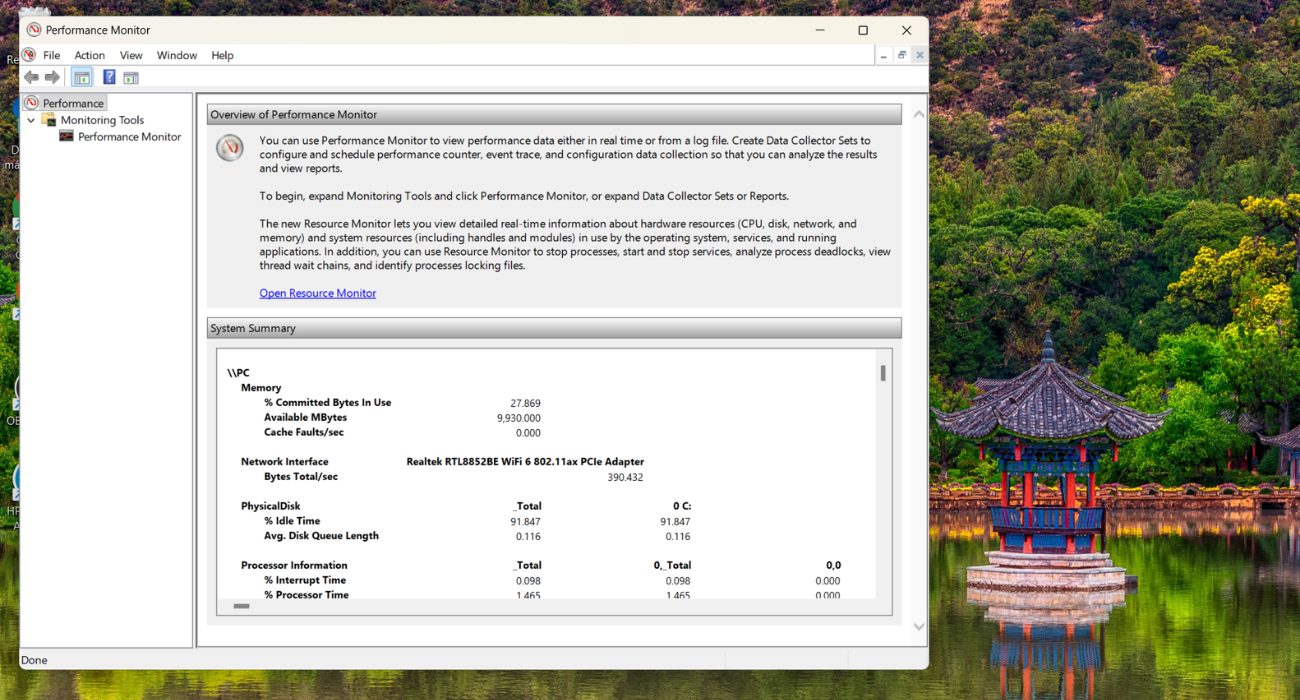
2. Then, you’ll see a window called “Performance” go to the latest tab and select Performance Monitor.
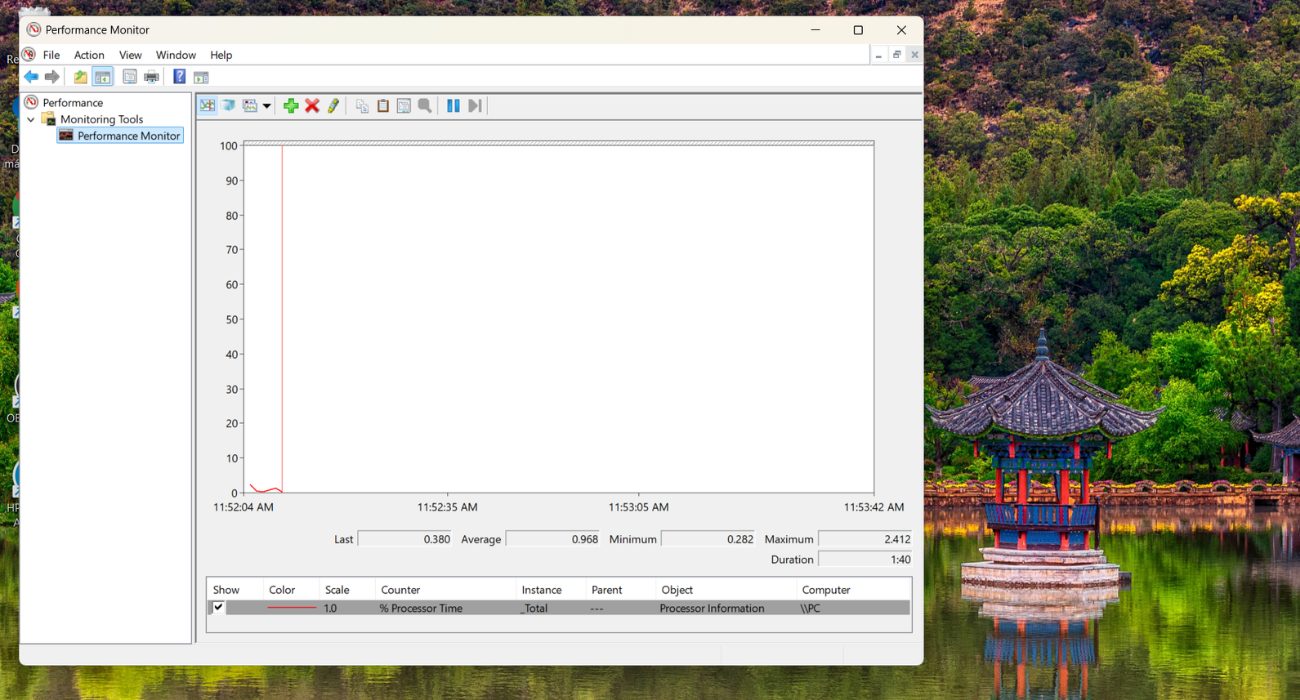
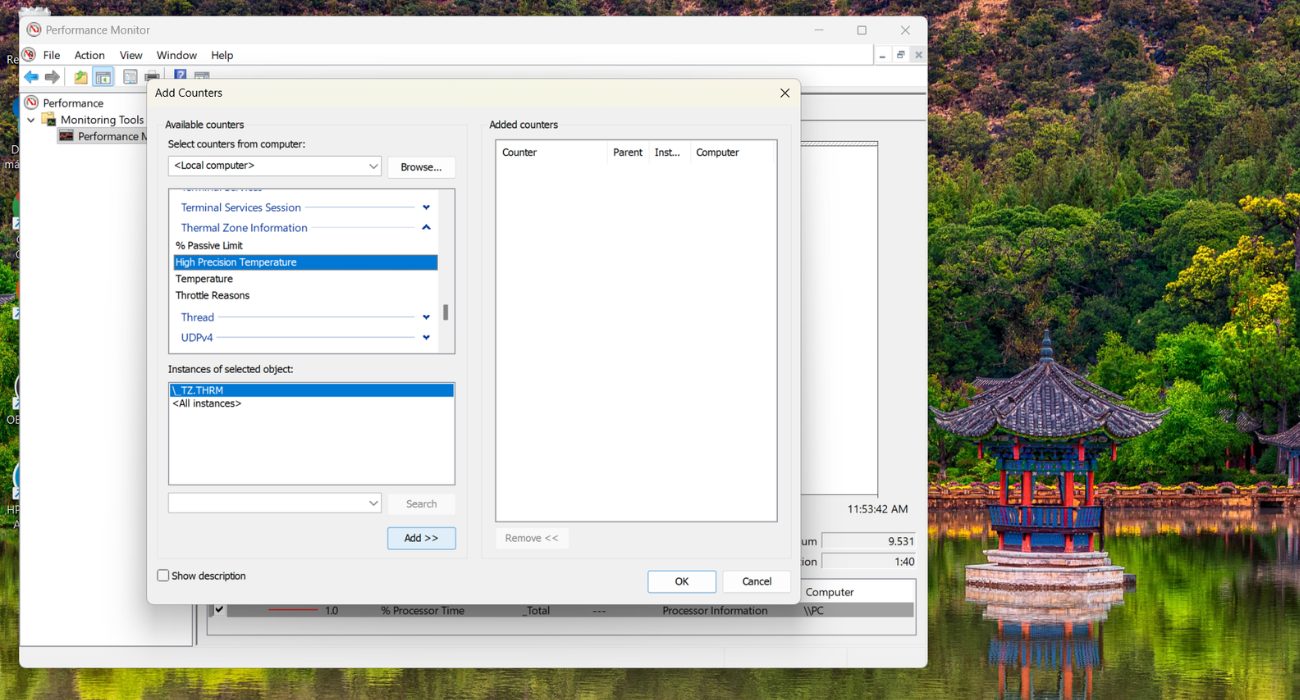
3. Right away, in the toolbar, click the green “+” button. There, Find Thermal Zone Information in the list, expand it and select High Precision Temperature. Click Add, then OK
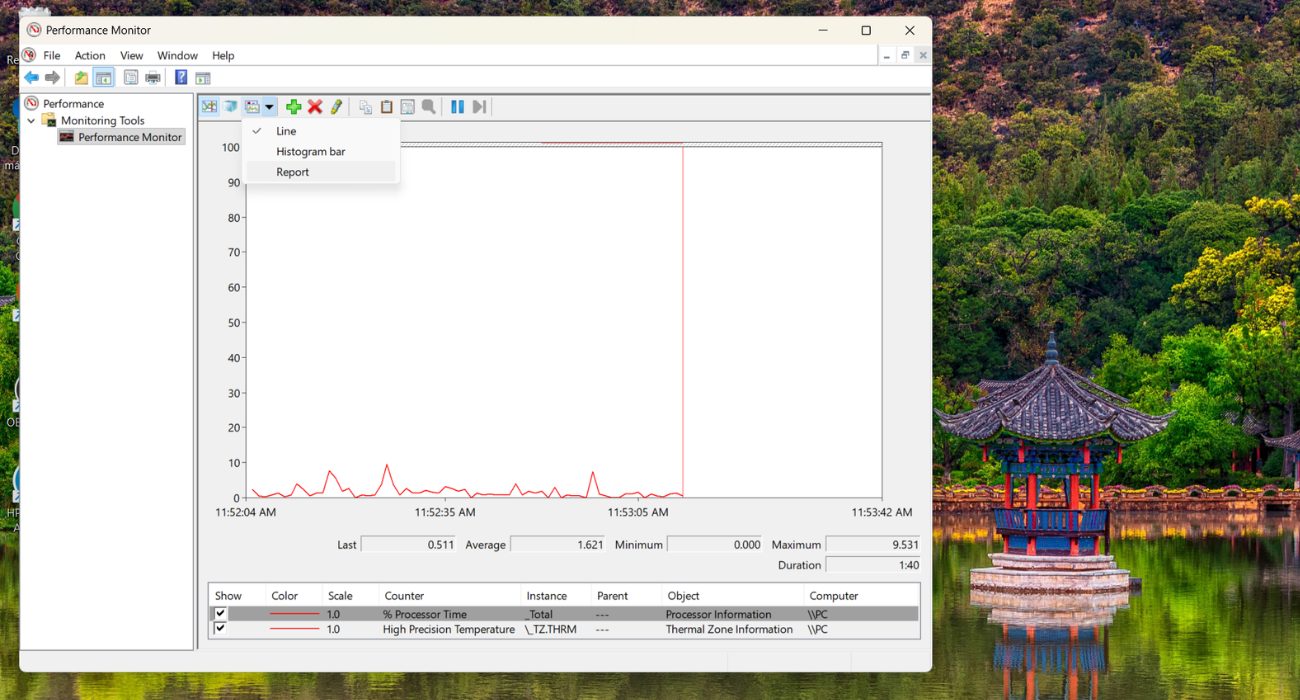
4. Once back on the graph screen, press Ctrl + “G” (or use the dropdown menu) to switch to Report view. This will show you the number cleanly without the confusing graph.
5. And that’s it! In this example, we’re seeing 3,072.00, which is shown in Kelvin.
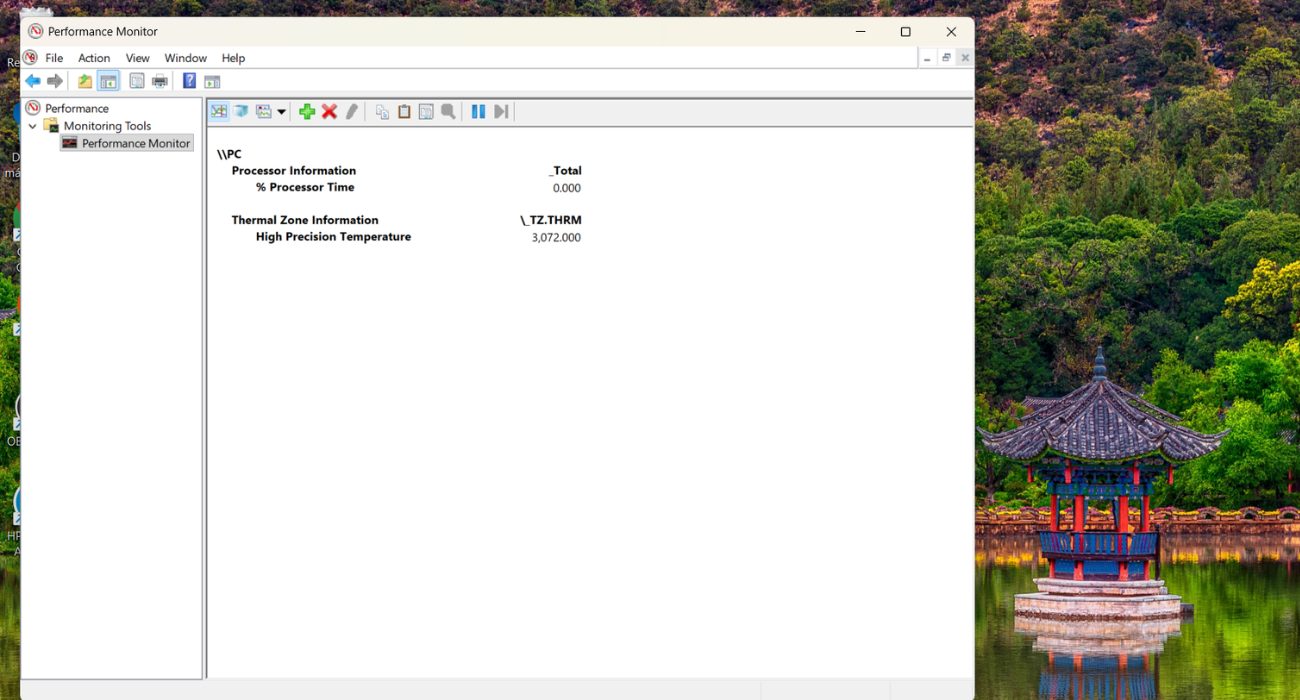
To convert it to Celsius, use this formula:
(Value ÷ 10) − 273.15 = °C
For example: 3072 ÷ 10 = 307.2 → 307.2 − 273.15 = 34.05°C
⚠️ Important: This method doesn’t work on all computers, some manufacturers don’t expose this sensor through Windows. If nothing shows up, try one of the apps below.
2) Through BIOS/UEFI
You can also check your CPU temperature from the BIOS or UEFI menu. Just restart your laptop or computer and press F2, Delete, F10, or F12 as it starts turning on (the key depends on your computer brand or motherboard).
🧐 Not sure how your motherboard affects startup settings and hardware communication? Learn how a computer motherboard works and why it plays such an important role in your PC.
Once inside, look for something like “Hardware Monitor,” “PC Health,” or “System Info”; that’s where you’ll see the actual temperature of your Windows device.
⚠️ One thing to be aware of: the timing is really picky. You usually only get a second or two to press the key before Windows starts loading normally, and since you can only check temperatures during startup, this method isn’t very practical for regular monitoring.
3) Check your manufacturer’s software
If you’re using a Dell, Lenovo, HP, ASUS, or MSI laptop, you might already have software installed that can show your CPU temperature. In that case, you don’t need to download any additional tools, just open the program.
For Dell, look for Dell Power Manager; for Lenovo, it’s Lenovo Vantage; for HP, check HP Command Center; and for ASUS, there’s MyASUS.
💡 Note: Not every app includes real-time temperature monitoring, though. Some focus more on updates, diagnostics, or performance settings.
4) Third-party tools
If you want more detailed temperature readings, you can also use third-party monitoring tools. There are a bunch out there, but these are some of the most popular and reliable ones.
Core Temp
Pricing: Free
Core Temp is a lightweight app that shows the temperature of each CPU core individually. It can also stay visible in your taskbar, so you can quickly check your temps without opening the app every time.
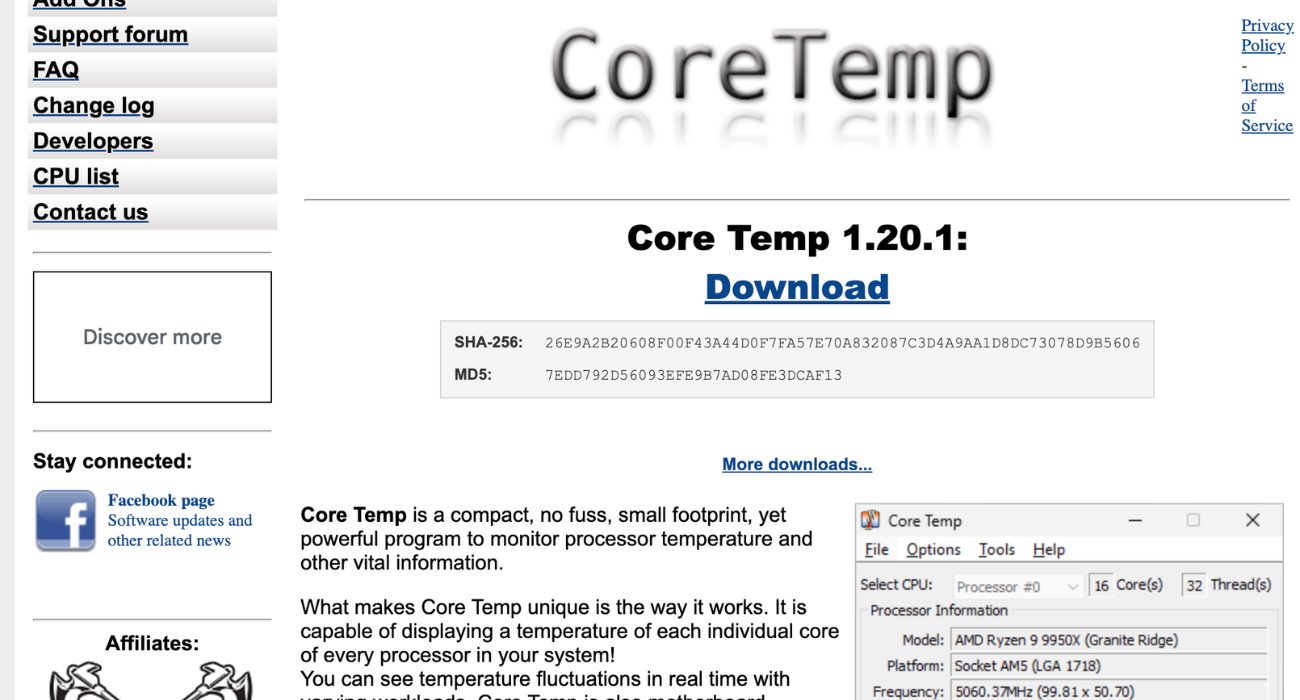
⚠️ You do need to install it first, which means administrator permissions may be required. If you’re using a work or school computer, installing apps might be blocked.
HWiNFO
Pricing: Free
HWiNFO is a great option if you want more detailed system information than Core Temp provides. Besides CPU temperatures, it can also monitor things like your GPU, drives, fans, and voltages.
One nice thing is that you can download the portable version from its official website, so you don’t have to fully install it. We recommend downloading the Local (U.S.) Portable version. After downloading the ZIP file, extract it and run HWiNFO64.exe to launch the application without going through the installation process.
On Mac
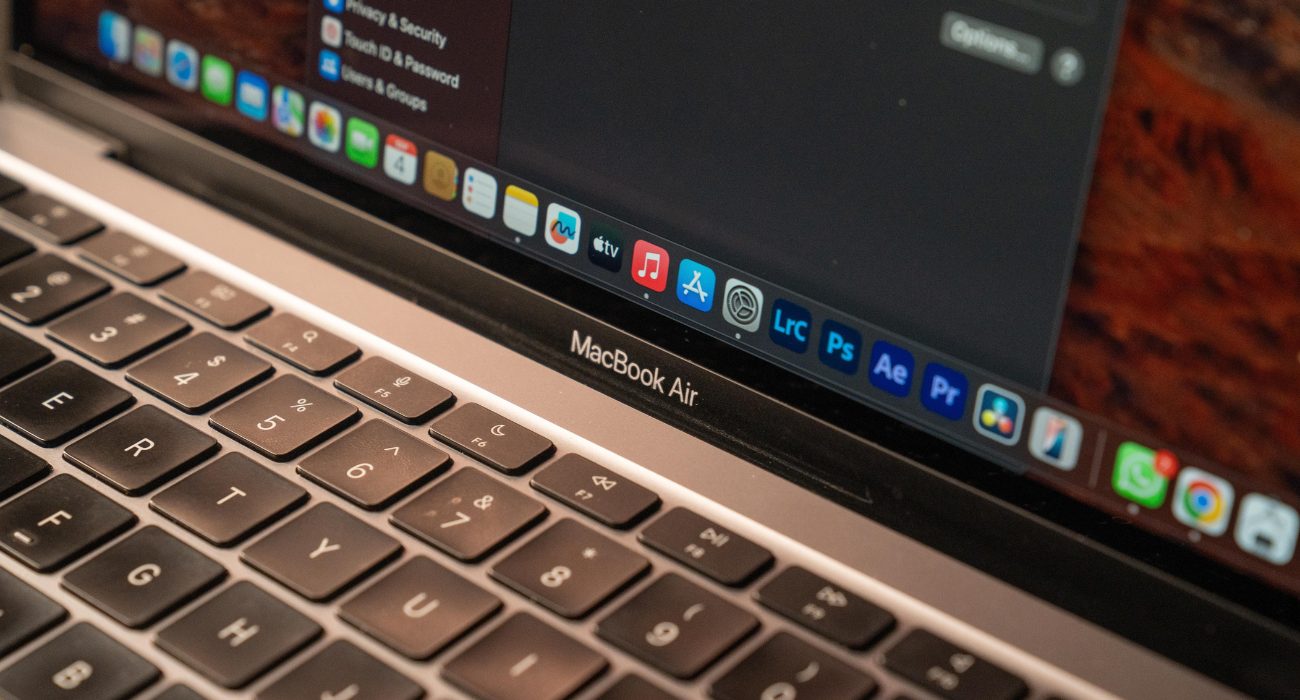
Unlike Windows, macOS doesn’t really give you an easy built-in way to check CPU temperature. There’s no temperature panel hidden in System Settings or anything like that, so you’ll need to either use Terminal or download an app.
1) Using Terminal
This method only works on Intel Macs. If you have an Apple Silicon Mac (M1, M2, M3, etc.), this command won’t work. But if you’re on an Intel Mac, simply head over to Finder, then go to Applications, select Utilities and finally open Terminal to paste this command:
sudo powermetrics –samplers smc | grep -i “CPU die temperature”
⚠️ Heads up: Your device may warn you when running the command, but that’s normal. The sudo part just means the command needs administrator access to read hardware sensor data but the good part is that it’s not changing anything on your Mac.
2) Third-Party Apps
If you don’t want to use Terminal, or you have an Apple Silicon Mac, using an app is honestly the easier option, especially for this operating system.
Stats
Pricing: Free
Stats is one of the most popular free apps for checking temperatures on Mac. It’s open source too, which a lot of people like because the code is public on GitHub.
You can download it from mac-stats.com or directly from GitHub. Either way, it’s the same app.
Once downloaded, open the “.dmg” file by double-clicking on it.
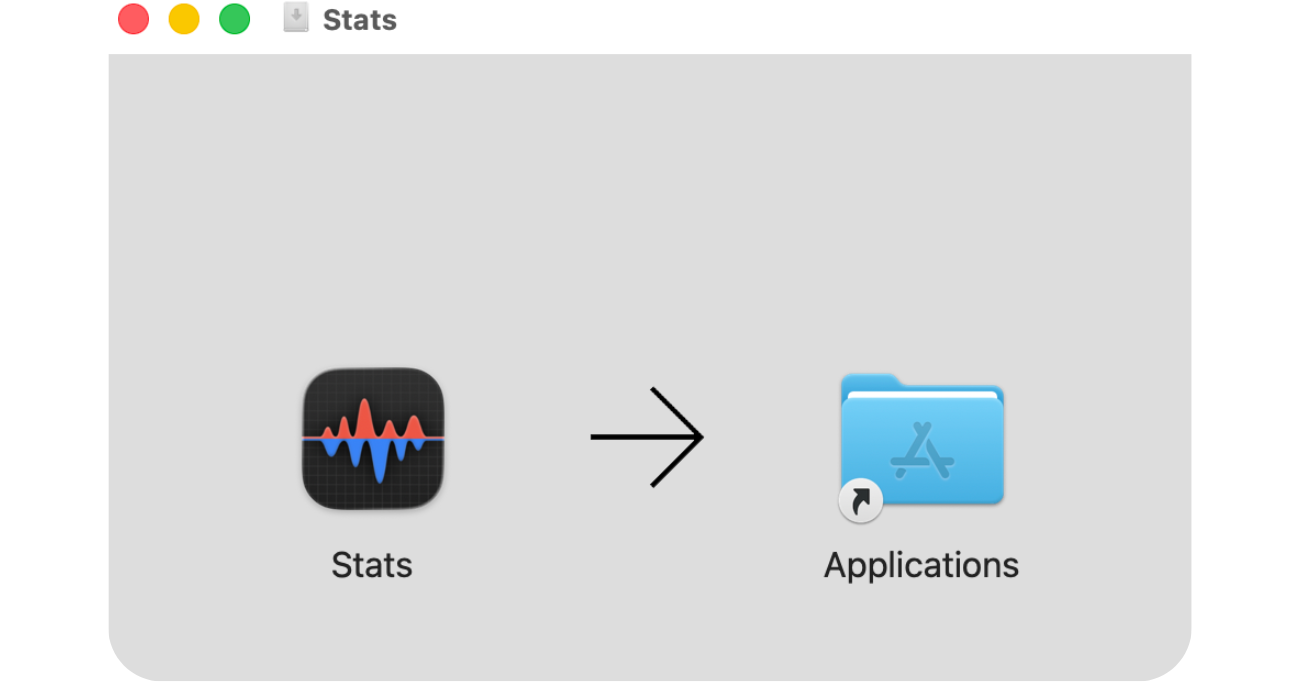
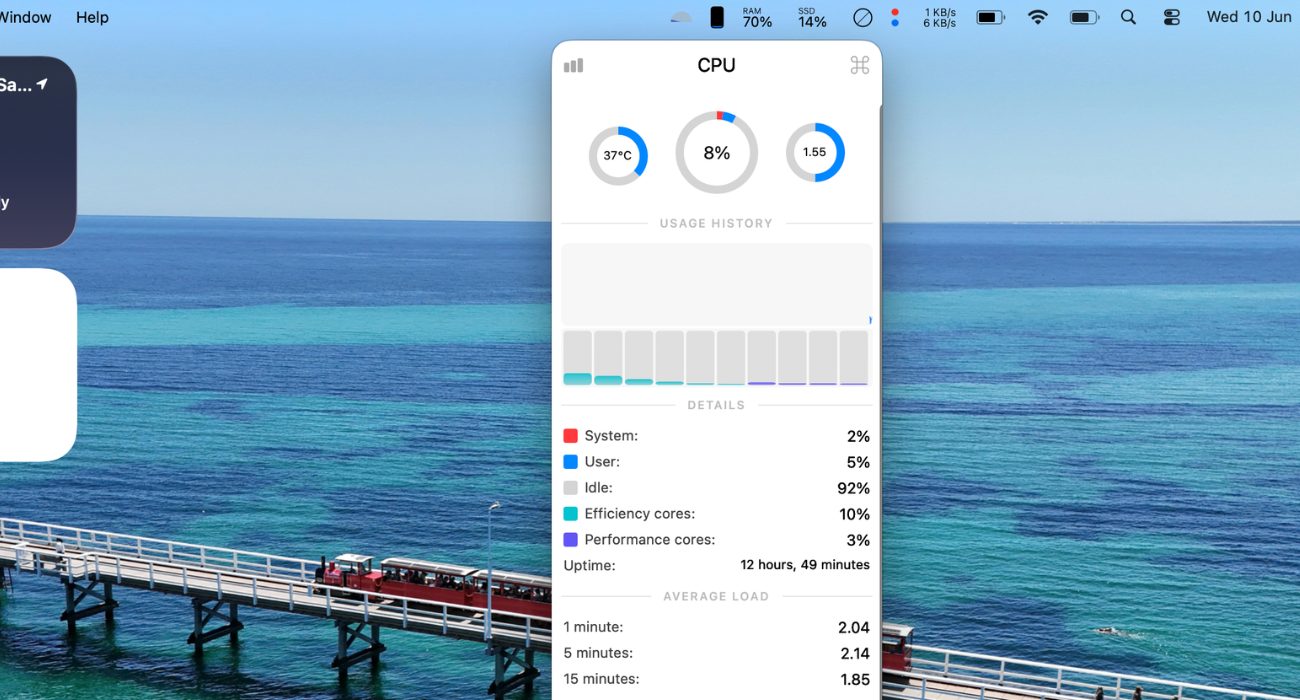
After that, Stats will show up in your menu bar, where you can quickly check temperatures, fan speeds, memory usage, and other system info.
Hot
Pricing: Free
Hot is a way simpler option if you just want to keep an eye on temperatures without a bunch of extra stats everywhere. It stays in the menu bar and quietly runs in the background. Just like Stats, you can download it from the GitHub releases page. Just look for the “Hot.zip” file. When it’s downloaded, simply double-click the ZIP file and launch the app. It will appear in your Mac’s menu bar, just like in the example below.

💡 Note: On Apple Silicon Macs, temperature readings work a little differently than on Intel models. Since the CPU, GPU, and memory are all built into the same chip, apps usually show the overall chip temperature instead of one specific CPU sensor. Either way, anything around 40–80°C during normal use is healthy.
iStat Menus
Pricing: Paid
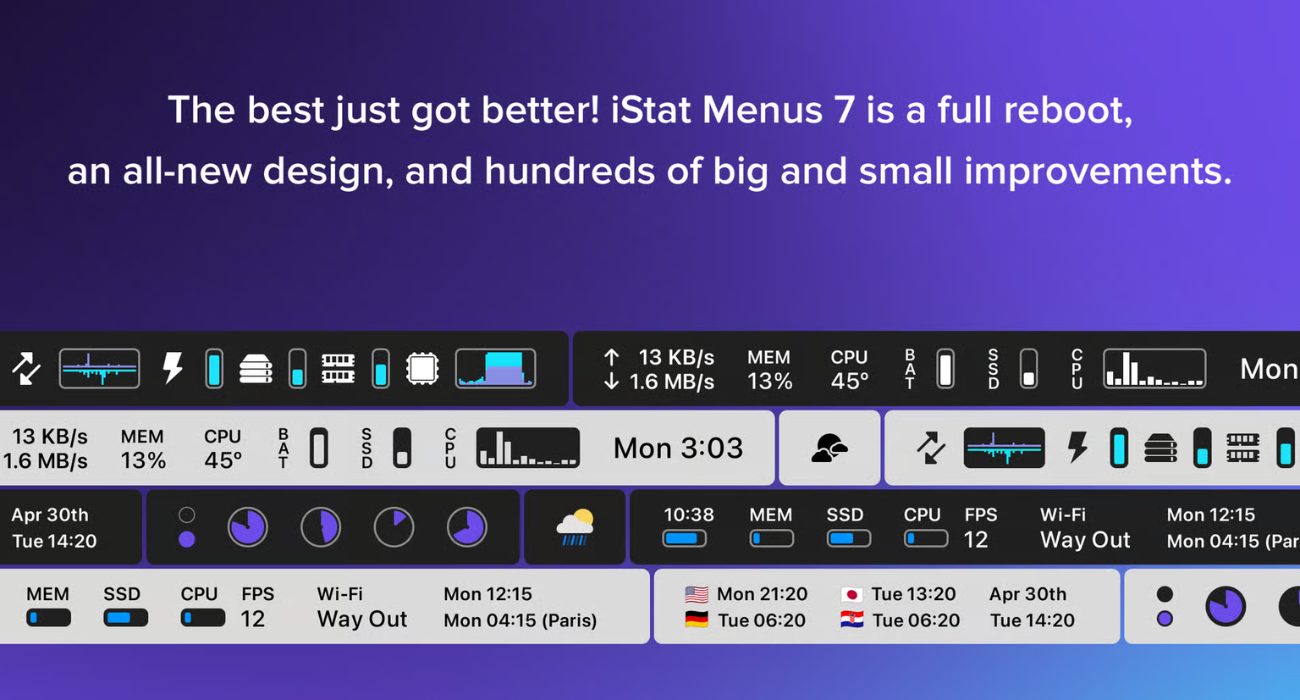
iStat Menus is probably the most complete option out of the three (and for good reason!). Besides CPU temperatures, it can let you monitor GPU usage, RAM, battery health, fan speeds, network activity, and a lot more directly from the menu bar. As it’s a premium app, you can buy it from its website or get it through Setapp if you already use that subscription service.
Tips to keep your CPU at a safe temperature
A lot of CPU temperature issues come from simple stuff like dust, bad airflow, or just pushing your computer too hard for too long. Here are a few things that actually help:
Clean it once in a while
Dust builds up faster than people think, especially inside laptops and gaming PCs. For desktops, cleaning every few months is usually enough. Laptops can go longer, maybe once a year unless you have pets or live somewhere dusty. Honestly, most people forget about it until the fans start sounding like a jet engine.
Don’t use your laptop in bed
Yeah, we all do it but soft surfaces block the vents underneath, so the heat has nowhere to go. A desk, table, or any hard surface is way better. Some people buy cooling pads or laptop stands too, especially if their laptop already runs hot.

Watch how many tabs you have open
Chrome alone can eat a ridiculous amount of memory sometimes. Add Discord, Spotify, your favorite online game, an Adobe app, and like 40 tabs on top of that and your laptop is fighting for its life. It’s tempting to keep everything open, but it’s better to use only what you need to avoid overworking your hardware. Also, it might be convenient to put your Windows PC to sleep with a keyboard shortcut to let it breathe for a while.
Room temperature makes a difference too
If the room is already hot, your computer has to work even harder to stay cool. During summer especially, even having a fan nearby helps more than people realize.
Thermal paste can dry out over time
This is more of a long-term thing, but older computers sometimes overheat simply because the thermal paste inside isn’t doing its job anymore. If your PC is several years old and temperatures suddenly seem worse than before, it might be worth getting checked.
Wrapping up
At the end of the day, checking your CPU temperature is really just about making sure your computer isn’t constantly running hotter than it should. You don’t need to stare at the numbers all day or panic every time it goes up a few degrees.
Usually, your computer will let you know when something’s off. Loud fans, random slowdowns, overheating, or performance drops are all pretty common signs. If your laptop or PC still isn’t behaving the way it should, getting it looked at by professionals like Geeks on Site can help get it back to feeling brand new.
If things still aren’t looking great after checking the temperature, check out our guide on how to test your power supply. In some cases, the issue isn’t overheating at all, it’s a failing PSU.
🖥️ If your screen suddenly looks blurry, stretched, or the resolution changes unexpectedly, the problem isn’t always your monitor. Here’s how to get your computer screen back to normal size by checking your display resolution and scaling settings.
How to check CPU temperature FAQs
How do I check CPU temperature in Task Manager?
While many internet forums claim it’s possible, the truth is you can’t. Windows Task Manager shows CPU usage but not temperature, so it’s not that useful.
On Mac, there’s the Activity Monitor, which works similarly to Task Manager, but at the end, it’s the same thing; you aren’t able to know your CPU temperature. Instead, you can try some of the alternatives we provided above in the post if you’re looking for how to check CPU temperature.
Can Windows show my CPU temperature?
Yes and there’s a way without needing to install any software or app. You can find your CPU temperature by accessing the Performance Monitor; the only thing to consider is that the values are given in Kelvin, not Celsius or Fahrenheit. But with access to the internet, you can look for an online converter or just ask your favorite AI tool (Gemini, Claude or Chat GPT) to do the math for you.
Is 70°C bad for a CPU?
It depends. For example, if you’re playing an online game or running heavy software, 70°C is pretty normal, but if, let’s say, you’re checking an Excel spreadsheet, then it might not be the ideal temperature for a basic task. It’s always worth checking with an expert to ensure your CPU is working properly and staying within a healthy CPU temperature range.
Is 84°C too hot for a CPU?
While it’s not in the danger zone yet, 84°C is still acceptable for when you’re working with heavy programs. Just keep monitoring the temperature to ensure you don’t exceed the limits. It might be a good idea to start making some room for your device to breathe, such as closing some tabs or apps you’re not using and checking your ventilation.
What are the signs of a dead CPU?
This doesn’t happen usually, but it definitely does, especially when there’s been too much damage. The most evident sign is when your device is turned on but the screen stays black and nothing loads, or it can be that it starts to freeze within minutes or you can see a blue screen even when you’re doing basic tasks. If you’ve already learned how to check CPU temperature and temperatures appear normal, the issue may be related to hardware failure rather than overheating.
Last Updated on July 24, 2026



