

TL;DR: If your computer freezes, give it a few seconds first. If only one program is unresponsive, close it with Task Manager on Windows or Force Quit on Mac. If the entire system stops responding, a forced restart may be your only option. Frequent freezes can point to low RAM, limited storage, overheating, outdated software or drivers, or failing hardware.

Why does your computer keep freezing?
A frozen screen rarely shows up for no reason, even when it feels that way. Most of the time it means something on your machine is asking for more than it can give right now: more memory than is free, more attention than one process should need, or more heat than the fans can carry away fast enough.
Most freezes come back to a handful of common causes, and knowing which one fits your situation makes troubleshooting much easier:
Not enough RAM
Running multiple programs, browser tabs, and background processes at the same time can use up your available random access memory (RAM). When that happens, the computer may start running slowly or freeze altogether. If you’re not sure whether memory is the bottleneck, here’s how RAM affects computer performance.
One app stops responding
Sometimes you don’t have a completely frozen computer at all. One unresponsive program may be holding things up while the rest of the operating system is still working correctly.
Low storage space
Windows and macOS need free drive space for temporary files, updates, and everyday system processes. When the drive is nearly full, performance can suffer and computer freezes may become more common.
Overheating
When the processor runs too hot, the system slows itself down or locks up entirely to protect the hardware. If the fans are running hard or the computer feels unusually hot, check your CPU temperature before assuming something has failed.
Malware or a virus
Before you rule this out, it’s worth checking these signs your computer may have a virus.
Outdated or corrupted drivers
This one gets overlooked a lot. A graphics, Wi-Fi, or audio driver that’s out of date, or that got corrupted during an update, can freeze the whole system, and it tends to show up right after a Windows update or a new device gets plugged in. Outdated software can cause similar problems, especially when an older application no longer plays nicely with a recent operating system update.
Failing hardware
RAM, an aging hard drive, or an SSD that’s starting to fail can all cause freezes that have nothing to do with what you’re running.
If a driver is on your suspect list, open Device Manager and look for anything marked with a yellow warning icon. Updating or reinstalling the affected driver may help, especially if the freezes started after a Windows update or after you connected new hardware.
If the freezing started after you connected a monitor, printer, USB drive, or another accessory, disconnect it temporarily. Check the connections, make sure everything is properly connected, then reconnect one device at a time. If the freezes return right after a particular device goes back in, you’ve got a much better clue about where to look next.
Quick ways to unfreeze your computer

With a frozen computer, the best first step depends on what still responds:
| Platform | Try first | What it does | When it works best |
| Windows | Ctrl + Shift + Esc | Opens Task Manager directly | The cursor still moves and one program looks stuck |
| Windows | Windows + Ctrl + Shift + B | Resets the graphics driver and refreshes the display | The screen looks frozen or glitchy but the machine seems to still be working underneath |
| Mac | Command + Option + Esc | Opens Force Quit Applications | One app stopped responding but the rest of macOS still reacts |
| Windows or Mac | Hold the power button for about 10 seconds | Forces a shutdown and restart | Nothing above gets a response after a minute or two |
What to do when your computer freezes
Work through these in order rather than jumping straight to a restart. Most freezes resolve at step one or two.
1. Give it a few seconds
Don’t reach for the power button immediately. If the computer is finishing a demanding process, it may start responding again on its own. Give it a little time; if the mouse cursor and keyboard still don’t respond, move on.
2. Check whether one program or the whole computer is frozen
Try moving the mouse, switching windows, or pressing Caps Lock to see if its indicator changes. If some parts of the computer still respond, you’re probably dealing with an unresponsive program rather than a full system freeze.
3. Close the unresponsive program
On Windows, press Ctrl + Shift + Esc to open Task Manager directly. You can also try Ctrl + Alt + Delete and select Task Manager if the system still responds. Check the Processes tab for an app marked “Not Responding” or one using an unusually high amount of CPU or memory, then select it and choose End task. On a Mac, press Command + Option + Esc, select the stuck application, and choose Force Quit.
4. Force a shutdown only if nothing else works
If the computer is completely frozen, press and hold the power button until it shuts off. Wait a few seconds, then press the power button again to start it normally. A force shutdown can cause you to lose unsaved work, so save it for when the other methods fail.
- If the issue persists after a normal restart, Safe Mode can help determine whether a startup app, driver, or other software is behind the freezes. If the computer works normally in Safe Mode, something that loads during a regular startup becomes a stronger suspect.
- If one application is stuck, force close that app rather than restarting the entire computer.
If it’s specifically a browser or a single web page that won’t load rather than the whole computer, the fix is usually different. Our guide on what to do when nothing is loading on your device covers those browser and connection-specific cases.
Is the freeze caused by software or hardware?
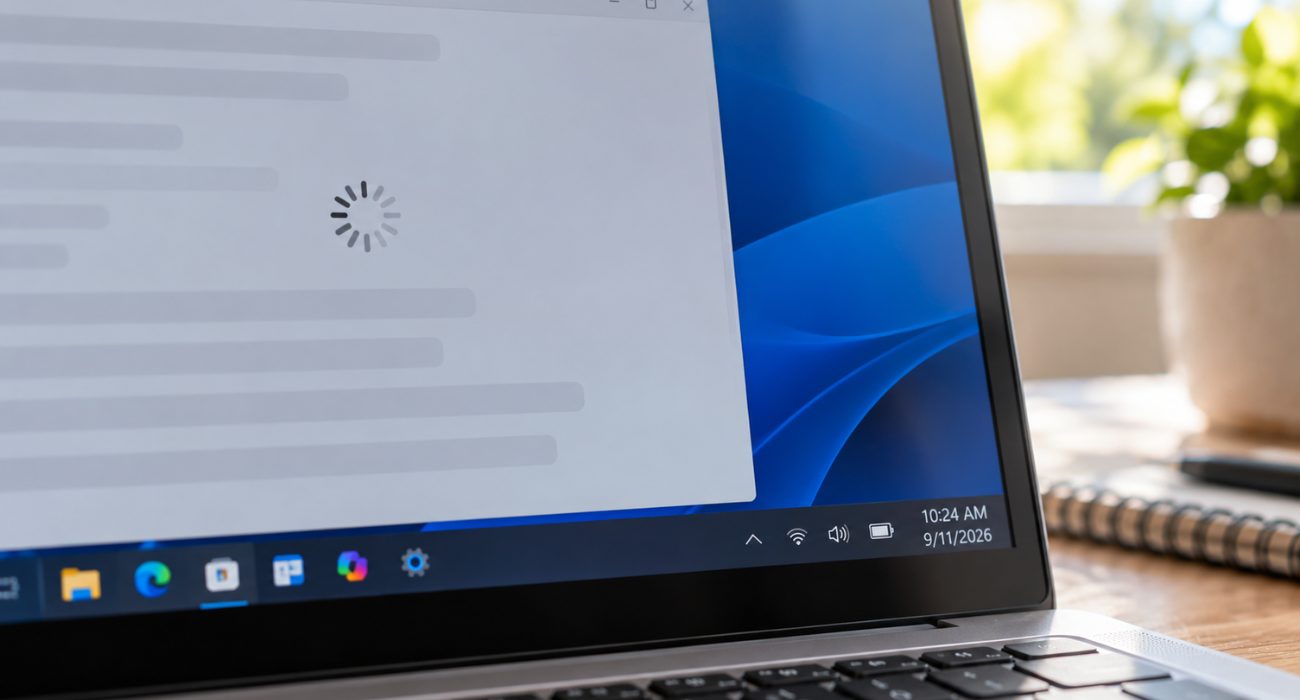
Once your computer is responding again, think about what was happening right before it froze. The pattern can give you a better clue about whether you’re dealing with a software issue or a possible hardware problem.
If the freeze only happens in one app, that application or one of its processes is the first place to look. If it tends to happen while you’re running multiple programs or lots of browser tabs at once, limited memory may be the problem. Freezes that show up during demanding tasks, especially when the computer feels unusually hot or the fans are working hard, can point to overheating.
Use these signs as a starting point:
| Sign | Points more toward software | Points more toward hardware |
| Only happens in one app or game | Usually | Rarely |
| The mouse cursor still moves, but an app is unresponsive | Often | Sometimes, especially if a driver is involved |
| Happens right at startup before you’ve opened anything | Sometimes | Often |
| Comes with repeated blue screens or unexpected restarts | Sometimes, especially with driver or system issues | Often |
| Gets more frequent even during light, everyday use | Sometimes | Often |
If you notice a burning or electrical smell, shut the computer down and stop using it rather than continuing with normal troubleshooting. That can point to a hardware or power issue that needs to be checked.
When repeated freezes point to something more serious
One freeze every once in a while isn’t automatically a sign of failing hardware. Persistent freezes are more concerning, especially if they happen during light everyday use, right after startup, or alongside repeated blue screens, unexpected restarts, unusual fan noise, or clicking from a drive.
Those patterns can come from drivers or other software, but they can also point to hardware issues involving RAM, storage, cooling, or the power supply. If the issue persists after basic troubleshooting steps, a proper diagnostic is usually more useful than replacing parts on a guess.
- On Windows, Event Viewer can sometimes provide another clue. Look under Windows Logs > System for critical errors around the time the computer froze or restarted. You don’t need to understand every entry; you’re mainly looking for errors that keep appearing around the same time.
- On a Mac, Disk Utility can check the startup drive for file system errors using First Aid.
If your computer freezes along with unexpected restarts or blue screens, it may be closer to a crash-and-restart issue than a simple freeze. Our guide on why your computer keeps crashing can help you narrow that down.
How to keep your computer from freezing again

You can’t prevent every freeze, but a little routine maintenance can make them much less common:
- Keep Windows or macOS, your drivers, and the software you use regularly up to date.
- Leave enough free storage for updates, temporary files, and normal system activity.
- Avoid running too many programs at once if your computer regularly runs low on RAM.
- Uninstall unused programs you no longer need, especially apps that continue running in the background. If you’re regularly maxing out memory, these apps that quietly slow down your computer are worth a look.
- Keep vents and fans clear and avoid using a laptop on a bed, couch, or other soft surface that blocks airflow.
- Restart the computer occasionally instead of leaving it running for weeks at a time.
- Save important work regularly and keep a backup so an unexpected freeze doesn’t turn into data loss.
- If the computer is running slowly before it freezes, check memory and storage use before opening even more programs.
If your computer continues to freeze after you’ve tried the basic troubleshooting steps, it may be time to seek professional help. Geeks on Site’s computer repair service can help diagnose what’s causing the freezes. Some software issues can be checked remotely, while suspected hardware issues may require hands-on testing.
FAQs
How can I unfreeze my computer without losing my work?
If one program is frozen but the rest of the computer still responds, open Task Manager on Windows or Force Quit on Mac and close only the unresponsive program. A force shutdown closes everything and can mean losing unsaved work, so use the power button only when the entire computer stops responding.
Will a frozen computer eventually unfreeze on its own?
Sometimes. If the computer is busy with a demanding background process, it may start responding again after a minute or two. If the mouse, keyboard, and screen remain completely unresponsive, waiting longer probably won’t help.
Why does my computer freeze even though I can still move the mouse?
Usually, that means the operating system is still running but an application or process has stopped responding. Open Task Manager or Force Quit and try closing the affected program before restarting the whole computer.
Why does my computer keep freezing even after I restart it?
Repeated freezes can point to older apps or drivers, low available RAM or storage, overheating, corrupted system files, or hardware problems. If the computer continues freezing during normal use, look for a pattern and consider running diagnostics instead of repeatedly force-restarting it.
Last Updated on September 14, 2026



