

TL;DR: Apps can slow down your computer when they use too much RAM, CPU, disk, or GPU, especially when several are running at once. Check Task Manager on Windows or Activity Monitor on Mac to see what’s using the most resources before closing or uninstalling anything.
 In this guide:
- First, what do RAM, CPU, and GPU actually mean?
- Startup programs quietly add up
- Browsers and their endless tabs
- Communication apps you never really close
- Design, video editing, and 3D software
- Antivirus and “PC optimizer” tools
- Gaming platforms and launchers
- Cloud storage and syncing apps
- How to find which apps are slowing down your computer
- When the app isn’t actually the problem
- Keep an eye on what’s running
- FAQs
If your computer has been dragging its feet lately, cursor lagging, apps taking their sweet time to open, everything grinding to a halt the moment you have more than two programs running, the apps you use every day are a good place to start looking.
That doesn’t mean any of them are bad software. It usually comes down to how many you’re running together, how you’re using them, and how much your computer can realistically handle at once. If the sluggishness has gotten bad enough that basic troubleshooting isn’t cutting it, a slow computer repair service can also rule out anything deeper going on with the hardware itself.
First, what do RAM, CPU, and GPU actually mean?
You don’t need a computer science degree to understand why an app can bog things down. Picture your computer as a small workspace.
- RAM works like your desk: it holds everything you’re actively using, apps, files, open tabs, and the more of it you have, the more your computer can keep within easy reach. Once that desk fills up, your machine starts leaning on storage instead, which is a lot slower to grab things from.
- The CPU is more like the person actually doing the work. It handles the instructions behind almost everything your apps do, from simple calculations to compressing a file.
- The GPU, meanwhile, takes on graphics-heavy work such as rendering images, editing video, and running demanding games. Different apps lean on these resources in different ways, which is why one program might send your fans into overdrive while another simply makes everything feel a little sluggish.
Startup programs quietly add up
 Ever wonder why your computer takes forever just to reach the desktop? Check what launches automatically when you sign in. A handful of apps opening at once can use memory and processor time before you’ve even started doing anything yourself.
On Windows, open Task Manager and select Startup apps. You’ll see which programs are set to launch automatically and their estimated startup impact. Something marked High isn’t automatically a problem, but it’s a good place to start.
Before disabling anything, ask yourself whether you actually need it running from the moment your computer starts. Spotify or a game launcher? Probably not. Security software or a utility you rely on every day? That’s a different story.
If restarting itself has become the slow part, our guide on a computer taking forever to restart walks through the most common reasons that happens and how to clear them.
Browsers and their endless tabs
 Chrome, Edge, Brave, whatever you’ve settled on, modern browsers can eat through memory faster than people expect. Every open tab holds onto some RAM, and certain sites ask for a lot more than others. Web apps like Canva, Figma, Notion, or a video call running in a tab behave more like full desktop programs than simple webpages, and they use resources accordingly.
Extensions play a role here too. It’s easy to install one for a specific task, forget about it, and let it keep running quietly in the background months later. None of this means you need to give up your browser of choice. Closing tabs you’re done with and removing extensions you no longer use can go a long way. If you want to dig deeper, browsers such as Chrome and Edge also have built-in task managers that can help you spot a particularly resource-hungry tab or extension.
Communication apps you never really close

Teams, Slack, Discord, WhatsApp Desktop, it’s easy to forget how many of these stay open all day. Even when you’re not actively using them, they may still be checking for messages, showing notifications, or running processes in the background.
One communication app probably won’t bring a decent computer to its knees. But add two or three of them to a browser full of tabs, Spotify, OneDrive, and whatever you’re actually working in, and the slowdown starts to make more sense.
You don’t have to quit every app the second you’re done with it. Just remember that “minimized” doesn’t necessarily mean “not using resources.”
Design, video editing, and 3D software
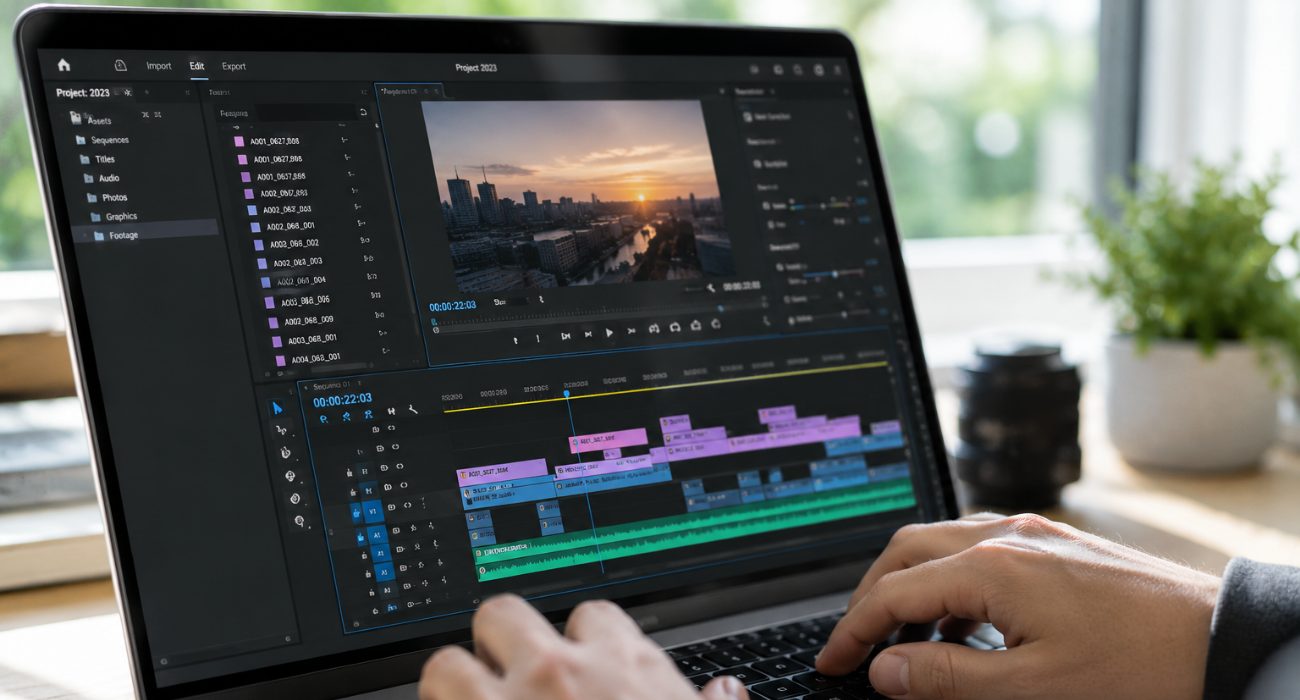
This is where resource use can jump quickly. Photoshop, Premiere Pro, After Effects, Blender, AutoCAD: these programs are built to ask a lot of your computer, especially once you’re working with large files, rendering footage, or building out a complex 3D scene. They can pull from RAM to hold big projects in memory, lean on the CPU for processing, and push the GPU hard for anything involving graphics or rendering.
If your fans kick into high gear while you’re exporting a video or working on a heavy design file, that’s not necessarily a sign something is wrong. The software is simply doing what it’s meant to do. It only becomes a real problem when that kind of workload is running alongside a dozen other things competing for the same resources.
Antivirus and “PC optimizer” tools

Security software is there to protect you, but it also has to scan files and watch activity in real time, and that takes resources. The trick is finding a balance rather than assuming you need to remove it. Scheduling full scans for times you’re not actively using your computer, and letting updates install when it’s convenient, usually solves most of the slowdown without leaving you exposed. If Avast in particular has been giving you trouble, we’ve got a full breakdown on how Avast can affect your PC’s performance.
Worth mentioning too: running more than one antivirus program at once, or installing a “PC cleaner” that promises to speed everything up automatically, tends to backfire. Windows and macOS already include built-in security features, so running multiple real-time antivirus tools at once can add unnecessary background activity and may even cause conflicts. If you’d rather have someone set this up correctly the first time, our team can help with virus, malware, and spyware removal and make sure whatever you’re running isn’t fighting itself.
Gaming platforms and launchers

Steam, Epic Games Launcher, Riot Client, and similar gaming apps often keep running after you’ve finished playing. They may check for updates, download files, or keep background services active even when no game is open.
The games themselves are another story. Modern titles can put heavy demand on the CPU, GPU, RAM, and storage at the same time, especially at higher graphics settings. Some also run anti-cheat or launcher services alongside the game.
If gaming is the only time your computer slows down, start simple: close programs you don’t need, pause downloads, and keep unnecessary launchers from opening automatically at startup. You may find that the problem isn’t the game alone; it’s everything else that was already running before you launched it.
Cloud storage and syncing apps
OneDrive, Google Drive, Dropbox: these are genuinely useful for keeping files consistent across your devices, but syncing does take a toll while it’s happening. Uploading or downloading a large batch of files, or syncing a folder you just filled with photos, can spike disk and network activity enough that browsing feels sluggish until it finishes.
If OneDrive is the one giving you trouble, try pausing sync temporarily from the cloud icon in your system tray. Then use your computer normally for a few minutes. If the slowdown disappears while syncing is paused, you’ve found a likely contributor.
Adjusting which folders sync at all is another option if you don’t need everything mirrored locally all the time. And if the real concern underneath all this is making sure your files are actually safe, not just synced, it’s worth looking into proper data recovery and system backup rather than relying on sync alone.
Did you know that apps aren’t the only cause of poor performance? Learn the common reasons your computer runs slow to identify what else might be affecting your system.
How to find which apps are slowing down your computer
You don’t have to guess which app is the problem. On Windows, press Ctrl + Shift + Esc to open Task Manager, then check the Processes tab to see which apps are using the most CPU, memory, disk, or GPU right now. If one program is consistently near the top no matter what you’re doing, that’s your starting point.
On a Mac, the equivalent is Activity Monitor, which you can find through Spotlight or under Applications, then Utilities. It shows CPU, memory, energy, disk, and network activity in the same way, just with different labels. Don’t worry if the numbers jump around for a few seconds, that’s normal. What you’re looking for is an app that stays unusually high while your computer feels slow. Once you spot one, close it normally and see whether performance improves.
For a broader walkthrough of getting a sluggish machine back to normal, our guide on how to fix a slow computer covers the rest of the process step by step.
When the app isn’t actually the problem

A high CPU or memory number doesn’t automatically mean an app is misbehaving. Premiere Pro using a lot of resources while you’re exporting a video is normal. The same goes for a game pushing your GPU while you’re playing.
What matters is when the slowdown happens. If everything feels fine until you open one particular program, that app or its workload deserves a closer look. If your computer feels slow before you’ve opened much of anything, startup programs, background processes, low storage, or aging hardware may be more likely culprits.
Older computers also hit their limits sooner. A machine with less RAM, an older processor, or very little free storage won’t have as much breathing room when Chrome, Teams, Spotify, and OneDrive are all competing for resources.
If you’re not sure whether the hardware itself is starting to show its age, finding out how old your computer is is a useful gut check. And if it’s restarting on its own as well as running slowly, treat that as a separate problem, our guide to why your computer restarts randomly explains where to start. If the slowdown turns into full lockups, here’s what to do if your computer keeps freezing and how to tell whether the problem is software or hardware
Keep an eye on what’s running
You don’t need to uninstall every app you enjoy or keep your computer stripped down to the basics. Start with the easy wins: close what you’re not using, trim unnecessary startup apps, pause heavy syncing when you need the extra breathing room, and check Task Manager or Activity Monitor when things start feeling sluggish.
If the same slowdown keeps coming back even after you’ve cleaned things up, the apps may not be the whole story. Low storage, aging hardware, malware, or another system issue could be contributing.
Geeks on Site can help diagnose a slow computer and sort out what’s actually causing it, either remotely or at your home or office, so you don’t have to keep guessing.
FAQs
How can I find out which apps are slowing down my computer?
Open Task Manager on Windows or Activity Monitor on a Mac and look at CPU, memory, disk, and GPU usage while your computer feels slow. Don’t worry about brief spikes. Look for an app that stays unusually high, especially when you’re not actively using it.
Why does my computer feel laggy even though I have good internet?
Internet speed and computer performance aren’t the same thing. A fast connection won’t fix a computer that’s short on RAM, overloaded with background apps, syncing files, or struggling with high CPU or disk usage.
Does clearing my cache speed up my computer?
Sometimes, but usually only a little. Clearing a browser cache can free some storage and fix certain website loading problems, but it won’t solve a slowdown caused by apps using too much RAM, CPU, or disk in the background.
Does pausing OneDrive syncing improve performance?
It can, especially while OneDrive is uploading or downloading a large batch of files. Pause syncing temporarily and use your computer normally for a few minutes. If performance improves, syncing was likely contributing to the slowdown.
Last Updated on September 14, 2026



