

TL;DR: If nothing is loading on your computer, first check whether another device can get online using the same Wi-Fi. If it can, the problem is likely on your computer rather than with your internet service. Try another browser, restart the computer, check your VPN or proxy, and flush the DNS cache. If Windows shows a connection error, use the message or error code to narrow down what to try next.

In this guide:
- Start here: Confirm it’s really your computer
- Web pages keep spinning and never open
- “This site can’t be reached” errors
- You’re seeing a DNS error
- Windows says “No internet,” but Wi-Fi is connected
- Pages won’t load in one browser, but work in another
- Your browser won’t open at all
- When it’s time to get help
- FAQs
Start here: Confirm it’s really your computer
Before changing any settings, grab your phone and open a website while connected to the same Wi-Fi. If it loads normally, your internet connection is working and you can focus on the computer itself. If your phone can’t load anything either, you’re probably dealing with a router or internet service issue instead.
Web pages keep spinning and never open
You click a link, the tab spins, and nothing shows up. No error, no message, just a page that never finishes loading.
This usually comes down to a temporary browser hiccup, a DNS lookup that’s timing out, or a VPN quietly interfering with the connection. DNS is the system that turns a name like google.com into the numeric address your computer actually uses to find the site. When that lookup stalls, your browser knows you’re online but can’t figure out where to go.
Work through these in order:
- Try a couple of different sites, like Google and YouTube. If only one refuses to load, the problem is with that site, not your machine.
- Switch browsers. If Edge loads pages fine but Chrome doesn’t, the issue lives in Chrome specifically.
- Open a private or incognito window. If the site works there, an extension or stored browser data may be interfering with the page.
- Restart the computer. It clears a surprising number of stuck network processes.
- Flush the DNS cache: press Windows + R, type cmd, hit Enter, then run ipconfig /flushdns.
If pages still won’t open in any browser after these steps, pay attention to any error message Windows or your browser gives you. A specific connection or DNS error can point you toward the next fix.
“This site can’t be reached” errors
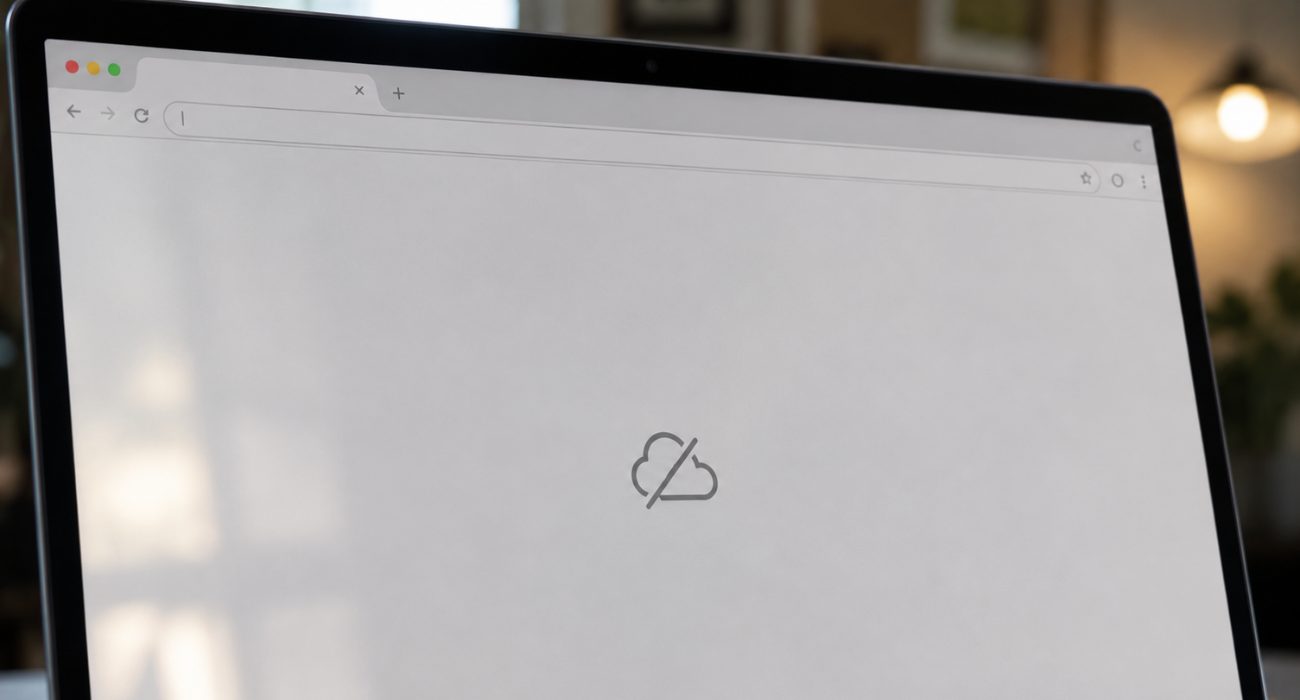
If Chrome gives you a “This site can’t be reached” message, don’t ignore the small error code underneath it. That code can help narrow down what failed, so take a quick look before changing any settings.
| Error | What it usually means |
| DNS_PROBE_FINISHED_NXDOMAIN | Your computer couldn’t find the site’s address |
| ERR_CONNECTION_TIMED_OUT | The connection took too long to respond |
| ERR_CONNECTION_RESET | The connection got interrupted mid-request |
Start by testing another site and another browser, the same way as above. If you’re running a VPN, disconnect it for a minute and try again. VPNs reroute your traffic, and a struggling VPN server can look exactly like a broken internet connection.
Worth checking too: Settings → Network & internet → Proxy in Windows. If you’re not intentionally using a proxy, that toggle should be off. If the error mentions DNS specifically, move on to the DNS steps below.
You’re seeing a DNS error
Errors like:
- DNS_PROBE_FINISHED_NXDOMAIN,
- DNS_PROBE_FINISHED_NO_INTERNET,
- Or DNS_PROBE_FINISHED_BAD_CONFIG
All point to the same root cause: your computer can’t complete the lookup that turns a web address into something it can actually connect to.
So, what to do? Flush the DNS cache first with ipconfig /flushdns in Command Prompt, then restart.
If that doesn’t help, your current DNS server may be having trouble. Switching to a public DNS service such as Google Public DNS or Cloudflare DNS is another option worth trying. Changing DNS settings isn’t something everyone feels comfortable doing solo, and that’s a perfectly reasonable moment to hand it off to someone who does this daily.
Windows says “No internet,” but Wi-Fi is connected
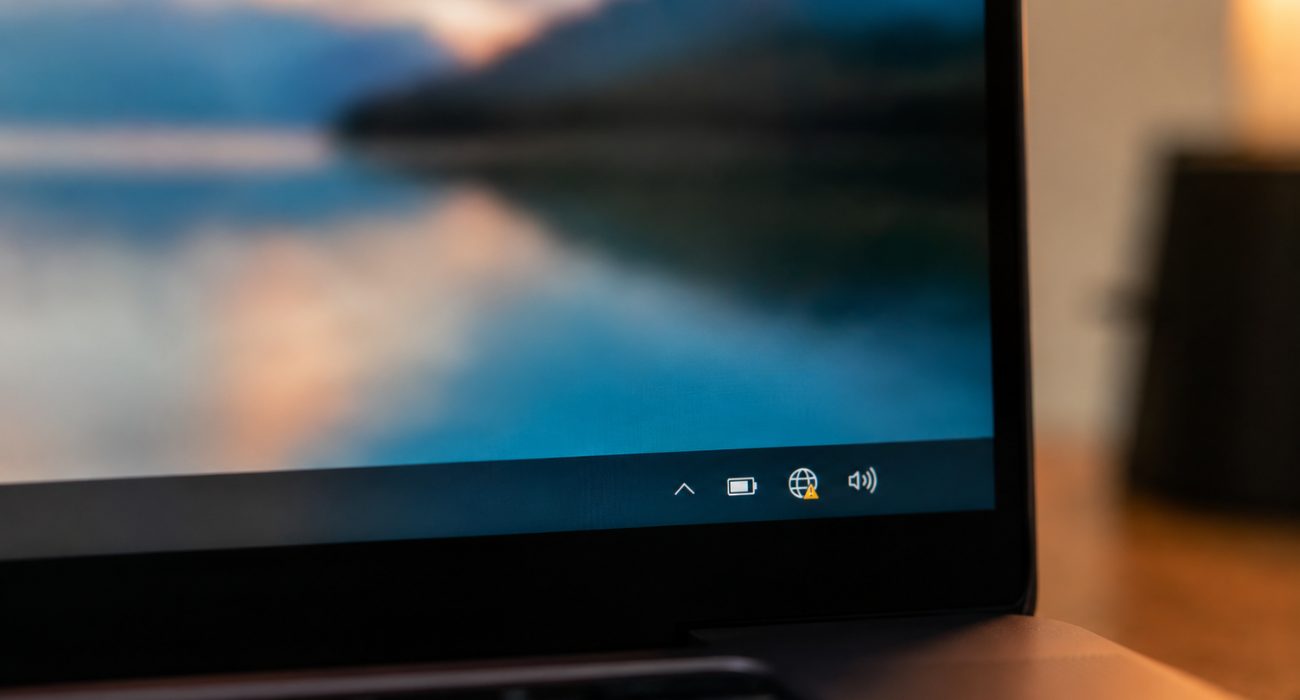
Your computer shows you’re linked to Wi-Fi or Ethernet, yet Windows insists there’s no internet, while every other device on the network browses normally.
This points to the network adapter, the IP address Windows assigned your machine, or an outdated driver. So you can disconnect from Wi-Fi and reconnect.
If that doesn’t help, forget the network entirely under Settings → Network & internet → Wi-Fi → Manage known networks, then rejoin and re-enter the password. Windows also ships a built-in troubleshooter under Settings → System → Troubleshoot → Other troubleshooters, and it catches more than people expect. A full troubleshooting checklist walks through the rest if the adapter itself turns out to be the problem.
Pages won’t load in one browser, but work in another
If websites load normally in Edge but refuse to open in Chrome, or vice versa, your internet connection probably isn’t the problem. The issue is more likely tied to that browser’s extensions, stored data, or settings.
Start with a private or incognito window. If pages load there, disable your extensions one at a time until you find the one causing trouble. If that doesn’t help, clear the browser cache and try again.
Your browser won’t open at all

Clicking the icon does nothing, or the window flashes and disappears. This one sits outside the browser itself and points to a damaged installation or a conflict with something else running on the machine.
Open Task Manager with Ctrl + Shift + Esc and check whether the browser is already running invisibly in the background; if so, end that process and try launching again. A restart clears a good number of these on its own. If one browser won’t open, try another to rule out a system-wide issue, and consider a repair or reinstall if the problem persists in just that one app.
When it’s time to get help
If your computer keeps freezing, crashes without warning, shows blue-screen errors, or still won’t load pages after you’ve worked through the steps above, more trial and error probably isn’t going to help. That’s when a hands-on diagnosis starts to make sense.
Failing drives, hardware problems, a computer that keeps crashing, and stubborn malware can all cause symptoms that basic browser and network troubleshooting won’t fix. Our Geeks on Site technicians can help determine whether the problem is software, hardware, or something in between and recommend the next step. Book a service here.
FAQs
Why does my Wi-Fi work on my phone but not my computer?
This almost always means the router and internet service are fine, and the issue is local to your computer’s network adapter, driver, or saved network profile. This breakdown covers the fix in more depth.
What does a DNS error actually mean?
It means your computer couldn’t translate a website’s name into the address it needs to connect to. It’s rarely a sign anything is broken permanently. Flushing the DNS cache or switching to a public DNS server can resolve the issue.
Can a VPN really stop websites from loading?
Yes. A VPN routes your traffic through a separate server, and if that server is overloaded or misconfigured, it can time out connections that would otherwise work fine. Disconnecting it for a quick test rules this in or out in under a minute.
Why is my PC stuck on loading even after a restart?
A restart clears temporary memory issues but won’t fix a corrupted driver, a failing drive, or malware that’s already embedded. If the freeze returns right after startup, that points past a simple software glitch.
When should I stop troubleshooting and call someone?
If freezing, crashing, or failed page loads continue after working through browser, DNS, and network steps, or if you’re not comfortable changing network or driver settings yourself, that’s a reasonable point to bring in a technician instead of spending more time guessing at the cause.
Last Updated on August 7, 2026



