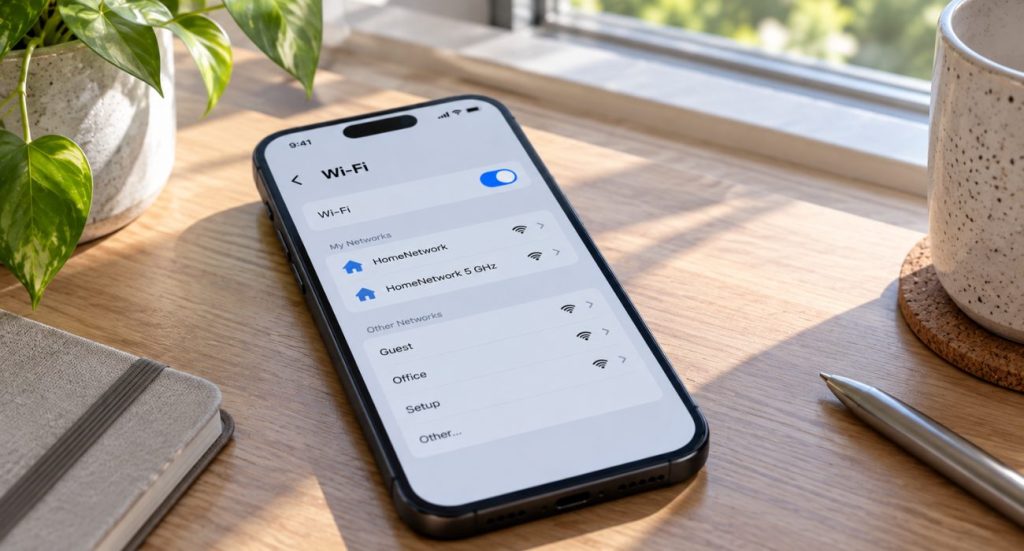
When we’re asked how can you recognize an unsecured wireless network, we always emphasize one thing: knowing the signs is essential for protecting your data. Unsecured networks often lack encryption and password protection, making them vulnerable to unauthorized access and cyber threats.
Key Takeaways
Unsecured Wi-Fi networks are often easy to spot due to missing password protection, weak security protocols, and open access points. These put users at significant risk.
To stay protected, we recommend checking for security indicators such as a lock icon, avoiding generic public network names, and ensuring websites use HTTPS.
Implementing strong Wi-Fi security tips, like using a VPN, disabling auto-connect, and securing your home network with WPA2 or WPA3, can dramatically reduce risk.
Understanding Unsecured Wi-Fi Networks
Unsecured Wi-Fi networks offer convenience, but at the cost of safety. These networks lack essential protections like encryption and strong password authentication, which leaves users open to unauthorized access. They’re especially common in public places such as cafes, malls, airports, and libraries.
Common characteristics of unsecured networks include:
- No encryption protocols such as WPA2 or WPA3
- Weak or outdated security protocols
- Open access that allows anyone nearby to connect
By recognizing these characteristics, we can better avoid unsecured Wi-Fi dangers. Below, we break down the three primary indicators.

Lack of Password Protection
One of the easiest ways to detect unsecured networks is to notice whether a password is required. If a network lets you connect without a password, it is insecure. This means anyone, including hackers, can intercept unencrypted data or piggyback on the connection.
We always recommend connecting only to networks that require a password for your safety.
🤓 Keep reading: How to Change Your Hotspot Name on iPhone to avoid sharing personal details on public Wi-Fi lists.
Weak Security Protocols
Weak or outdated security protocols such as WEP are another sign of an unsecured wireless network. Even WPA (the older version of WPA2) can be compromised. Modern networks should use WPA2 or WPA3 for proper protection.
When evaluating how to tell if a network is secure, always make sure the security protocol isn’t outdated.
Open Access Points
Access points that don’t require authentication are convenient, but risky. These open networks allow anyone within range to connect, creating opportunities for malicious activity.
If you must connect to an open network, avoid sensitive browsing and consider using a VPN for added protection.
Recognizing Signs of Unsecured Networks
Knowing how to recognize an unsecured wireless network helps us avoid serious cybersecurity risks. Unsecured networks share several common red flags, including:
- No lock icon in the Wi-Fi menu
- Generic public names
- Lack of HTTPS in the browser address bar
Each of these signs helps you assess whether a network is safe.
Public Network Names
Generic network names like “Free Wi-Fi” are often used by cybercriminals to trick users. Always verify that the network you are joining is legitimate. When names are too common or duplicated, it’s best to stay cautious.
Lack of HTTPS in Address Bar
If a website does not display HTTPS, your connection to that site may not be secure. HTTPS encrypts traffic between your browser and the website, protecting sensitive data from interception.
Risks Associated with Using Unsecured Networks
Connecting to unsecured Wi-Fi exposes users to multiple risks. These include:
Data Interception
Hackers can intercept unencrypted data such as emails, passwords, and credit card numbers through man-in-the-middle attacks or packet sniffing.
Identity Theft
Cybercriminals may use stolen login credentials to access financial accounts or commit fraud. This is one of the most severe unsecured Wi-Fi dangers.
Malware Distribution
Attackers can push malware onto your device through unsecured networks. Once infected, a device can spread malware to other devices on the network.
How to Stay Safe on Public Wi-Fi Networks
Protecting yourself requires a proactive approach. Here are practical Wi-Fi security tips:
Use a VPN
A VPN creates a secure encrypted tunnel between your device and the internet, shielding your data from unauthorized access.
Disable Auto-Connect
Turning off auto-connect prevents your device from automatically joining potentially unsafe networks.
Turn Off File Sharing
Disable file sharing to prevent unauthorized access to your personal files while connected to public Wi-Fi.

Enhancing Home Wi-Fi Network Security
Improving your home Wi-Fi security is just as important as staying safe on public networks. Here’s how we secure our own networks:
Enable Strong Encryption
Switch your router to WPA2 or WPA3. These are the strongest and most reliable encryption standards available.
Set a Strong Password
Use a complex, unique password of at least 12 characters that includes a mix of letters, numbers, and symbols.
Update Router Firmware
Updating your router ensures it has the latest security patches and safeguards against vulnerabilities.
Geeks on Site at Your Service
At Geeks on Site, we help homeowners and businesses strengthen their internet security. From public Wi-Fi safety guidance to complete home networking setup, we offer both in-home and remote support.
If you’d like help securing your wireless network or fixing internet issues, get in touch with us.
Summary
Understanding how to recognize an unsecured wireless network is key to protecting your information. By identifying missing password protection, weak protocols, and the absence of HTTPS, you can avoid unsafe connections.
Combine this awareness with strong home Wi-Fi security practices like using WPA3, strong passwords, VPNs, and regular updates, to ensure your data remains protected wherever you go.
Frequently Asked Questions
It’s a network that does not require a password or proper authentication. Anyone can join, making your data vulnerable to attackers.
Look for missing password requirements, no lock icon, generic network names, and weak security protocols like WEP.
The main risks include data interception, identity theft, and potential malware exposure.
Use a VPN, turn off auto-connect, avoid sensitive transactions, and disable file sharing.
Last Updated on June 22, 2026