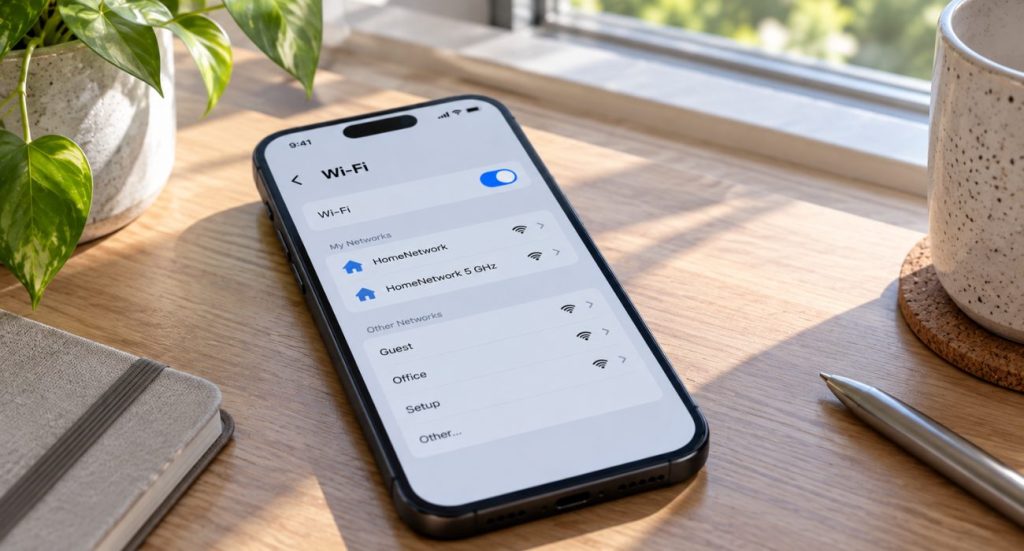
TL;DR: Your iPhone personal hotspot name is the same as your device name. To change it, go to Settings > General > About > Name. And once you’re done using it, it’s a good idea to turn the hotspot off to save battery life and mobile data.

On this page
What is a hotspot and what is it for?
 Even though the name sounds technical, a hotspot is simply a feature on your phone that turns it into a portable Wi-Fi network. It uses your mobile data so other devices you authorize can connect to the internet through your phone.
For example, maybe your friend ran out of mobile data and needs to look something up, or maybe the Wi-Fi at a coffee shop is really slow.
A hotspot can also be a lifesaver during a power or internet outage. If your home Wi-Fi suddenly stops working during a meeting, you can connect your laptop to your iPhone’s hotspot and keep working almost immediately.
Why change the name and password of your iPhone hotspot?
There are some good reasons to change your hotspot name and password from time to time:
👮🏻♂️ Security
If your hotspot name or password is too simple or easy to guess, other people could try connecting and using up your mobile data without permission.
💡 Convenience
Changing the password regularly can be helpful if you share your hotspot often but don’t want old devices reconnecting automatically in the future.
👀 Easy identification
A custom hotspot name makes it much easier to recognize your iPhone when multiple devices appear nearby.
🤗 Personalization
And honestly, sometimes people just want a fun or cute hotspot name that feels a little more personal.
🤓 Keep reading this guide on How Do You Really Know Your Devices and Data are Secure?
How to change your hotspot name on iPhone
Grab your iPhone and follow these quick steps:
- Open Settings.
- Tap General and then About.
- Tap Name. (If your hotspot is currently active, you may need to turn it off and back on before other devices see the new name)
- Delete the current name and replace it with something you like and can easily recognize, such as “Haku’s Soup,” “Road Trip Wi-Fi,” or any name that’s easy for you to spot.
And that’s it. Your hotspot will now appear under the new device name when other devices search for available Wi-Fi networks.
How to activate your hotspot
Whenever you want to share your internet connection with another device, here’s what to do:
- Open Settings.
- Tap Personal Hotspot.
- Turn on Allow Others to Join.
Once the switch turns green, your hotspot is active and ready to use. To turn it off later, just tap the switch again.
It’s a good idea to disable your hotspot once you’re done using it. Besides being more secure, it also helps save battery, prevent other connected devices from continuing to use your mobile data, and prevent your iPhone from overheating.
Hotspot not showing up or not working?
First, make sure your mobile plan supports hotspot sharing, since some carriers limit this feature.
If the hotspot exists but devices still can’t connect, restarting both your iPhone and the other device usually fixes the problem.
Still not working? Try resetting your network settings:
Settings > General > Transfer or Reset iPhone > Reset > Reset Network Settings
Just keep in mind that this will also erase your saved Wi-Fi passwords.
✨Pro tip: If you need internet for your laptop and want to save battery, connect your iPhone to the computer with a USB cable and then enable the hotspot normally. USB tethering is usually faster, more stable, and uses less battery than wireless hotspot sharing.
⚠️ Note: Some Windows computers may require iTunes to recognize USB tethering properly.
How to change your hotspot password on iPhone
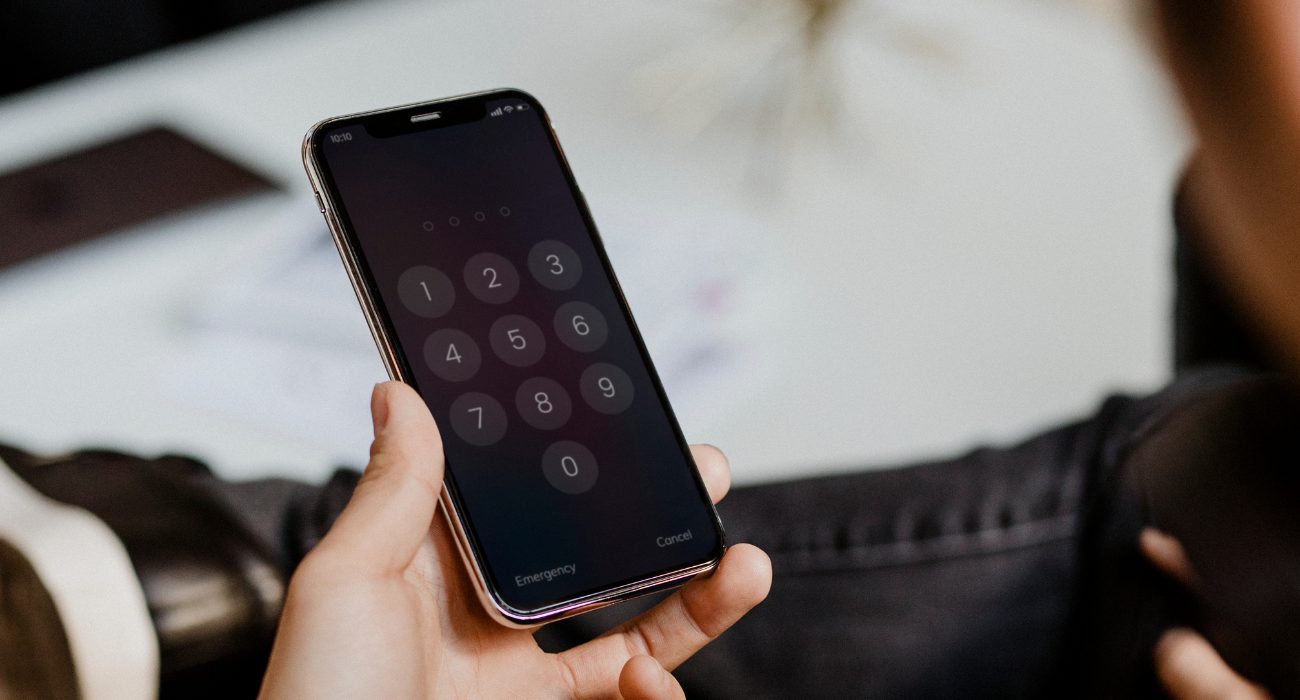 Now that you’re already customizing your hotspot settings, it’s also a good time to update the password.
- Open Settings and tap Personal Hotspot.
- Tap Wi-Fi Password.
- Enter a new password and save the changes.
Updating the password helps prevent old devices or people you’ve shared your hotspot with before from reconnecting automatically without your permission.
✏️ Pro tip: Try using a stronger password that mixes letters, numbers, and symbols. It makes your hotspot much harder for strangers to guess, especially in public places.
🤔 You might like: How Can You Recognize an Unsecured Wireless Network
Wrapping up
We hope this quick guide helped you change your iPhone hotspot name and password easily! The whole process only takes a minute or two, but it can make your hotspot more secure, easier to recognize, and more personalized.
Just remember to turn the hotspot off when you’re done using it, especially if you’re in public or trying to save battery life.
One last thing: avoid sharing your hotspot openly in crowded public places whenever possible. Mobile hotspots are convenient, but they usually don’t have the same level of protection as a properly secured home Wi-Fi network.
FAQs
Is a hotspot the same as Wi-Fi?
Not exactly, but they work together. In simple words, Wi-Fi is the technology used to create a wireless connection, a personal hotspot is a device or feature that provides that Wi-Fi connection using mobile data. When you enable your iPhone’s hotspot, your phone uses its mobile data connection and creates a Wi-Fi network that other devices can join.
What’s the default iPhone hotspot name?
By default, Apple uses your device name as the hotspot name. In most cases, it will appear as something like “iPhone” or “George’s iPhone.”
Because this often includes your real name, many people prefer changing it for a little extra privacy.
Can other people see my hotspot name?
Yes. If Allow Others to Join is turned on, nearby devices will be able to see your hotspot name in their list of available Wi-Fi networks.
They still won’t be able to connect without the password, but they will see the network name you chose. That’s why it’s usually better not to use personal information in the hotspot name.
Can I hide my hotspot from other people?
Not completely. iPhones don’t include a traditional “hidden network” option for hotspots.
However, when you turn off Allow Others to Join, your hotspot won’t appear as an available network for most nearby devices unless they already know how to connect to it. Devices connected to your own Apple account through iCloud may still detect it automatically.
Is changing my hotspot name safe?
Of course! Changing the hotspot name does not affect your phone’s performance, internet speed, or mobile plan.
In fact, changing it can improve your privacy by removing your real name from the visible Wi-Fi network list, especially when you’re in public places.
Does using a hotspot drain the battery?
Yes, and sometimes pretty quickly. When your hotspot is active, your iPhone is both receiving mobile data and broadcasting a Wi-Fi signal at the same time.
This uses much more power than normal phone usage, which is why hotspots can drain the battery faster and make the phone feel warm during extended use.
Why is my hotspot option grayed out?
If the Personal Hotspot option appears grayed out, it’s usually because cellular data is disabled or your carrier does not currently support hotspot sharing on your plan.
Try turning Cellular Data off and back on, restarting the iPhone, or checking with your carrier to confirm that hotspot access is included in your plan.
Is there a downside to using your phone as a hotspot?
Hotspots are extremely convenient, but there are a few downsides. They can use a lot of mobile data very quickly, drain your battery faster than usual, and sometimes cause the phone to heat up during long sessions.
Because of that, hotspots are best used when needed rather than as a permanent replacement for home Wi-Fi.
Last Updated on June 30, 2026