Is your Wi-Fi slow? Our wireless network optimization strategies can help. Here, we share practical ways to boost your internet speed and maintain a reliable connection.
Know Your Current Internet Speed
Before making improvements, we start by understanding our current internet speed. This baseline helps us identify issues with our Wi-Fi connection or service.
For this, you must run speed tests on multiple devices using online tools, ideally at different times of day to account for traffic fluctuations. Once you compare the results to your plan’s advertised speeds, you can identify whether your connection is underperforming.
Most households need at least 100 Mbps for a good experience. If your speed falls below 80% of what you pay for, it may be time to troubleshoot or upgrade equipment. Outdated routers or modems can significantly slow down performance, and upgrading them can dramatically improve how to make WiFi faster and strengthen overall connectivity.
Restart Your Wireless Network Devices
Restarting your modem and router is one of the simplest ways to improve home WiFi signal and restore a faster connection. A monthly reboot clears errors, resets memory, and helps devices process traffic more efficiently.
If your router is overwhelmed with tasks or traffic, restarting it can quickly resolve slow Wi-Fi issues and restore stable performance.
Update Your Router’s Firmware
Keeping router firmware up-to-date is crucial for both performance and security. Firmware updates act like an improved operating system, enabling our router to handle greater internet demands and new security standards.
Even if our router supports automatic updates, we routinely check manually using the router’s app or web interface. A simple firmware update can significantly improve wireless network optimization and reliability.
Optimize Router Placement
Router location directly affects wireless coverage. You should place your router in a central, elevated area to improve signal strength throughout our home.
Positioning it on a shelf or wall mount helps reduce obstructions and boosts our Wi-Fi reach. For larger homes or layouts with thick walls, a mesh Wi-Fi system can help deliver more consistent coverage and eliminate dead zones.
Use the Right Frequency Band
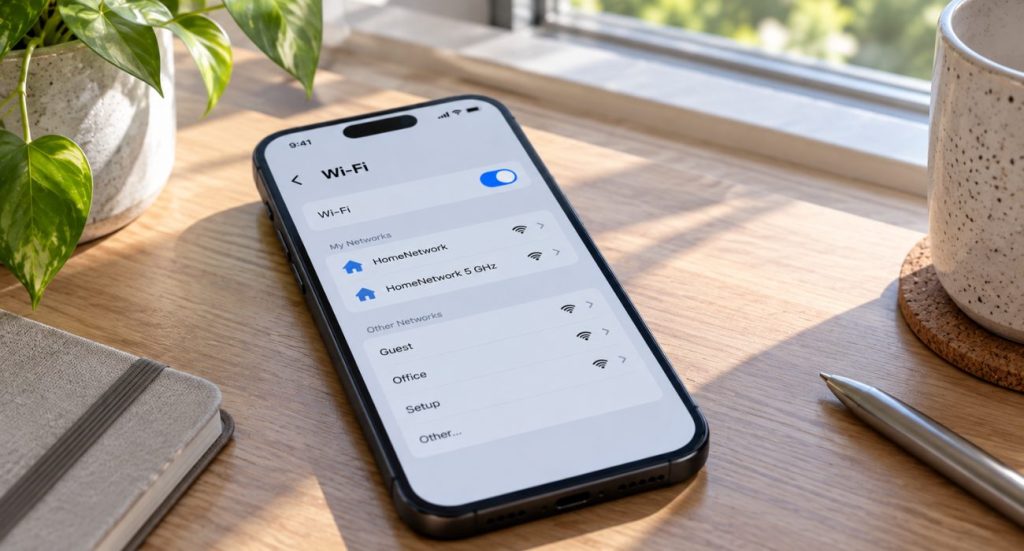
Choosing the correct frequency band enhances performance. Our router’s 5 GHz band delivers faster speeds for activities like streaming and gaming, while the 2.4 GHz band provides better range for devices farther away.
We optimize router settings by assigning devices based on their distance and usage needs. This balanced distribution helps reduce interference and improves home WiFi signal across all areas.
Change Wi-Fi Channels
Interference from other networks or household devices can slow Wi-Fi performance. Changing Wi-Fi channels can resolve congestion, especially on the 2.4 GHz band.
Using tools such as WiFi Analyzer, we select less crowded channels, typically between 149–161, to minimize interference. After adjusting the primary channel through the router interface, we often see improved stability and faster speeds.

Adjust Your Router’s Antennas
Router antennas play an important role in network signal boost performance. You can experiment with vertical and horizontal antenna positions depending on your home’s layout to maximize signal reach.
Checking signal strength after each change helps us identify the ideal setup for faster, more reliable connectivity.
Limit Connected Devices
Too many connected devices can slow down our network. Disconnect unused phones, tablets, laptops, and smart devices to free bandwidth.
A general rule is to reserve about 100 Mbps per person for a smooth internet experience. By prioritizing important devices, we help ensure consistent performance for streaming, video calls, and work tasks.
Extend Your Wireless Network
For homes with large layouts or multiple floors, you should extend your network using Wi-Fi extenders, mesh systems, or powerline adapters.
Wi-Fi extenders can rebroadcast our existing signal or create a secondary network. Mesh systems use multiple access points for seamless whole-home coverage. Powerline adapters use our electrical wiring to create additional wired connection points.
Each option improves our wireless network optimization and eliminates weak-signal areas.
Secure Your Wireless Network
Security directly impacts network reliability. You can protect your connection with WPA3 encryption, change default router login credentials, and disable features that could introduce vulnerabilities.
We also enable the router firewall and create a guest network to keep our main network secure. These steps protect our information while ensuring stable and fast Wi-Fi performance.
At Geeks on Site
At Geeks on Site, we specialize in diagnosing and improving slow Wi-Fi connections. We can help adjust frequency bands, optimize router placement, extend Wi-Fi range, and configure secure network setups. If needed, we also assist in securing a stronger router through your service provider.
Our services include wireless network installation, optimization, computer repair, and full network configuration. With over 20 years of experience, we provide reliable nationwide support.
Summary
Boosting internet speed requires understanding our current speed, restarting devices, updating firmware, optimizing router placement, using the right frequency band, adjusting channels and antennas, limiting device connections, extending the network, and securing the network.
By applying these ten essential tips, you can enjoy faster speeds, stronger coverage, and a more reliable wireless connection.
Frequently Asked Questions
We can use online speed tests like Speedtest.net or Fast.com. Testing at various times helps ensure accurate results.
We use Wi-Fi extenders, mesh systems, or powerline adapters to improve coverage in large homes and eliminate dead zones.
We access the router’s app or web interface, check for available updates, and enable automatic updates when possible.
The 5 GHz band provides faster speeds for streaming, gaming, and high-demand tasks, improving our overall Wi-Fi experience.
Last Updated on December 9, 2025