How to Integrate TV with Security Cameras: A Practical Guide
Want to view your security cameras on your TV screen? This practical guide will show you how to integrate TV with security cameras, covering everything from straightforward HDMI connections to advanced smart home integrations.
Key Takeaways
- Understanding compatibility between security cameras and TVs is crucial for effective integration, focusing on input options and resolution matching.
- Using HDMI connections offers a simple setup for both IP and analog cameras, enabling high-quality video display on your TV.
- Integrating security cameras with smart home systems enhances monitoring convenience, allowing access to camera feeds through voice commands and smart displays.
Understanding Your Security Camera and TV Compatibility

Understanding the compatibility between your security cameras and TV is essential before beginning the setup process. Security cameras generally fall into two categories: IP cameras and analog cameras. IP cameras connect to your network and can transmit data via Ethernet cables or wirelessly through Wi-Fi, making them versatile and easy to integrate with modern smart TVs. On the other hand, analog cameras, such as traditional CCTV cameras, typically require specific video cable connections like coaxial or RCA cables to link them to a TV.
Verify that your TV has compatible input options for smooth integration. Modern smart TVs usually come equipped with HDMI, AV, or BNC inputs, which are essential for connecting both IP and analog cameras. Matching your TV’s resolution capability with the camera’s output ensures optimal video quality. This guarantees that the security footage on your TV monitor is clear and detailed, enhancing surveillance.
Linking security cameras to your TV provides real-time feeds on a larger screen, improving your monitoring capabilities. Whether you’re looking to view a single camera feed or multiple security cameras at once, understanding these compatibility factors is the first step towards a secure and integrated home environment.
Connecting Security Cameras to TV Using HDMI Cable

Using an HDMI cable is one of the simplest ways to connect security cameras to your TV. This method works particularly well for IP cameras, which can directly link to the TV’s HDMI port for a seamless video display. For analog CCTV cameras, a BNC to HDMI converter is required for connecting CCTV cameras and translating the signal into a format compatible with the TV.
Start by connecting the camera’s output to the TV’s HDMI input, making sure the HDMI cable is securely plugged into both. For analog cameras, connect the BNC cable to a BNC to HDMI converter, then use an HDMI cable to link the converter to the TV. This setup allows you to leverage the high-definition capabilities of your TV for clear and sharp security footage.
After connecting everything, switch the TV input source to the correct HDMI port to view the connected camera feeds, enabling real-time monitoring.
Using an HDMI cable offers a reliable and high-quality connection for monitoring your security system, whether for a single camera or multiple feeds.
Setting Up Wireless Security Cameras for TV Integration

Wireless security cameras, known for their flexibility and ease of installation, are a popular choice for modern homes. Ensure your wireless security camera works is connected to your home Wi-Fi network to stream the video feed to your TV wirelessly.
Then, download a compatible app on your smart TV or use a streaming device like Chromecast or Roku to access the camera feed. Many smart TVs have built-in apps that can display security camera feeds, making the process even more straightforward. After installing the app, follow the prompts to connect the security camera to the TV. Keep the camera and TV firmware up-to-date to avoid connectivity issues, as updates often include bug fixes and performance improvements.
This wireless setup lets you view security footage directly on your TV without physical cables. It’s perfect for maintaining a clutter-free environment while benefiting from smart home integration features.
Using DVR/NVR Systems for Enhanced TV Integration
Consider DVR (Digital Video Recorder) or NVR (Network Video Recorder) systems for a more robust and versatile setup. These systems provide enhanced features and stability, making them ideal for integrating multiple security cameras with your TV. NVR systems, in particular, ensure a stable signal and reduce connection failure risks due to their network connectivity.
NVR systems support remote access to your security footage, a feature often absent in traditional DVR setups. This feature enables you to monitor your property from anywhere, adding an extra layer of security. NVR systems often include advanced features like motion detection and analytics, which can be directly integrated within the camera. These features cater to modern security needs, offering higher resolution recordings and more detailed surveillance.
Connect an NVR to your TV by using an HDMI cable to link the NVR system to the TV’s HDMI input. For wireless security camera systems, ensure the NVR is properly connected to the TV. This setup enables seamless viewing of camera feeds on the TV screen, enhancing your overall security system.
Leveraging DVR/NVR systems helps create a comprehensive and efficient home security systems setup.
Viewing Multiple Security Cameras on One TV Screen

Displaying multiple security camera feeds on a single TV screen significantly enhances surveillance capabilities. A video multiplexer allows you to display feeds from several security cameras on one screen. It’s particularly useful for monitoring different areas of your property simultaneously.
A CCTV camera video multiplexer can display live video footage from multiple cameras in various screen layouts. Adjust these layouts using a remote control or device buttons, providing flexibility in viewing camera feeds.
Use RG59 Siamese coax cables to connect security cameras to the multiplexer, transmitting both power and video signals. A video multiplexer allows you to watch live feeds from multiple cameras on your TV, offering a comprehensive view of your security system. It’s ideal for large properties or monitoring several areas simultaneously, ensuring nothing goes unnoticed.
Smart Home Integration with Security Cameras and TVs

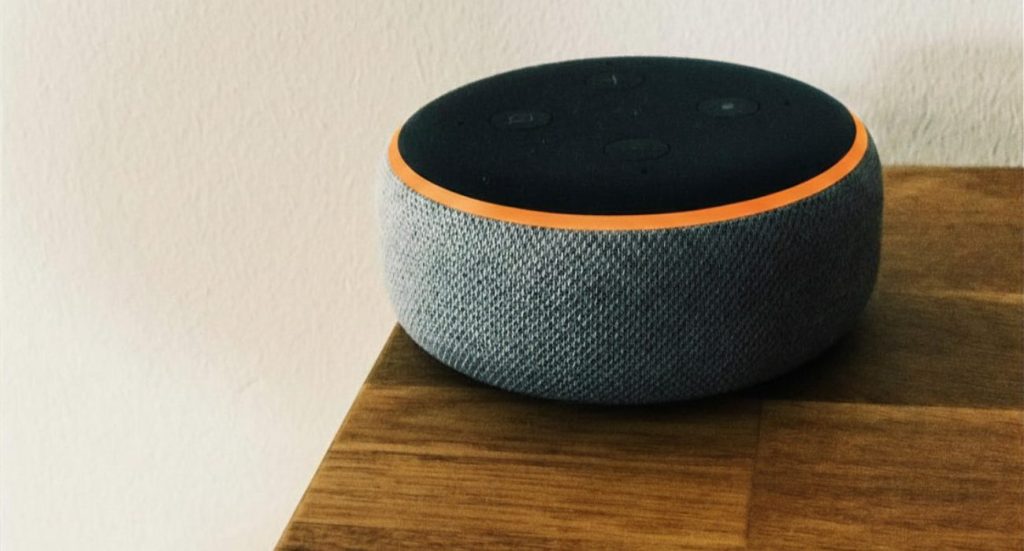
Integrating security cameras with smart home systems greatly enhances home security functionality and convenience. Many wireless security camera systems are compatible with major smart home platforms like Google Home, Apple HomeKit, and Amazon Alexa, enabling seamless control and monitoring.
Linking security cameras to these platforms allows you to view footage directly on your smart display or TV. Using voice commands with Google Assistant or Alexa, you can activate the camera feed on your TV by stating the camera’s name or location. This hands-free control makes monitoring your security system more accessible.
Integration allows you to use various smart home devices to manage your security system. For instance, use a smart display to view live footage from your security cameras, increasing convenience. Whether using an Apple TV, Google Home, or Amazon Fire TV, smart tv integration keeps your security system at your fingertips, providing peace of mind and enhanced control.
Troubleshooting Common Issues
Even with an optimal setup, common issues may arise when integrating security cameras with your TV. Testing the connection by pinging the camera’s IP address can be effective. A time-out or unreachable message indicates potential network issues. Use the correct username and password, as incorrect credentials can block access to the camera.
ARP tables can help verify that MAC and IP addresses match for proper connectivity. Assign unique IP addresses to each camera to avoid conflicts and maintain reliable access. Upgrading the camera’s firmware can resolve many connectivity and functionality issues. Rebooting the camera might resolve temporary glitches if problems persist.
A factory reset may be necessary to troubleshoot persistent issues, though it will erase existing settings. Consulting the manufacturer or a remote monitoring service can offer expert assistance for complex problems. Following these troubleshooting steps ensures that your security system remains functional and reliable.
Hire Geeks on Site Professionals
While DIY setups can be rewarding, hiring professionals like Geeks on Site for CCTV installation ensures optimal setup and connectivity. Experts help avoid common pitfalls and technical issues, ensuring smooth and efficient integration.
Professional installation services often include guarantees, providing homeowners peace of mind. Experienced Geeks on Site technicians offer tailored solutions based on your specific security needs and TV models, ensuring optimal camera placements and aesthetic appeal.
Choosing Geeks on Site means benefiting from their extensive experience and expertise, ensuring a comprehensive and reliable home security setup. Whether you need help with installation, troubleshooting, or optimizing your security system, Geeks on Site professionals are ready to assist.
Summary
Integrating your security cameras with your TV can significantly enhance your home security and convenience. By understanding the compatibility between your cameras and TV, connecting them using HDMI cables, setting up wireless systems, and leveraging DVR/NVR systems, you can create a robust and efficient security setup.
Whether you prefer a DIY approach or professional assistance, ensuring your security system is properly integrated with your TV provides peace of mind and improved control over your home environment. Take the next step in securing your home by exploring the options discussed in this guide and considering the expert services of Geeks on Site.
FAQs
A: You can connect your analog CCTV camera to your smart TV by using a BNC to HDMI converter, which will adapt the signal for compatibility. This solution ensures you can view your camera feed directly on your TV.
A: To view your wireless security camera feed on your TV, use a streaming device like Chromecast or Roku, making sure both the camera and TV are connected to the same Wi-Fi network. This will allow you to easily display the camera feed on your screen.
A: Using an NVR system for TV integration provides stable signals, remote access, and advanced features like motion detection and higher resolution recordings, enhancing your overall viewing experience. These benefits make NVR systems a smart choice for efficient and reliable video management.
A: To view multiple security camera feeds on one TV screen, use a video multiplexer, which enables various layouts and remote control adjustments for seamless monitoring. This setup provides an efficient way to keep an eye on multiple locations simultaneously.
A: If you experience connectivity issues with your security camera, first ping its IP address to test the connection and verify the credentials. If these steps don’t resolve the issue, check for IP conflicts, upgrade the firmware, and consider rebooting or resetting the camera. If problems persist, consult the manufacturer for further assistance.
Last Updated on April 11, 2025