TL;DR: A flashing blue Ring doorbell usually means it’s working normally. It may be charging, reconnecting to Wi-Fi, installing an update, or someone may have started Live View. If the same blue pattern keeps flashing for more than 10–15 minutes or your doorbell goes offline, it’s time to troubleshoot.
In this guide:
- What each blue light means
- Why does it flash blue if nobody rang the bell?
- What to consider about the charging light
- Does the blue light mean the same thing on every Ring doorbell?
- When should you start troubleshooting?
- So, how do you fix the flashing blue light on your Ring doorbell?
- Last words
- FAQs
If your Ring doorbell is flashing blue right now, don’t panic. Most of the time, there’s nothing wrong. Ring uses that blue light to tell you what it’s doing in real time, even if that means it’s charging, connecting to Wi-Fi, or updating its software. The trick is knowing what each pattern means so you know when to just wait it out and when to actually do something.
✨ Here’s a quick breakdown of what each blue light means.
What each blue light means
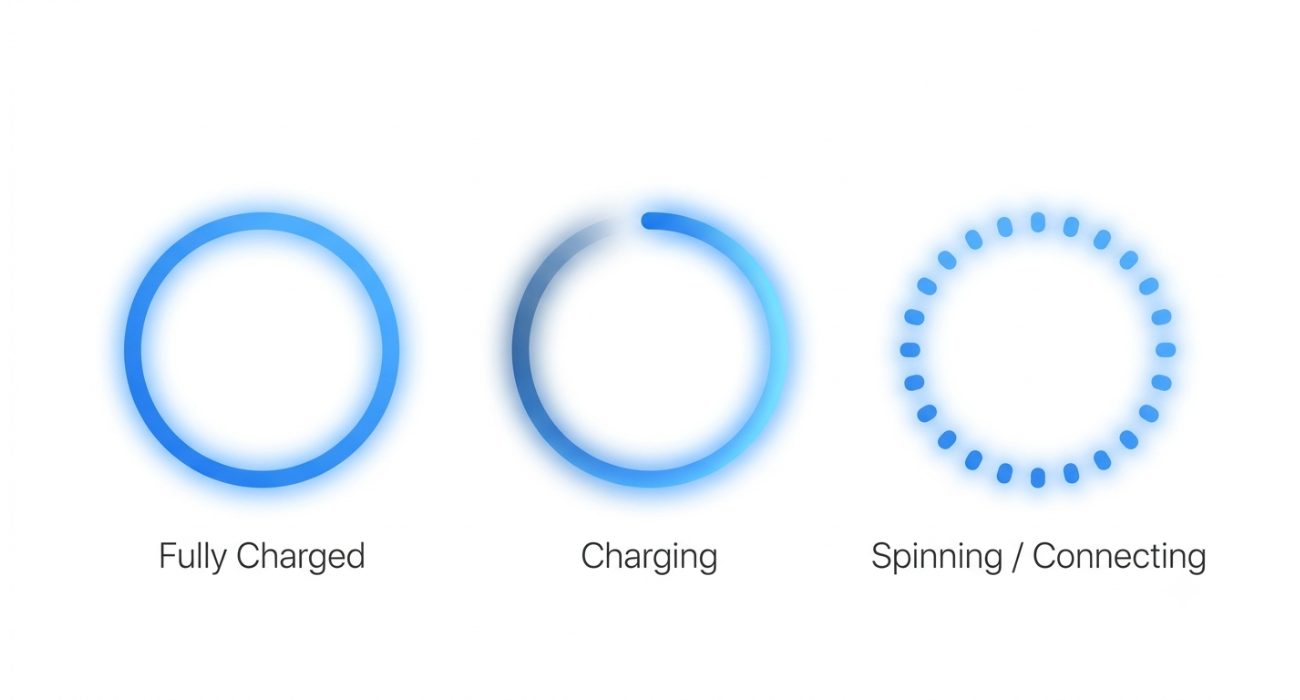
While Ring has different doorbell models, including Battery Doorbell, Ring Video Doorbell 2/3/4, Wired, Pro, and Battery Doorbell Plus, the good thing is that most of them share the same blue light patterns. Check out this chart:
| Blue light pattern | What it means | Is it normal? |
| Spinning blue light | Someone rang the doorbell or started Live View from the Ring app | Yes, absolutely! |
| Spinning circle at startup | The Ring device is booting up or restarting | Yes, just give it a couple minutes and it’ll be fine |
| Blue circle filling clockwise | It’s charging (see the charging breakdown below) | Yes, that’s how the battery status works. |
| Blue light moving upward | It’s connecting to Wi-Fi during the setup process | Yes, this is normal during setup or reconnect |
| Solid blue light | The battery is fully charged | Yes, that’s normal operation |
| Fast flashing | Trying to connect to Wi-Fi in setup mode, or wrong password during setup | Depends, it’s normal if you’re installing it |
| Slow, repetitive blinking | It just powered on, updated, or came back after an outage | Yes, but if it only lasts a few minutes |
| Continuous, endless blinking | It’s stuck in a reboot loop from power or Wi-Fi issues | No. This usually points to a problem that needs troubleshooting. |
If the flashing blue light is accompanied by Wi-Fi problems, battery issues, delayed notifications, or other unexpected behavior, our Ring doorbell troubleshooting blog covers the most common causes and how to fix them.
Why does it flash blue if nobody rang the bell?
This is the question most people are actually searching for. If you’re relaxing on the couch and the doorbell flashes blue with nobody at the door, here’s what’s probably happening (and no, it’s probably not anything mysterious 😂):
- Automatic firmware updates. Ring regularly pushes firmware updates overnight, and the doorbell may flash blue while it’s updating firmware.
- Someone opened the Live View. If anyone in the house checked the live camera feed from their phone or computer or talked to a visitor through the doorbell’s speaker, the light may flash.
- A Wi-Fi disconnection. Your internet dropped for a second, and the doorbell is trying to restore its network connection.
- Power or battery issues. On battery models, a critically low charge can make the light act up. On wired models, it can mean the transformer isn’t sending sufficient power.
- The “phantom battery” effect. Hardwired Ring doorbells only get a slow trickle charge. On a busy day, or when it’s cold outside, the battery can drain faster than it charges and trigger the light.
So if your Ring doorbell is flashing blue and nobody’s at the door, one of these everyday situations is probably the reason.
What to consider about the charging light
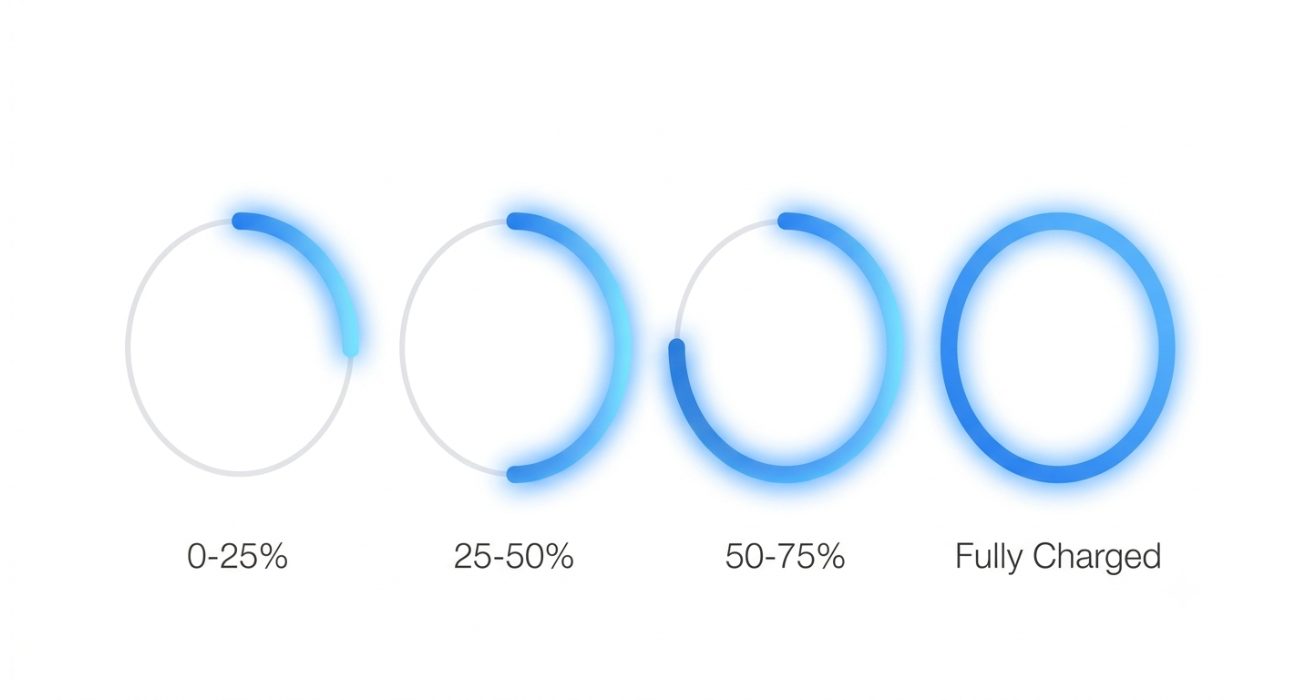 When the blue light circle fills in clockwise, that’s Ring’s way of showing battery status on doorbells with a built-in battery. Here’s how to read it:
- Upper-right quadrant flashing: charging between 0-25%
- Right half flashing: charging between 25-50%
- Most of the circle flashing: charging between 50-75%
- Solid blue light: fully charged
One thing to keep in mind: this pattern doesn’t apply to every model. Doorbells with a Quick Release Battery Pack don’t show this charging light at all, so if yours has a removable battery pack and you’re not seeing this pattern, that’s expected, not a malfunction.
For a steadier charge, use the charging cable that came with your doorbell and plug it into a USB wall adapter instead of a computer port. A full charge can take a few hours, so don’t worry if the blue circle is still filling after one hour.
🔋 Want to know how long a Ring battery should last between charges? Check out our guide on How Long Does a Ring Camera Battery Last?
Does the blue light mean the same thing on every Ring doorbell?
Mostly, yes. Many of the spinning, flashing, and upward blue light patterns have similar meanings across the lineup. The big difference is the charging light, which depends on how your doorbell gets its power:
| Type of doorbell | What to expect from the blue light |
| Hardwired only (Ring Wired, Ring Pro, Ring Doorbell Pro 2, Ring Video Doorbell Elite) | No battery, so you won’t see the charging circle. Blue usually means a doorbell press, Live View, or a Wi-Fi connection issue. |
| Built-in battery (Ring Video Doorbell, 2nd gen) | Shows the full charging circle while plugged in, then a solid blue ring when it’s done. |
| Quick Release Battery Pack (Doorbell 2/3/4, Battery Doorbell Plus, Peephole Cam) | The pack charges outside the doorbell, so no charging circle. Check the battery level in the Ring app instead. |
If you’re not sure which one you have, open the Ring app, tap your device, and look under Device Health. The model name is listed there.
When should you start troubleshooting?
Here are a few signs that it’s time to troubleshoot:
- The same blue pattern has been going for more than 10-15 minutes without changing
- The doorbell shows as “Offline” in the Ring app
- It doesn’t respond when someone presses the physical button
- It’s stuck restarting over and over like an infinite loop that never seems to end
- It keeps flashing blue after a failed firmware update or a full charging cycle
So, how do you fix the flashing blue light on your Ring doorbell?
🕒 1. Give it a little time before doing anything
It sounds almost too simple, but waiting is actually the best first step (try waiting about 15 minutes). Usually this is because your Ring doorbell is in the middle of installing a firmware update, removing the battery or cutting the power too soon can interrupt the process.
In some cases, that leaves the update incomplete and creates a bigger problem than the blue light itself. If it’s still flashing after an hour, move on to the next step.
📱 2. Check the Ring app
Next, open the Ring app, select your Ring device, and head to Device Health.
If the app says your doorbell is Offline, there’s a good chance the problem isn’t the doorbell itself. More often than not, it’s having trouble reaching your home Wi-Fi network.
A quick restart of your modem or router is often enough to bring everything back online.
🛜 3. Make sure it’s connected to the right Wi-Fi network
Many Ring doorbell models work best on 2.4 GHz Wi-Fi, although some newer models also support 5 GHz.
If your router broadcasts both a 2.4 GHz and a 5 GHz network, take a moment to confirm the doorbell is connected to the correct Wi-Fi network. Some routers automatically move devices between bands, and while that works well for phones and laptops, it can occasionally cause Wi-Fi connection issues with smart home devices.
✏️ If your Ring is disconnected from the Wi-Fi, here’s how to fix it.
👀 4. Take a look at the Wi-Fi signal
Even if your internet is working, the signal reaching the front door might not be very strong. Inside Device Health, you’ll find an RSSI reading. Think of it as a quick way to measure how well the doorbell can “hear” your Wi-Fi signal.
As a general rule:
- -40 to -60 dBm usually means the connection is strong.
- Numbers closer to -70 dBm (or lower) often point to a weak signal.
If the signal isn’t great, moving the router closer to your front door may be enough. If that’s not practical, a Wi-Fi extender or a Ring Chime Pro can help improve coverage, especially in homes with brick, concrete, stone, or stucco walls that naturally weaken wireless signals.
✅ 5. Double-check your Wi-Fi password
If the flashing started while you were setting up the doorbell, don’t overlook something simple.
Entering the wrong Wi-Fi password is still one of the most common setup mistakes, especially if it includes uppercase letters, numbers, or special characters.
Before trying anything more advanced:
- put the doorbell back in setup mode and reconnect it through the Ring app
- make sure you’ve selected the correct Wi-Fi network
- carefully type the password again
It’s a small thing, but it solves this issue more often than most people expect.
⚡ 6. Check the power supply if you have a wired model
For wired Ring doorbells, stable power is just as important as a good Wi-Fi connection.
Most wired Ring models require an 8–24 VAC transformer. If the transformer is getting old or isn’t delivering sufficient power, the doorbell may keep restarting or get stuck showing the blue light.
In that situation, a replacement transformer or Ring’s Plug-In Adapter is often enough to fix the problem.
🔧 If your Ring doorbell still isn’t working properly after checking the power supply, our guide on How to Remove a Ring Doorbell walks you through safely removing it for charging, inspection, or replacement.
🔄 7. Reset the doorbell if nothing else has worked
If you’ve already checked the Wi-Fi connection and ruled out power issues, a factory reset is usually the next step. This returns your doorbell to its factory settings, so you’ll need to set it up again afterward.
The exact process depends on which Ring model you have.
- Ring Video Doorbell Pro. Press and hold the setup button for about 15 seconds.
- Ring Video Doorbell 2. Remove the faceplate first, then press and hold the orange setup button for about 15 seconds.
- Ring Video Doorbell Elite and Peephole Cam. Both have a setup button too, but it sits in a different spot on each model, so check Ring’s guide for your device before pressing anything.
Once the reset starts, let it finish before pressing any buttons or disconnecting power again.
If you need help taking the doorbell off its mounting bracket or removing the faceplate first, our Ring doorbell removal guide walks you through the process step by step.
After the reset, you’ll need to set the doorbell up again in the Ring app. During the setup process, it’s completely normal to see the blue light moving upward while it reconnects to your Wi-Fi network.
✏️ You might like reading: How to Setup Your Ring Doorbell That Is Already Installed
Last words
Seeing your Ring doorbell flash blue can be a little alarming the first time, especially if nobody’s outside and the light seems to appear for no obvious reason. Fortunately, that’s usually all it is: a status light letting you know the doorbell is charging, reconnecting, updating, or responding to something happening in the app.
If the flashing disappears after a few minutes, there’s probably nothing else you need to do. If it doesn’t, working through the Wi-Fi, power, and reset steps above will fix the issue in most cases. If the light pattern appears to be related to connectivity, these Ring Wi-Fi troubleshooting steps can help you rule out signal, network, and router problems.
But if you’ve tried everything in this guide and your Ring video doorbell is still flashing blue, the problem may go beyond a simple settings issue. Our Ring certified technicians can help diagnose the issue and get your doorbell working properly again.
FAQs
Does a blue light mean someone is watching on Ring?
Not necessarily. A spinning blue light does turn on when someone opens Live View, so it can mean someone in your household is checking the feed.
But the same light also shows up for firmware updates, reboots, and Wi-Fi reconnects, so it’s not a reliable sign on its own that someone’s watching.
Is a blinking blue light bad on a Ring, or does it mean the doorbell is broken?
Not really. This is because a blinking blue light is part of normal operation, whether that’s charging, connecting to Wi-Fi, or updating firmware. It only points to a real problem if the same pattern repeats non-stop for more than 10 to 15 minutes, or the doorbell shows as offline in the app.
Why is my Ring Doorbell blinking blue but not charging?
This usually points to a power delivery issue rather than the battery itself.
Check that the charging cable is fully seated in the port, try a different USB cord or adapter, and clean out any dust or debris from the charging port. If it still won’t charge after that, the battery pack itself may need to be replaced.
What color should my Ring Doorbell be when charging?
A blue circle light that fills in gradually as the battery charges, moving from a small section up to a solid blue ring once it’s fully charged.
If you’re seeing a different color entirely, like solid red or white, that points to a separate issue rather than normal charging.
How do I force a reboot on my Ring Doorbell?
For battery models, remove the battery pack for about 30 seconds, then put it back in. For hardwired models, turn off the doorbell circuit from the breaker for 30 seconds before switching it back on. Give it a few minutes to fully boot back up before checking the app.
How do I reactivate my Ring Doorbell after a reset?
Open the Ring app, tap “Set Up a Device,” and follow the prompts to add it as new. You’ll need to reconnect it to your Wi-Fi network and re-enter your password. An upward-moving blue light during this step just means it’s reconnecting, that’s expected.
Last Updated on September 30, 2026