TL;DR: To install Clean Streams TV on a Firestick running Fire OS, enable Developer Options, allow Downloader to install unknown apps, then use the download link or code provided by your Clean Streams TV provider. The standard APK installation method doesn’t apply to Fire TV devices running Vega OS, so check your model before you start.
In this guide:
Check your Firestick before you start
Before changing any settings, check which Fire TV Stick you have. Amazon now uses two different operating systems across its Fire TV lineup, and the installation process isn’t the same on both.
Fire OS devices, including many existing Fire TV Stick models, can run Android-based apps and support the sideloading method covered in this guide. The Fire TV Stick 4K Select, however, runs on Amazon’s newer Vega OS. Vega uses a different app platform, so the standard APK-and-Downloader method below doesn’t apply.
To check your device, go to Settings → My Fire TV → About and look at the model and software information. It’s worth doing this first—you don’t want to spend 20 minutes hunting for a setting that isn’t available on your device.
While you’re there, check your available storage and make sure your Wi-Fi connection is stable. A couple of gigabytes of free space should give you plenty of room to download and install the app without running into storage problems.
How to install Clean Streams TV on Firestick
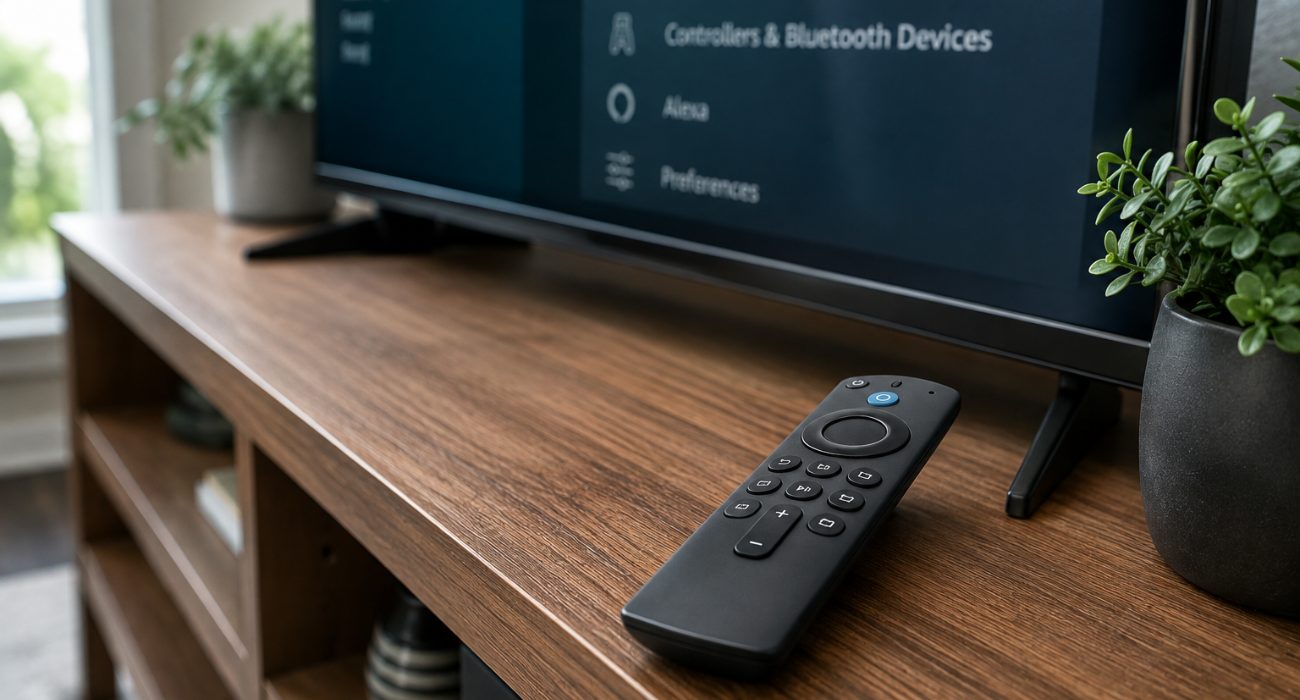
Once you’ve confirmed your Firestick supports sideloading, the install itself takes about ten minutes.
- Turn on Developer Options. From the home screen, go to Settings, then My Fire TV, then Developer Options. If you don’t see that menu, go to About instead, highlight your device name, and press the select button seven times in a row. A notification will pop up confirming developer options are now unlocked. Head back into that menu and open Install Unknown Apps.
- Enable Downloader for unknown installs. Inside Install Unknown Apps, you’ll see a list of apps you can grant permission to install from outside the Appstore. Find Downloader on that list and switch it on. Depending on your Fire OS version, this setting sometimes shows up as “Apps from Unknown Sources” instead, but it does the same job.
- Install the Downloader app itself. Back on the home screen, search for Downloader and install it like you would any other app from the Amazon Appstore. Open it once it’s done and allow the permissions it asks for, or it won’t be able to pull files onto your device.
- Download and install Clean Streams TV. Inside Downloader, stay on the Home tab and tap the URL field. Type in the download link or Downloader code your Clean Streams TV provider gave you, then hit Go. Once the file finishes downloading, select Install and wait for the installation to finish. When it’s done, the downloader will usually ask if you want to delete the APK file. Go ahead and delete it if storage space matters to you; it won’t affect the app once it’s installed.
- Sign in and start streaming. Head to Your Apps & Channels, open Clean Streams TV, and log in with the account details your service provided. Once you’re signed in, you should be ready to start streaming.
One thing worth repeating: only use a download link or code from your actual provider. Codes floating around on forums or social media get passed around long after they’ve expired or been swapped for something else entirely, and that’s usually how people end up with a broken install or, worse, a modified APK they didn’t ask for.
Why you might see “app installation blocked”
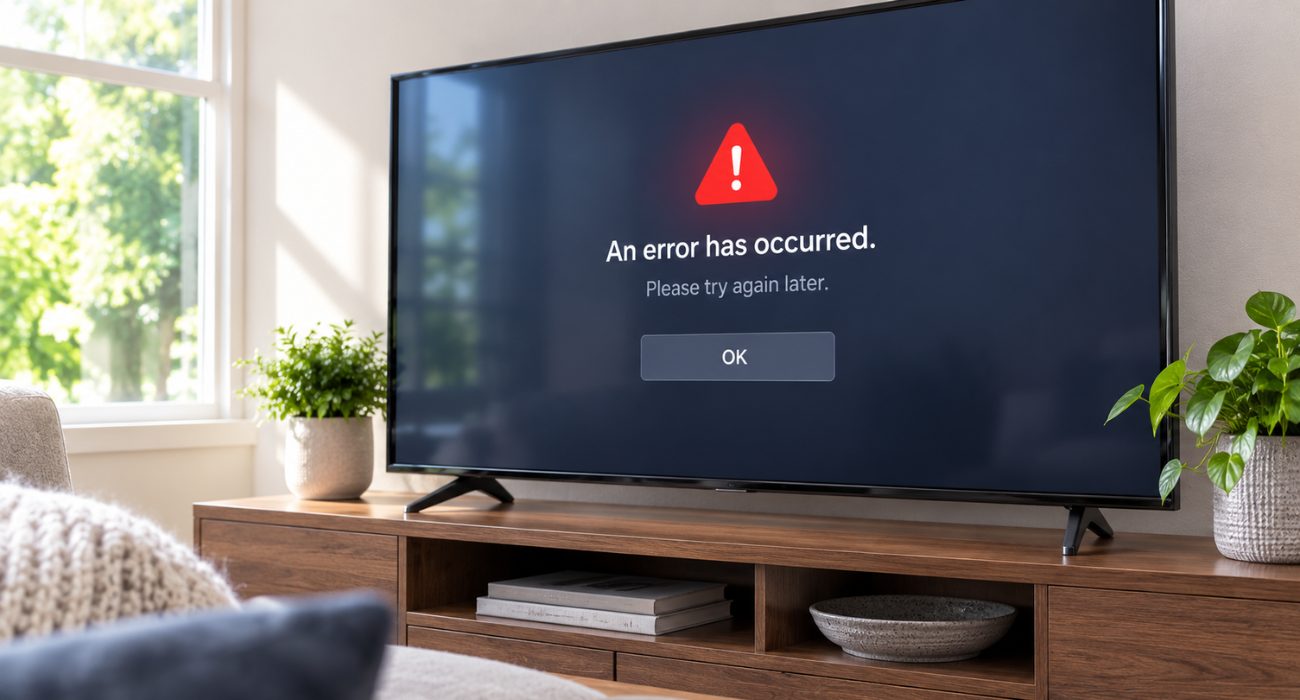
Amazon has tightened how Fire TV handles some sideloaded apps, and an installation may be blocked if the app is identified as providing access to unlicensed content. If you see this warning, don’t keep downloading different APKs or codes from random websites to try to get around it. Instead, confirm that you’re using the current installation method and download source provided by your service.
Do you need a VPN for Clean Streams TV?
No, you don’t need a VPN to install Clean Streams TV on a Firestick. Some people choose to use one for additional privacy while streaming, but it’s optional and won’t fix an incompatible app or a Firestick that doesn’t support the installation method in this guide.
If you already use a VPN, make sure its Fire TV app is compatible with your device. Keep in mind that a VPN can also slow your connection, so it’s worth temporarily turning it off if you’re troubleshooting buffering.
Troubleshooting Clean Streams TV on Firestick
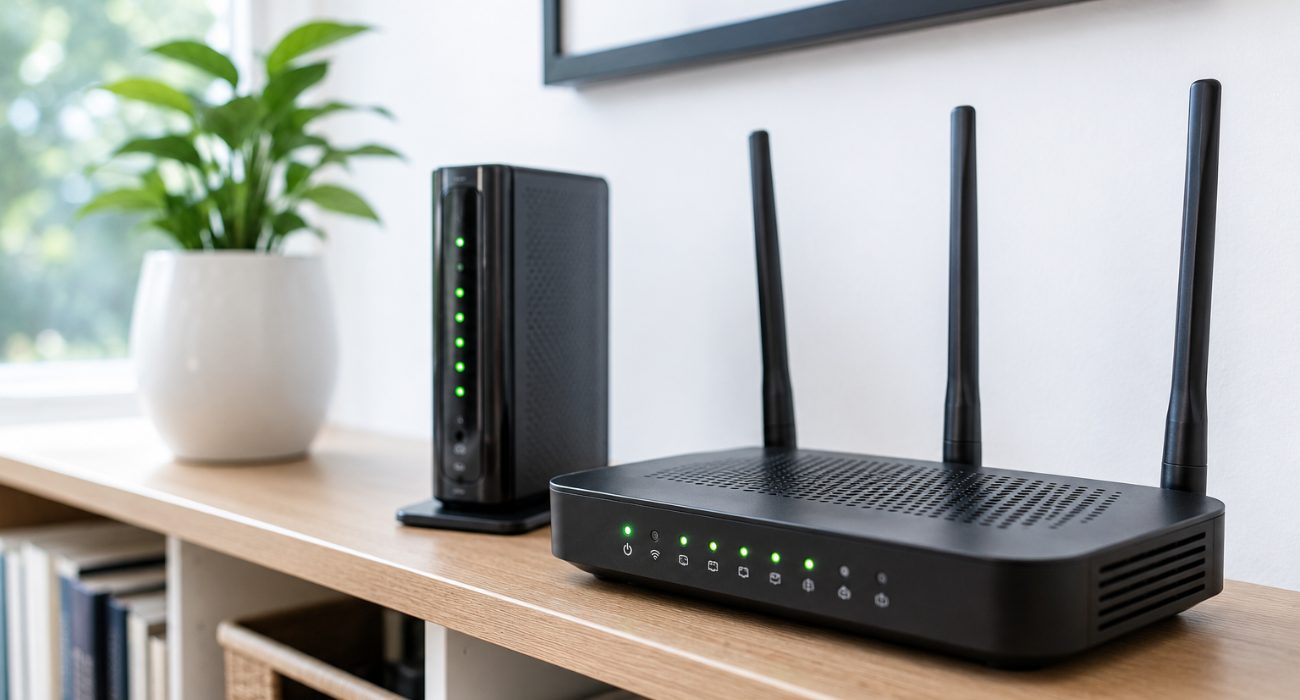
If Clean Streams TV installed successfully but isn’t working as expected, the problem could be coming from the app, your Firestick, or your internet connection. Before reinstalling anything, start with the simpler fixes below.
If Clean Streams TV keeps buffering
Try another streaming app on your Firestick first. If Netflix, Prime Video, or YouTube is buffering too, your Wi-Fi connection is more likely the problem. Restart your router and Firestick, then try streaming again. If other apps work normally but Clean Streams TV is still slow, clearing the app’s cache may help.
If buffering isn’t limited to one app, your Firestick itself could also be slowing things down. This guide explains what can cause a slow Firestick and what you can do about it.
If the app keeps crashing
Go to Settings → Applications → Manage Installed Applications, select Clean Streams TV, and clear its cache. Then reopen the app. If it continues to crash, restart your Firestick before considering a fresh installation using the current download link from your provider.
If your Firestick keeps losing Wi-Fi
Check whether phones, laptops, or other devices in your home are having connection problems too. If they are, the issue is probably with your home network rather than Clean Streams TV. If only the Firestick is affected, forgetting the Wi-Fi network and reconnecting can sometimes clear up a connection that isn’t behaving normally.
If your Firestick remote stops responding
Start with the easy stuff: check the batteries and restart the Firestick. If that doesn’t work, the remote may need to be paired again. This guide walks you through resetting a Firestick remote, including what to try if your remote doesn’t have a power button.
If you’ve tried the fixes that match your problem and Clean Streams TV still isn’t cooperating, the issue may be with the Firestick or home network rather than a setting inside the app. Geeks on Site technicians can help troubleshoot Fire TV, smart TV, and connectivity problems so you don’t have to spend the afternoon cycling through the same settings and restarts.
Wrapping up
Once Clean Streams TV is installed and you’ve signed in, there shouldn’t be much else to configure. If you’re having trouble before you even reach that point, check your Firestick model first, especially on newer devices, then go back through the app permissions, download source, and internet connection one by one.
And if the app suddenly stops working after it was fine before, don’t immediately reinstall everything. A quick Firestick restart and connection check can save you a lot of unnecessary troubleshooting.
FAQs
Does Clean Streams TV work on every Fire TV Stick?
No. The installation method in this guide is intended for compatible Fire TV devices running Fire OS. Newer devices that run Vega OS use a different app platform, so the standard Downloader and APK method doesn’t apply. Check your Fire TV model and software version before you start.
Why can't I install Clean Streams TV on my Firestick?
First, check which Fire TV model and operating system you have. If your device supports the installation method in this guide, make sure Developer Options are enabled, Downloader has permission to install unknown apps, and you’re using the current download link or code provided by your service.
Why does my Firestick say "app installation blocked"?
Amazon can block the installation of some sideloaded apps that it identifies as providing access to unlicensed content. If you see this warning, avoid trying random APKs or Downloader codes from forums or social media. Check with your service for its current installation instructions and download source instead.
Why is Clean Streams TV not working on my Firestick?
Start by restarting the Firestick and checking your internet connection. If the app opens but keeps crashing, try clearing its cache. For buffering, test another streaming app to see whether the problem is limited to Clean Streams TV or affecting the Firestick’s connection in general.
Last Updated on August 27, 2026