

TL;DR: If your ASUS laptop is running slow, start with Task Manager and check whether CPU, memory, or disk usage is unusually high. Common causes include too many startup or background apps, low available RAM, a nearly full or aging drive, pending updates, overheating, and malware. Many of these are fixable without replacing the laptop, but persistent freezing, crashing, or overheating can point to a hardware problem.

In this guide:
- Start by checking what’s slowing your ASUS laptop down
- Is low RAM slowing down your ASUS laptop?
- Check whether your storage is full or slowing things down
- Cut down programs that launch at startup
- Remove apps you no longer use
- Check Windows and ASUS driver updates
- Watch for overheating and thermal throttling
- Rule out malware
- When it may be time for professional help
- FAQs
A slow laptop is annoying enough, but it’s especially frustrating when you’re not doing anything that seems particularly demanding. Maybe your ASUS takes forever to start, Chrome suddenly feels heavy, or switching between a Zoom call and a few tabs is enough to make everything lag.
The good news is that a slow ASUS laptop doesn’t automatically mean it’s dying or needs to be replaced. Sometimes the culprit is as simple as too many startup apps or a drive that’s running out of space. Other times, the slowdown points to limited RAM, overheating, outdated drivers, or aging hardware.
Before you start uninstalling things or shopping for a new laptop, here’s how to narrow down what’s actually slowing yours down.
Start by checking what’s slowing your ASUS laptop down

Before changing any settings, find out what is actually dragging your ASUS down.
Press Ctrl + Shift + Esc to open Task Manager, then click Performance. Watch the CPU, Memory, and Disk numbers for a minute or two. If any one of them sits near 100% while you are just browsing or typing, that tells you where to focus.
- Memory near 100%: your laptop does not have enough free RAM for what you are running.
- Disk near 100%: Windows or another app may be reading from or writing to the drive heavily, which can temporarily slow everything else down.
- CPU near 100%: a demanding app or background process may be using most of your processor’s available capacity.
This one check saves you from guessing and trying fixes that will not move the needle.
Is low RAM slowing down your ASUS laptop?

RAM is what your laptop uses to keep active apps, browser tabs, and background processes ready to go. When there isn’t enough available, Windows has to lean more heavily on storage, which is why you may notice lag when switching between apps or opening another browser tab.
You can see how much RAM your laptop has under Settings > System > About. For a better picture of what’s happening right now, open Task Manager > Processes and sort by Memory.
If memory usage stays high during normal use:
- Close apps and browser tabs you’re finished with.
- Restart the laptop if it hasn’t been restarted in a while.
- Look for one app using an unusually large amount of memory.
- Consider adding RAM if your ASUS model supports an upgrade.
Before ordering RAM, check the exact model. Some ASUS laptops, particularly thinner Vivobook and Zenbook models, use soldered memory that can’t simply be swapped out.
Check whether your storage is full or slowing things down
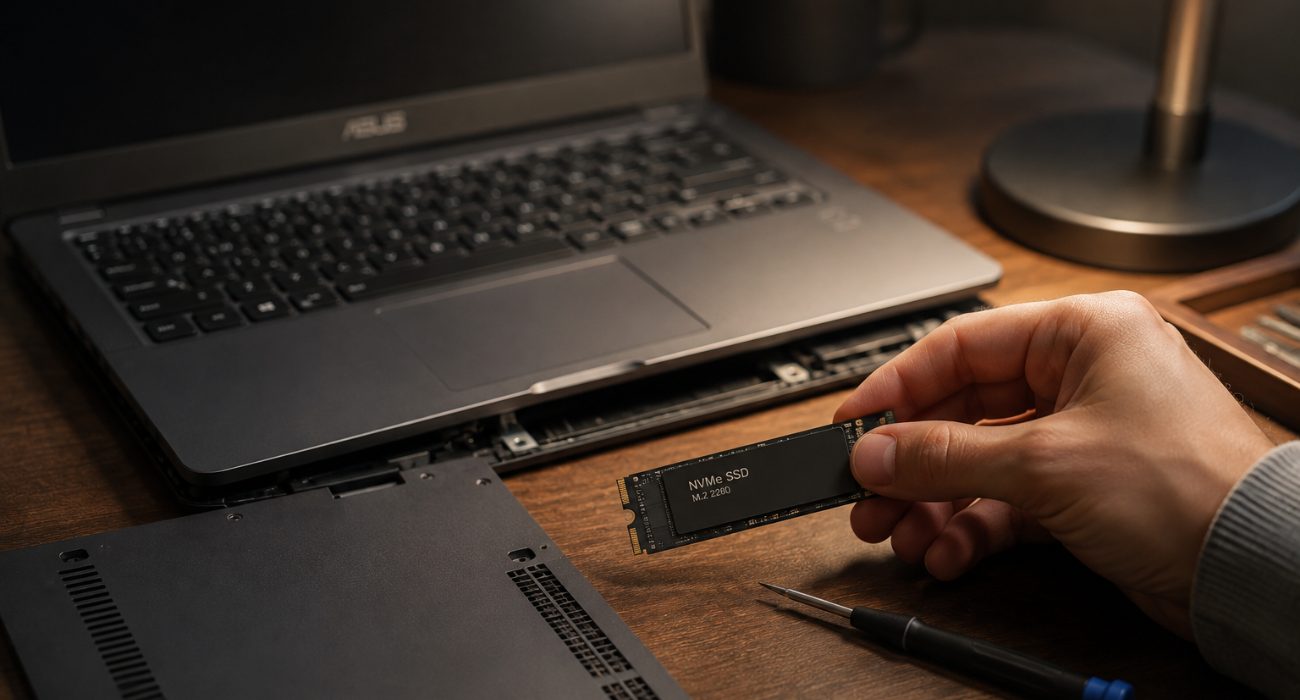
Low free space can affect everyday performance, especially when Windows needs room for temporary files and other system tasks. And if Disk usage in Task Manager keeps hitting 100%, something may be keeping the drive unusually busy.
Start by checking how much space is actually left:
- Open Settings > System > Storage and check how much free space you have left.
- Delete files and apps you no longer use.
- Empty the Recycle Bin.
- Turn on Storage Sense to clear temporary files automatically.
Try to keep some breathing room on the drive instead of filling it to the edge. If your ASUS still runs on a traditional HDD, that alone could be the main bottleneck. HDDs rely on spinning components, and they are noticeably slower than an SSD for everyday tasks like booting up, opening apps, and loading files. Swapping to an SSD is one of the most noticeable upgrades you can make on an older laptop.
Cut down programs that launch at startup
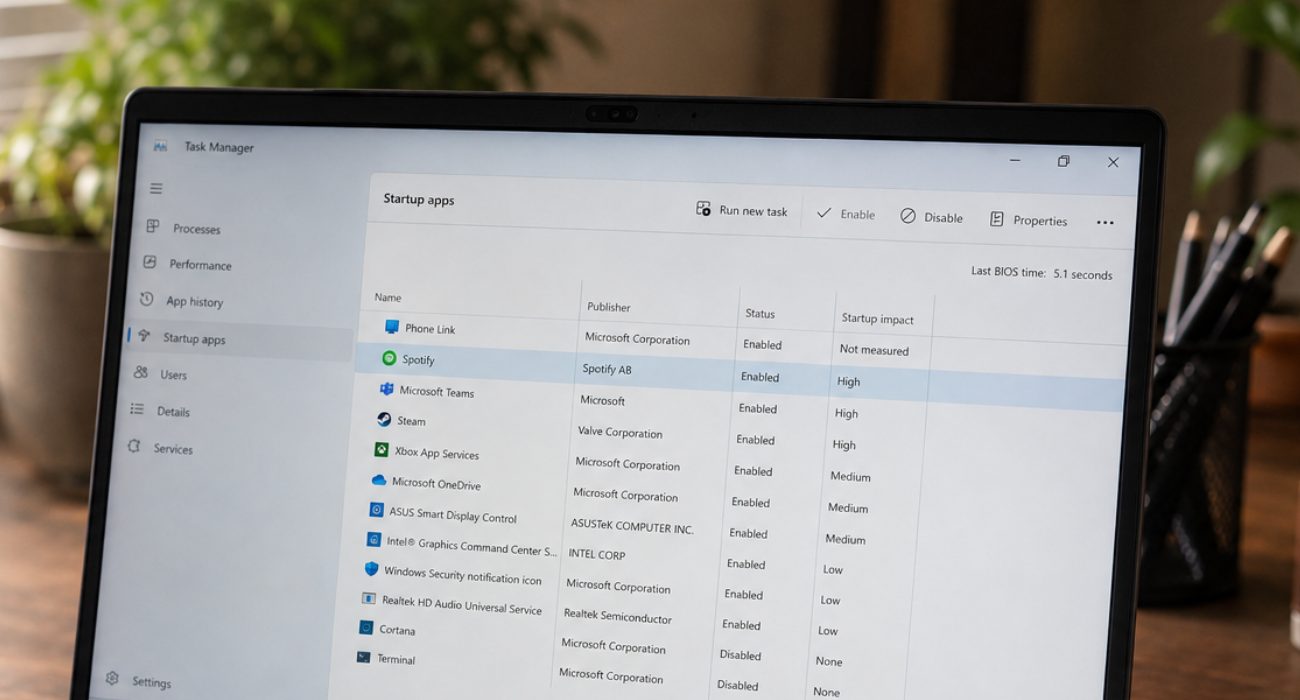
Some apps set themselves to open automatically every time you turn on the laptop. Over months, that list grows, and boot time along with background CPU and memory use grows with it.
To see what launches automatically:
- Open Task Manager (Ctrl + Shift + Esc).
- Click the Startup apps tab.
- Review what is set to launch on boot.
- Disable anything you do not need running the moment you turn the laptop on, like Spotify, Steam, or a chat app.
If you are not sure what a program does, leave it enabled and look it up before disabling it.
Remove apps you no longer use
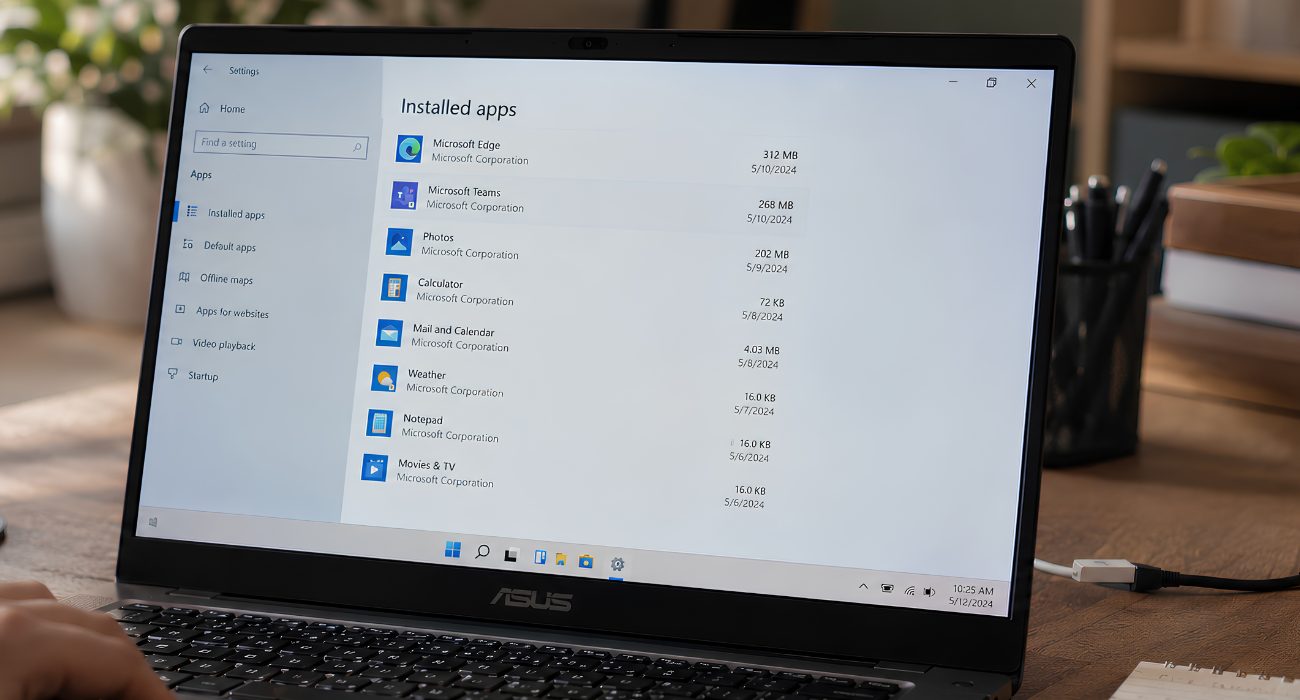
ASUS laptops usually ship with some of their own utilities, and most people add a handful of third-party apps over time. None of that is automatically a problem, but unused programs still take up storage, memory, and CPU cycles quietly in the background.
Go to Settings > Apps > Installed apps and uninstall anything you recognize but no longer use. This is also a common spot to find a second antivirus program, like McAfee or Norton, running alongside Windows Security. If you have more than one antivirus suite running, check whether you actually need both. Multiple security programs running at the same time can add unnecessary background activity.
One caution: do not uninstall an ASUS utility just because it has “ASUS” in the name. Some ASUS utilities, including MyASUS and Armoury Crate on supported models, handle features such as performance modes, fan settings, diagnostics, or updates. If you’re not sure what an ASUS utility does, look it up for your specific model before removing it.
Check Windows and ASUS driver updates

If your ASUS suddenly feels slower than usual, Windows may simply be busy finishing an update in the background. That can temporarily push CPU, disk, or memory usage higher than normal.
Open Settings > Windows Update, install anything pending, and restart the laptop. If storage is tight afterward, you can also check Settings > System > Storage > Temporary files.
Drivers matter too, particularly graphics and chipset drivers on ASUS laptops with dedicated GPUs. Outdated drivers can cause stutter and slowdowns that have nothing to do with RAM or storage. MyASUS and the ASUS support site both list the current drivers for your exact model.
Watch for overheating and thermal throttling

If the laptop runs hot, the fans are constantly at full speed, or performance drops the longer you use it, overheating is a likely factor. When the processor gets too hot, the laptop may reduce processor performance to protect the hardware. That is thermal throttling, and it can make a perfectly capable laptop feel underpowered.
A few simple habits can help keep temperatures under control:
- Keep the vents clear and use the laptop on a hard, flat surface instead of a bed or blanket.
- Clean out dust from the vents and cooling system periodically.
- Check that the fans spin up normally under load.
- If MyASUS or another ASUS utility offers performance and fan profiles, make sure a battery saving mode is not capping performance when you need it.
If the laptop gets hot even during light use, or the fans run at maximum nonstop, that usually points to a cleaning or hardware issue worth having looked at professionally.
Rule out malware

Malware isn’t the most likely explanation for every slow laptop, but it’s worth ruling out if the slowdown appeared suddenly or Task Manager shows unusually high activity when you’re barely doing anything.
Open Windows Security > Virus & threat protection and run a scan. Pay extra attention if the slowdown comes with other strange behavior, such as browser redirects, unfamiliar pop-ups, apps you don’t remember installing, or processes you don’t recognize.
If Windows Security finds something, or the laptop still behaves strangely after a scan, a deeper malware cleanup may be worth doing.
When it may be time for professional help
If you’ve worked through the basics and your ASUS is still freezing, crashing, or slowing down during simple tasks, there may be more going on than a crowded startup list. A failing drive, cooling problem, or other hardware issue can cause many of the same symptoms.
That’s also the point where swapping parts at random starts getting expensive. An expert technician can test the laptop, identify the actual bottleneck, and tell you whether a repair or upgrade makes sense.
Geeks on Site offers remote and onsite computer support nationwide, so if you’d rather have someone diagnose the slowdown for you, we can help.
FAQs
Why is my brand new ASUS laptop already running slow?
A new ASUS laptop can feel sluggish while Windows finishes updates, indexes files, syncs OneDrive, and completes other first-time setup tasks in the background. Restart it after updates finish, then check Task Manager if performance still feels unusually slow during normal use.
Why does my ASUS laptop lag or freeze when I open several apps at once?
Running low on available RAM is a common reason, especially if Memory usage in Task Manager jumps close to 100%. Closing unused apps and browser tabs can help. If it happens regularly and your model supports memory upgrades, adding RAM may make multitasking noticeably smoother. Keep reading our guide on how to unfreeze a computer: Why it freezes and what to do
Why does my ASUS gaming laptop feel slow during games?
On ASUS TUF and ROG laptops, check the performance mode and GPU settings first. In Armoury Crate, make sure the laptop isn’t set to Silent mode when you’re gaming, and check that demanding games are using the dedicated GPU rather than integrated graphics.
Can I make my ASUS laptop faster without buying new parts?
Yes. Disabling startup programs, clearing storage, removing unused software, and running a malware scan can recover a meaningful amount of speed at no cost. Hardware upgrades like an SSD or added RAM help most on older or heavily used laptops.
Last Updated on September 14, 2026



