In the future of remote work and multimedia entertainment, the more effectively a home uses its available technology, the better. Today in this article we will show how practical it can be to use a TV as a computer monitor, as a two-in-one solution for work and fun. With the right setup, your living room can be a productive place and a relaxing one at the same time. Please read on to learn how to easily make a computer out of your TV, the pros and cons of it, and tips to optimize your configuration.
What to Know Before Using Your TV as a Computer Monitor
Resolution and Screen Size: Finding the Best Monitor
If you want to use a TV as a computer monitor, then the main considerations would be the resolution and the screen size. The more prominent the quality, such as 4K, the more detailed the display of text and images. However, remember that its large screen size can play against the ideal viewing distance and pixel density compared to dedicated computer monitors.
Connectivity: Ports and Cables
In order to use your TV as a monitor, check the available ports. Most modern TVs come with HDMI, which is the most straightforward way to connect to a computer. However, if you are using an older screen, you might need a DVI or VGA adapter. Make sure your graphics card can handle the quality of the display and that you have the right cable for the connection.
Input Lag and Refresh Rate: For Gaming and High-Speed Tasks
Input lag and refresh rates are very important for gaming or other tasks requiring high-speed input. TVs sometimes have a higher input lag, which is not favorable for competitive gaming. The refresh rate of most TVs is 60Hz, which might not be up to the rates offered on gaming monitors. See if your TV has a “Game Mode” to decrease the lag.
The Pros and Cons of TV as a Monitor
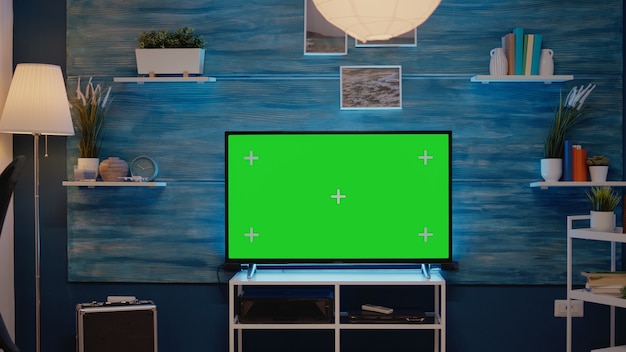
There are many benefits to using your TV as a monitor, such as getting a larger screen for multitasking and media consumption. However, these come with some consequences as well, such as eye strain due to close-up use and the possibility that text may not be as crisp as on a traditional monitor. Check these factors based on your need and use.
How to Connect Your TV as a Computer Monitor Connection Guide
Connecting your computer to a TV is usually as simple as using an HDMI cable. Turn off both devices before connecting them to prevent any electrical issues. Once connected, select the correct HDMI input on your TV and adjust the display settings on your computer to match the TV’s resolution.
Adjusting Settings for Optimal Use
After connecting you may need to adjust monitor settings for optimal view. This ranges from adjusting your scale and layout in Windows or Mac settings to the desktop fitting inside the TV’s screen and adjusting text to your readable size; you may even want to find a way of adjusting the television’s display settings that will modify colors, brightness, as well as contrast.
Applying a Wired Setup for dependability
A wired HDMI connection is the best setup for using a TV as a monitor. This will minimize lag and ensure stable picture quality. If your setup allows, route cables neatly to prevent tripping hazards and keep your space tidy.
When to Choose a TV Over a Traditional Monitor
Consider a TV as opposed to a monitor if you require a larger screen for presentations or video editing or if you want to save some space and money by having two in one. The TV can also come in handy for general computing, watching videos, or playing casual games.
Boosting Productivity Using More Display Space
A bigger TV screen can allow more windows to be open side-by-side, which increases productivity. It is ideal for spreadsheet analysis, graphic design, and web browsing, where extra-screen real estate is helpful.
Entertainment and Gaming: Enjoy the Best
When it comes to entertainment and gaming, the input lag needs to be minimal and the refresh rate good enough. Adjust the picture mode to “Game” or “PC” for a great experience. While a TV can be perfectly okay for occasional gaming, true gamers will find that a monitor dedicated to gaming has better response times.
Smart TV: Turning It into a Large Laptop Screen
Connecting your laptop to a smart TV can extend or mirror your display, offering a larger canvas for work, gaming, or streaming. With most laptops equipped with an HDMI port, it’s a straightforward process. Ensure your smart TV is on the same Wi-Fi network for smooth streaming and sharing if you’re using smart features or casting.
Smart TV: The Smart Choice for Laptop Users
Smart TV is more than the usual television; it is a multi-functional display perfect for laptop users who want to upscale their visual workspace. This is because one has the possibility of a second monitor, a gaming station, or even a home theatre system, and the convenience of a wireless keyboard and mouse might easily transform the couch into a comfortable work or game station.
A smart TV is always meant to act as a central hub in modern living rooms, integrating aspects of streaming, gaming, and internet browsing within one place. By connecting your laptop, you can use features like smart TV in conjunction with your files and applications so that your living room becomes an intelligent, productive room.
Connector Conundrums: Making the Right Choice
Choosing the right connector to bridge your laptop and smart TV can be a conundrum with so many options available. HDMI offers simplicity and ubiquity, but for those with a need for speed and quality, DisplayPort and DVI offer compelling advantages. Consider what you’ll be using your setup for: if it’s gaming or high-definition video editing, investing in the right adapter can make all the difference.
Maximizing the HDMI Port for High-Definition Output
Your laptop HDMI port will serve as a door to the high-definition media on your smart TV. With audio and video both delivered by the same cable, it makes for an efficient way to have a clean and simple setup. For transmission of the best quality HD content from your laptop to your TV, make sure to use a high-quality HDMI cable.
Enjoying the Versatility of HDMI: Laptop Meets TV
The HDMI port on your laptop is not just a port; it’s a portal to a versatile viewing experience. Whether you are presenting a slide deck or binge-watching your favorite series, the HDMI connection ensures that you can switch from the compact laptop screen to the grand display of your smart TV effortlessly. Remember to check your laptop’s resolution settings to match your TV’s capabilities for the crispest image.
DisplayPort Dynamics: High-Definition Visuals on Your Smart TV
While HDMI is truly everywhere, for high graphics, workstations, and gaming laptops, DisplayPort should be opted for since it provides more bandwidth, meaning you can get even higher resolutions and refresh rates. When you connect a DisplayPort from your laptop to an HDMI on a smart TV, you ensure that none of the graphical fidelity is lost in translation, so this means having a seamless transition from work to play.
DisplayPort to HDMI: Two-ended connection
If you have a laptop with a DisplayPort and not with an HDMI, then the way to connect is by using a DisplayPort to HDMI connector. This will receive the signal from your laptop in order to pass it over to the HDMI input in your smart TV, thereby giving you a chance to continue the HD experience on a bigger screen. To purchase the connector, click here.
DVI-to-HDMI: Connecting the Old with the New
You’re not left behind if your laptop is old and has a DVI output. You can connect your laptop to a smart TV using a DVI-to-HDMI adapter. This allows you to use older technology with new, while maintaining the HD quality across devices without having to buy a new laptop.
Troubleshooting Common Issues
Solving Resolution and Aspect Ratio Problems
If you face any resolution or aspect ratio problems, check whether your computer’s output settings match the specifications of your TV. You might have to update your graphics drivers or reset your TV to its default settings to solve these problems.
Dealing with Audio Output Challenges
When using a TV as a monitor, audio might transmit over HDMI along with video. If you prefer to use separate speakers, adjust the audio output settings on your computer to direct sound to your chosen output device.
Overcoming Input Lag and Refresh Rate Limitations
If input lag is noticeable, try using your TV’s “Game Mode” to reduce it. For refresh rate issues, ensure your computer’s graphics settings are configured to match the TV’s capabilities. Upgrading your HDMI cable to a higher-speed version can also help.
Conclusion: Is a TV as a Computer Monitor Suitable for You?
It’s a smart and economical way to use a TV as a computer monitor. Its large screen size and versatility are suitable for most purposes, whether you are working professionally or simply having fun. The setup, however, should take into account the limitations of such an arrangement and adapt to optimize the performance. Properly approached, you can use a dual-purpose display that suits both your computing and entertainment purposes.
Remember these key points to optimize your experience:
- Ensure compatibility with resolution and connectivity.
- Adjust settings for clarity and comfort.
- Understand the trade-offs between gaming and high-speed tasks.
- Troubleshoot common issues proactively.
Whether you’re reusing an old TV or setting up a new living space, integrating your computer and TV can provide you with new functions and enjoyment. For our services at the most affordable prices, contact Geeks on Site here!
If your TV remote is missing or no longer working, check out our guide on connecting a Hisense TV to Wi-Fi without a remote.
Last Updated on June 17, 2026