Even though we live in a tech world, that doesn’t always mean the internet runs without a hitch. In reality, network issues, like slow speeds, lag, and random disconnections, happen more often than you might think. Most of these problems can be fixed right from home with a few simple steps.
Why Internet Problems Happen More Than You Think
We expect the internet to just work smoothly. But when it doesn’t, everything feels harder. In a world where everything runs on tech, even a small glitch can cause big headaches. Knowing the usual causes and quick ways to fix them can help you stay online and avoid stress. Here’s how:
1. Slow Internet During Peak Hours
Do your speeds take a nosedive in the evening or on weekends? This is one of the most reported network issues, especially in high-density neighborhoods and apartment complexes.
Why it happens:
- Too many users on the same network
- Outdated routers or modems
- Background apps are using up bandwidth
How to fix it:
- Run a speed test to compare your actual speed with your plan.
- Restart your modem and router often.
- Upgrade to a faster internet plan if you stream or work from home.
- Invest in a modern Wi-Fi 6 or a dual-band router.
2. Wi-Fi Dead Zones at Home
You might notice that Wi-Fi works great in one room but drops completely in another. These dead zones are frustrating, especially in larger homes.
Why it happens:
- Thick walls or large furniture blocking the signal
- Router hidden in a corner or cabinet
- Router is outdated and doesn’t cover the full range
How to fix it:
- Move your router to a more central, open space
- Consider a mesh Wi-Fi system for full-home coverage
- Add Wi-Fi extenders in problem areas
- Use the 2.4GHz band for range and 5GHz for speed, depending on location
3. Total Internet Outages
A full outage means no device connects, and nothing loads. This can be caused by maintenance, weather, or damaged cables in your area.
Signs of an outage:
- No internet on any device
- Blinking red or no lights on the router
- Neighbors also have a total outage issue
How to respond:
- Check outage websites like DownDetector or your ISP’s page
- Avoid restarting your router repeatedly, it won’t help if the issue is external
- Use mobile data or a hotspot temporarily
- Call your internet service provider to report the issue
4. Buffering on Video Calls or Streaming
If your Zoom call freezes or your TV or Netflix show keeps buffering, you’re likely running into a bandwidth or stability issue.
Why it happens:
- Too many devices are connected at once
- Weak Wi-Fi signal in your current spot
- Using outdated hardware
Fixes:
- Use a wired Ethernet connection for important tasks
- Enable QoS (Quality of Service) in your router settings to prioritize traffic
- Pause background downloads during work or streaming
- Upgrade your internet plan if your household uses multiple devices
5. Wi-Fi Keeps Disconnecting
Random Wi-Fi dropouts can ruin a good workflow or movie night. This is one of the most irritating network issues in homes/office.
Why it happens:
- Router overheating
- Interference from other electronics
- Firmware needs an update
How to fix it:
- Keep your router in a cool, open area
- Check for and install firmware updates via your router’s admin page
- Change the Wi-Fi channel to reduce interference
- If your router is over 5 years old, consider replacing it
6. Some Devices Can’t Connect
If just one device can’t connect to your network but others work fine, it’s likely a device-specific problem.
Fixes:
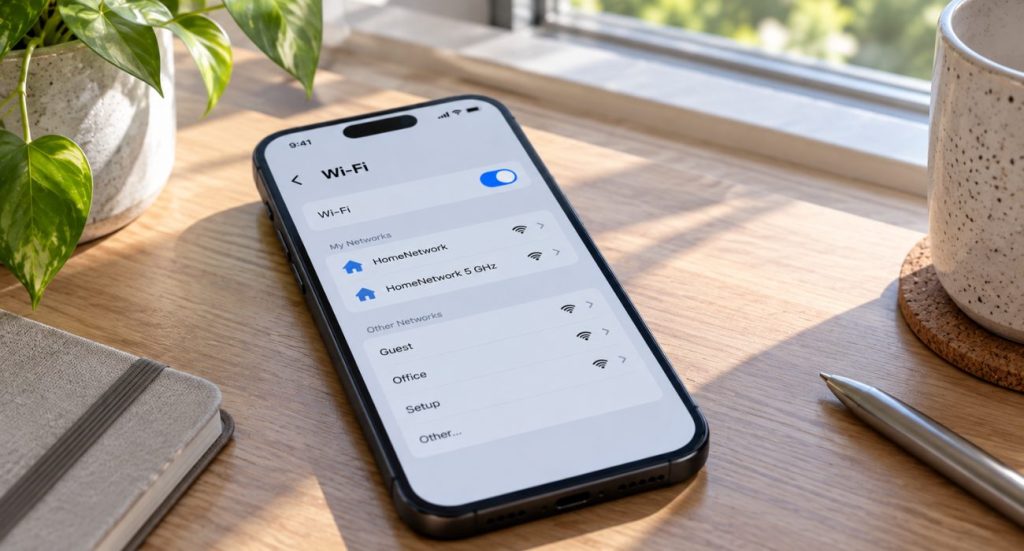
- Remove (forget) the network and reconnect
- Restart the device
- Install the latest system updates
- Assign a static IP if it keeps disconnecting
7. Ethernet Connection Not Working
Wired connections are usually more stable than Wi-Fi, but they can fail too.
Common problems:
- Loose or damaged Ethernet cable
- Faulty router or port
- Outdated network drivers
What to do:
- Swap in a new Ethernet cable – Cat6 or higher if possible
- Try another port on your router or switch
- Update your network drivers on your PC or laptop
- Restart your modem and router
8. DNS or IP Address Errors
Ever see a message like “DNS server not responding” or “IP address conflict”? These are common configuration issues.
Why it happens:
- Two devices trying to use the same IP address
- DNS settings are incorrect
- Router glitches
How to fix it:
- Set your devices to automatically obtain IP and DNS info
- Switch to Google DNS (8.8.8.8) or Cloudflare DNS (1.1.1.1)
- Flush DNS cache (in Windows: open Command Prompt and type ipconfig /flushdns)
- Restart your router and affected devices
9. Unknown Devices and Security Issues
If your network suddenly slows down, it could be because unauthorized users are connected.
Signs to look for:
- Unrecognized devices on your router’s list
- Speed drops at random times
- Router settings appear changed
How to protect your network:
- Change your Wi-Fi password regularly
- Use strong encryption (WPA2 or WPA3)
- Disable remote access to your router
- Set up a separate guest network for visitors or smart home devices
Conclusion
So, network problems aren’t rare. But fixing them is usually simple. Move your router. Update your equipment. Change your password if needed. If nothing works, Geeks on Site is here to provide the expert support you need. Whether it’s troubleshooting or setting up a new system, we’re just a call away to get you back to smooth internet.
Stay connected, stay productive, and make your network work for you because you deserve better internet!
FAQs
-
How can I boost my Wi-Fi signal in a large office space?
You might have to use a mesh system for better coverage. Adding extra access points or shifting the router’s position could also help.
-
What should I do if my internet is spotty but not completely down?
Try restarting your modem and router. You should also check for any interference or problems with your devices.
-
Why does my Wi-Fi speed vary in different rooms of my house?
Things like walls and the distance from the router can weaken the signal. A Wi-Fi extender or moving the router could improve the connection.
-
Why does my internet drop during a heavy storm?
Heavy rain or storms can mess with the cables that bring the internet. Contact your ISP to make sure everything’s working on their end.
-
How do I troubleshoot if I have connection issues after a software update?
Check if your router’s firmware or Wi-Fi driver needs an update. Sometimes, updates can cause issues with your connection.
-
Can outdated equipment cause network issues?
Yes, old routers, modems, or outdated cables might not support faster speeds or modern technologies. Upgrading to newer devices can improve performance.
Last Updated on June 29, 2026