When we ask what is a good internet speed for working from home, we’re really asking how to work smoothly without interruptions, lagging video calls, or slow downloads. The right internet setup allows us to stay productive, collaborate effectively, and manage multiple devices at home.
This guide explains what we recommend for the best internet speed for remote work, how to evaluate your connection, and how to improve it—all while keeping the required SEO keywords intact and ensuring no direct competitors are mentioned.
Understanding Our Internet Speed Needs
Remote work requires a stable and reliable internet connection. The tasks we perform, the devices connected, and the number of people using the network all influence the speed we need.
Assessing Online Activities
Not every activity needs the same bandwidth. Light tasks like browsing or checking email work fine with under 25 Mbps. More intensive tasks like video conferencing, large file transfers, and cloud-based applications, require significantly more speed.
If our work involves uploading large files, using VPNs, or multitasking with several tools at once, we need higher speeds to avoid delays.
Number of Users and Devices
Every device connected to Wi-Fi consumes bandwidth. Phones, laptops, tablets, TVs, and smart home devices all contribute. Typically, each user needs 10–15 Mbps.
When multiple devices compete for bandwidth, you may also notice performance issues with streaming services, such as YouTube TV buffering.
A four-person household often needs 100 Mbps or more. Homes with streaming devices or gaming consoles benefit from even higher speeds.
Recommended Internet Speeds for Remote Work
Most remote workers function best with at least:
- 100 Mbps download
- 3 Mbps upload
These speeds support video calls, web browsing, email, and cloud-based work without interruptions.
Video Calls and Conferencing
For strong video conferencing performance we would need a minimum of 10 Mbps upload helps maintain smooth video. Most platforms work well with 20 Mbps or less. For HD-quality video calls, 50 Mbps or more is ideal.
Web Browsing and Email
Browsing and email require about 10–15 Mbps. This ensures fast page loading and quick sending of attachments.
Downloading and Uploading Large Files
Large file transfers demand significantly more speed. Upload speeds especially impact video calls, cloud backups, and file sharing. Using Ethernet instead of Wi-Fi can dramatically improve both speed and stability.
Factors Affecting Internet Performance
Even with a fast internet plan, our experience can be affected by other factors such as latency, network congestion, and router placement. If your connection is still unreliable despite having enough speed, learn how to troubleshoot common network issues to identify what may be causing the problem
Latency and Network Congestion
Latency affects responsiveness, especially noticeable in live calls or collaborative work. Fiber connections typically have lower latency. During peak usage hours, shared networks may slow down.
Running tests at different times can reveal performance drops.
Router Quality and Placement
Router performance significantly impacts speed. We can improve signal strength by placing the router centrally and at an elevated position.
Avoid thick walls, microwaves, or large appliances that interfere with the signal. Wi-Fi 6 or mesh systems are ideal for larger homes.
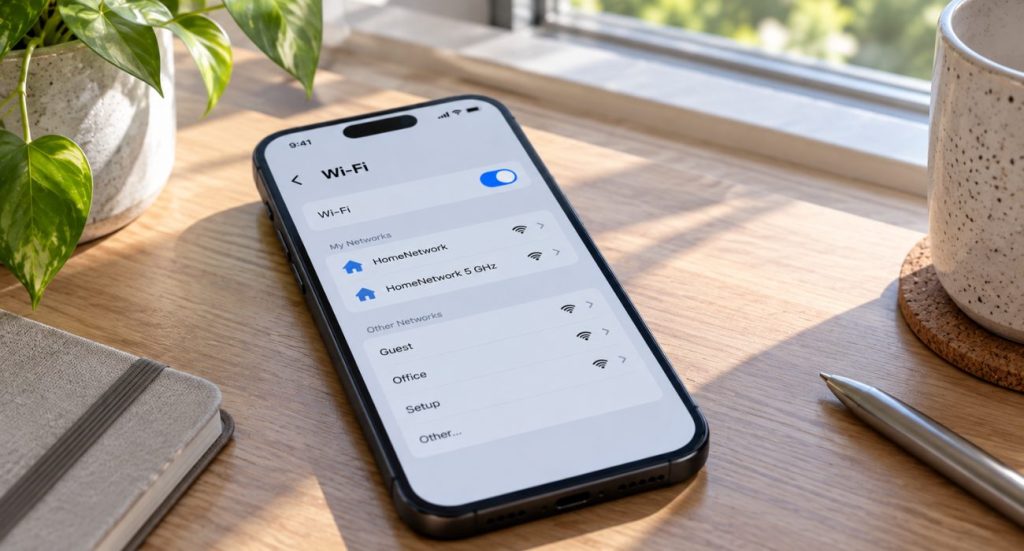
Your router’s frequency also affects performance. If you’re not sure which one your device is using, start by checking whether you’re connected to 2.4 or 5 GHz WiFi.
Testing and Monitoring Internet Speed
Using a wifi speed check tool helps us monitor how well our connection performs throughout the day.
Running Speed Tests
Speed tests help measure:
- Download speed
- Upload speed
- Ping
- Jitter
Testing at several times of day provides the most accurate performance overview.
Interpreting Speed Test Results
A healthy connection should download a 1 GB file in about three minutes. High ping or low upload speeds can cause issues during video calls and file sharing.

Improving Our Internet Speed
Improving speed may require upgrading our plan or optimizing our home network setup.
Upgrading Our Internet Plan
Upgrading helps improve:
- File transfer performance
- Video call stability
- Productivity
- Streaming quality
If we regularly handle large files, speeds of 50 Mbps or more are especially beneficial.
Optimizing Our Home Network
To get the best speeds:
- Use Ethernet cables for essential devices
- Upgrade to a modern router
- Consider Wi-Fi 6 or mesh systems for large spaces
Mesh networks help eliminate dead zones and offer consistent coverage.
Backup Options for Internet Connectivity
Backup options ensure we can continue working even if our main connection fails.
Mobile Hotspots
LTE or 5G hotspots serve as temporary internet alternatives and support multiple devices.
Secondary Internet Connections
Some households choose a backup plan for uninterrupted productivity.
Privacy and Security Considerations
Protecting our network is essential for both work and personal safety.
Securing Our Home Network
We recommend:
- Changing default router passwords
- Enabling WPA2 or WPA3 encryption
- Updating firmware regularly
- Using antivirus protection
Using VPNs
A VPN encrypts all internet traffic, protecting sensitive information and adding a layer of security for remote work.
Geeks on Site for Assistance
At Geeks on Site, we provide both onsite and remote tech support, helping improve internet performance, configure home networks, secure systems, and troubleshoot connectivity issues.
If you need help improving your work-from-home setup, you can get in touch with us.
Summary
The best internet speed for remote work depends on your tasks, the number of users, and how many devices are connected. By understanding your speed requirements, running regular tests with a wifi speed check tool, and optimizing your home network, you can ensure a smooth and productive work-from-home experience.
Frequently Asked Questions
A minimum of 100 Mbps download and 3 Mbps upload ensures stable video calls, browsing, and file transfers.
Use online speed tests such as Speedtest or your router’s built-in tools.
Upgrade your plan, use Ethernet, update your router, or reduce device congestion.
Each user takes up bandwidth. More users mean more demand and lower speeds unless you upgrade your plan.
Last Updated on September 9, 2026