Struggling to remember your WiFi password? At Geeks on Site, we know how frustrating it can be when you need to connect a new device but can’t recall your network credentials. Thankfully, finding a WiFi password on iPhone is simpler than ever. With recent iOS updates, we can now quickly retrieve network information directly from the device’s settings.
In this guide, we’ll walk you through everything you need to know to find your WiFi password on iPhone and keep your devices connected.
Find WiFi Password on iPhone via Settings
We’ve all been there, trying to connect a new phone, tablet, or laptop only to realize we’ve forgotten the WiFi password. With iOS 16 or later, Apple made it incredibly easy for us to view saved network passwords right from the settings app.
This feature is especially helpful if you frequently switch devices or need to share your network with friends and family.
Here’s how to do it:
- Open the Settings app on your iPhone.
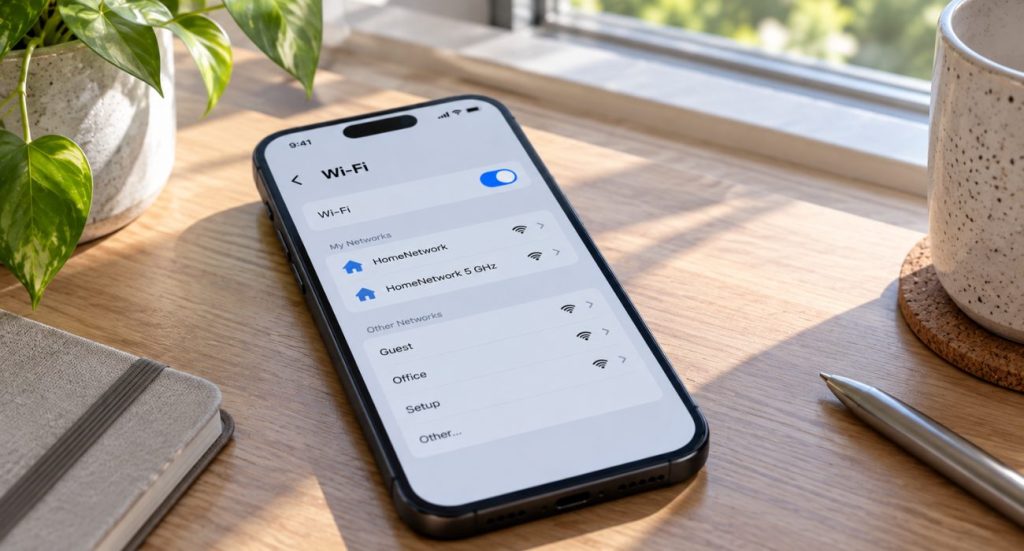
- Tap Wi-Fi and look for the network you’re currently connected to.
- Tap the information icon (i) next to the network name.
In this section, you’ll see details about your connection, including the router’s IP address, which is helpful for troubleshooting.
Viewing the Password
Once you tap the information icon, look for the Password field. You’ll need to authenticate with Face ID, Touch ID, or your passcode. After authentication, the WiFi password will appear in plain text, ready for you to use or share.
Retrieve Saved WiFi Passwords on iPhone
We often connect to multiple networks, and remembering all those passwords is nearly impossible. Thankfully, iOS stores these for us. By using the Passwords app, we can retrieve saved WiFi passwords whenever we need them.
How to Access Saved Passwords
- Open the Passwords app on your iPhone.
- Go to Saved Wi-Fi networks.
- Tap the information icon next to the network you’re interested in.
- Authenticate with Face ID, Touch ID, or your passcode.
Once authenticated, you can view or copy the password directly. If we use iCloud Keychain, these passwords are automatically synced across all our Apple devices, so we can retrieve them anywhere.
Use Router Settings to Find WiFi Password
If the password isn’t visible on your iPhone, another solution is to access your router’s settings. This approach not only helps us recover the password but also ensures we can make necessary network adjustments.
Finding Your Router’s IP Address
- Go to Settings > Wi-Fi.
- Tap the information icon (i) next to your connected network.
- Look for the Router IP Address and copy it.
Once you have the IP address, open a browser and enter it in the address bar. Log in with your router’s admin credentials (default details are often listed on the router itself). Then, navigate to the wireless settings section to view or update your WiFi password.
Sharing WiFi Passwords on iPhone
Sharing WiFi passwords no longer requires typing out long strings of characters. iOS makes it easy for us to share network credentials securely and quickly.
How to Share Your WiFi Password
- Ensure both devices have WiFi and Bluetooth enabled and are near each other.
- When the other device tries to connect, a prompt will appear on your iPhone.
- Tap Share Password.
The device will connect automatically, no typing required. Alternatively, we can generate a QR code for our WiFi network, allowing others to join by simply scanning it.
🤓 If you also share your connection with others, learn how to change your iPhone hotspot name and password to keep it secure.

Troubleshooting WiFi Password Issues on iPhone
Sometimes, even with the right steps, problems occur. Common issues include incorrect password errors or trouble sharing between devices.
Tips for Troubleshooting
- Check the router’s settings to verify the password.
- Reset the router if you still can’t connect.
- Ensure Auto Join is enabled for the network.
- Update your device to the latest iOS version.
If sharing isn’t working, double-check that both devices are updated and in close proximity. Most sharing issues resolve after a quick software update.
Get Professional Help from Geeks on Site
At Geeks on Site, we understand that network issues can sometimes be more complex than they appear. Whether it’s retrieving a password, setting up a secure network, or resolving connectivity problems, our experts are here to help.
We offer both remote and onsite support to ensure your devices stay connected without interruptions.
For more information about improving your network setup and connectivity, check out our networking support services.
Summary
Finding a WiFi password on iPhone doesn’t have to be complicated. Whether we’re using the settings app, Passwords app, iCloud Keychain, or router settings, there are multiple ways to recover, manage, and share network credentials quickly. By keeping devices updated and settings configured correctly, we can ensure a seamless connection across all our devices.
With the right knowledge and support from Geeks on Site, managing WiFi access is simple, secure, and stress-free.
Last Updated on June 22, 2026