TL;DR: “The printer is in use” usually means a print job is stuck or your computer lost communication with the printer. Clear the print queue, restart the printer, and check its connection. If that doesn’t work, continue with the Windows or Mac fixes below.
In this guide:
- Why your printer says it’s in use when it isn’t
- How to fix the “printer is in use” error
- Getting your printer working again
- FAQs
You go to print something simple: a boarding pass, a signed form, maybe a school assignment, and instead of hearing the printer start up, you get a message saying “the printer is in use.”
Except nobody else is printing, so what exactly is the printer “in use” by? Usually, it isn’t another person. Your computer may simply be hanging onto an old print job, or it may have briefly lost its connection with the printer. Either one can make the printer look busy when it isn’t.
The good news is that you can often clear the problem in a few minutes; here’s where to start.
Why your printer says it’s in use when it isn’t

Many things can trigger the “printer is in use” message, even when nobody is actually printing. Here are the most common reasons:
Here are some of the most common reasons:
- 📄 A leftover print job is stuck in the queue. If a document failed to print earlier, the job may still be sitting in the print queue even though you’ve forgotten about it. Your computer can keep trying to process that old job, which may prevent anything new from printing.
- 📡 The printer and computer briefly lost communication. This is especially common with wireless printers, but it can happen with USB connections, too. If the connection drops for a moment, your computer may not immediately recognize that the printer is available again and can continue showing it as busy.
- ⚠️ The printer hit a temporary error. Printers can run into temporary software or communication errors just like computers do. In some cases, simply turning the printer off, waiting a few seconds, and turning it back on is enough to clear the error and make it available again.
- 📱 Another device is actually sending something to the printer. If your printer is shared over a home or office network, another computer, phone, or tablet may have a print job waiting. You might not see that job from your own device, so the printer can appear to be “in use” even when nobody nearby seems to be printing.
- ⚙️ The computer’s print management service is stuck. On Windows, this service is called the Print Spooler, and it manages print jobs between your computer and printer. If the service gets stuck, your computer may think a document is still being processed when nothing is actually happening.
- 🔄 The printer driver is outdated or incompatible. Your computer relies on the driver to communicate with the printer. If the software no longer works properly with your operating system, the printer may report the wrong status or stop responding even when it’s ready to print.
If the printer is showing a specific printer error code instead of only saying it’s in use, identify that code first since it may point to a separate hardware or cartridge problem.
How to fix the “printer is in use” error
Start with the print queue, then work through the steps below in order. If the error disappears, you can stop there.
1. Start by clearing the print queue
First, check the print queue. An old or failed print job can stay there long after you’ve forgotten about it and make the printer look busy. Clear anything that’s stuck, then try printing again.
On Windows:
- Open Settings and go to Bluetooth & devices → Printers & scanners.
- Select your printer and open its print queue.
- Cancel any documents that are stuck, stalled, or duplicated.
On Mac:
- Open the Apple menu → System Settings → Printers & Scanners.
- Select your printer and open its print queue.
- Cancel any pending or stuck print jobs.
Once the queue is empty, try printing again. If it works, you can stop here. If you still see the “printer is in use” message, move on to the next step.
2. Restart the printer, not just your computer
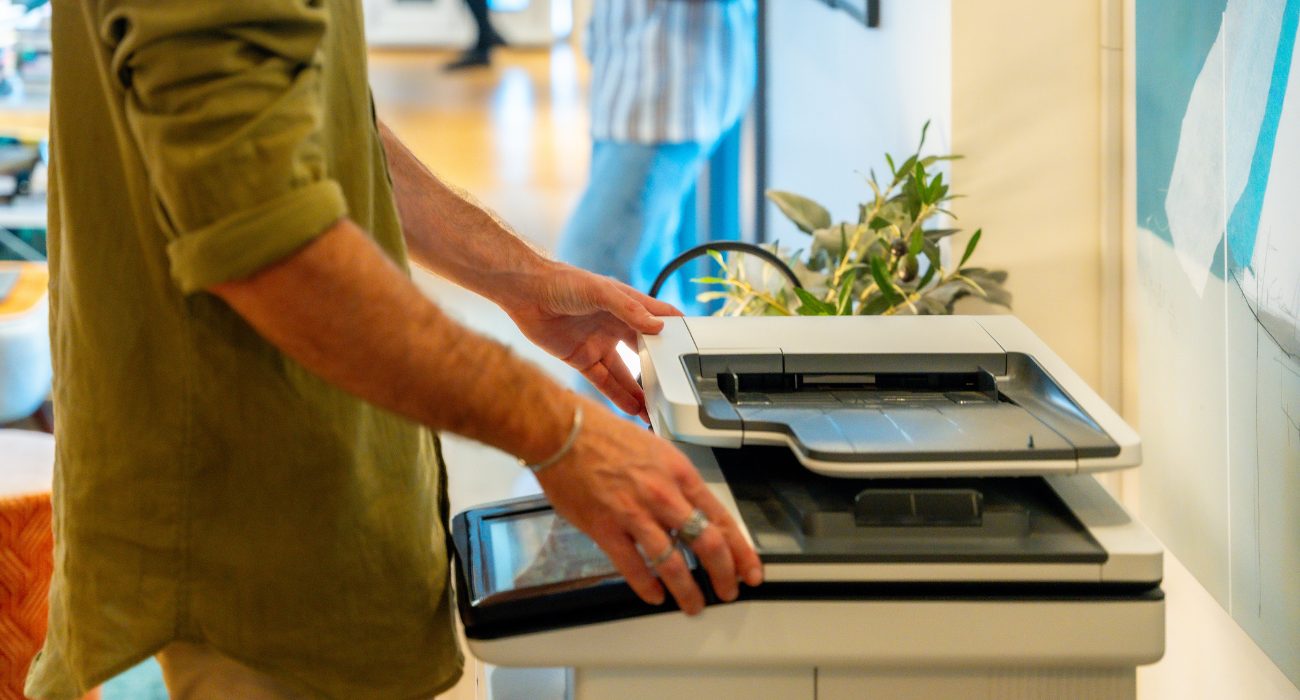
If the queue is empty, give the printer itself a fresh start. A printer can stay stuck in a busy state even when your computer looks completely normal.
- Turn the printer off completely.
- Unplug it from the wall and wait about 60 seconds.
- Plug it back in and turn it on again.
- Wait until the printer has fully started, then try printing again.
If the message is still there, check the printer’s connection next.
3. Check the printer connection
If restarting the printer didn’t clear the message, make sure your computer and printer are still communicating properly.
- 🛜 If you’re using Wi-Fi: Make sure the printer is connected to the same network as your computer. If the printer recently dropped its connection or disappeared from the network, restarting your router may help reestablish the connection.
- 💾 If you’re using USB: Check that the cable is firmly connected at both ends. You can also unplug it and reconnect it after the printer has restarted. If the problem continues, try another USB port or cable if you have one available.
Once you’ve checked the connection, try printing again. If you still see the “printer is in use” message, move on to the steps for Windows or Mac below.
4. Try the fix for your operating system
The next step depends on whether you’re using Windows or macOS. Follow the instructions for your computer below.
On Windows, restart the Print Spooler
If the message is still showing up after a clean queue and a restart, the Print Spooler is the next place to look. This is the Windows service responsible for managing everything sent to your printer, and it can get stuck without any obvious warning.
- Press Windows + R, type services.msc, and press Enter.
- Find Print Spooler in the list.
- Right-click it and select Restart.
- Try printing again.
If a specific document keeps getting stuck no matter how many times you restart the service, you may need to stop the spooler, manually clear the files in its spool folder, and start it back up. That’s a more advanced step, so it’s worth trying everything above first.
On Mac, remove and re-add the printer
Mac handles printing differently from Windows, so there’s no Print Spooler service to restart. If the queue is clear and the connection looks fine, try removing the printer from macOS and adding it again.
Go to Apple menu → System Settings → Printers & Scanners, select your printer, and remove it. Then add it again using Add Printer, Scanner, or Fax. The wording may vary slightly depending on your macOS version.
Mac vs. Windows: quick comparison
Some troubleshooting steps work the same way on both systems, while others are specific to Windows or macOS. Here’s a quick look at which fixes apply to each one.
| Troubleshooting step | Windows | Mac |
| Clear the print queue | Yes | Yes |
| Check Wi-Fi or USB | Yes | Yes |
| Restart Print Spooler | Yes | No |
| Remove and re-add printer | Yes | Yes |
| Update printer software/drivers | Yes | Yes, depending on printer setup |
5. Update the printer driver or software
If the other fixes haven’t worked, check whether your printer software needs an update. Driver problems can interfere with communication between your computer and printer and sometimes cause incorrect status messages.
On Windows or printers that use manufacturer software:
- Go to the printer manufacturer’s support or downloads page.
- Search for your exact printer model and choose the software compatible with your operating system.
- Install the update and restart your computer if prompted.
Using a Mac? Some printers use AirPrint instead of a separately installed driver, so there may not be anything to download. Check your printer manufacturer’s support information if you’re unsure.
If you run into a different issue, our guide to common printer error codes and resolutions can help you identify the problem and find the appropriate fix
6. Still says “in use”? Here’s what’s left to try
If you’ve worked through the steps above and the message is still there, the next thing to check is whether you’re dealing with a different printer problem altogether.
If you’re using a network printer and your computer can’t find it at all, our guide on what to do when your computer can’t find your printer covers that problem in more detail. If the printer keeps switching to an offline status instead, see how to get a printer back online.
Still no luck? At that point, it may be time to have someone take a closer look. A driver conflict, network issue, or problem with the printer itself can be harder to pinpoint from the computer alone. Our printer repair and installation team can help troubleshoot the issue and get the printer working again.
Getting your printer working again
A “printer is in use” message usually points to a stuck print job or communication problem, not a printer that’s literally busy.
Start with the print queue, restart the printer, and check the connection before moving on to system-specific fixes. Once it starts printing again, you’re done, there’s no reason to keep working through the rest of the list.
FAQs
Why does my Mac keep saying "printer is in use" specifically?
On a Mac, this is often tied to a stuck queue or a printer that needs to be removed and re-added rather than a spooler issue, since macOS doesn’t use the same background service Windows does.
Why is my computer suddenly not recognizing my printer?
This usually points to a driver that didn’t update properly, a USB port that stopped responding, or a Wi-Fi connection that dropped. Reconnecting the printer or checking its software is a good place to start.
How do I get my printer to go back online if it shows offline instead?
Setting it as the default printer, confirming it’s on the correct network, and updating its drivers usually brings it back online. If it keeps dropping, a firmware update from the manufacturer is worth checking too.
Should I turn the printer off when not in use?
It’s fine either way for most home printers, and turning it off between uses can actually help clear minor internal errors before they build up. The bigger factor is making sure it reconnects properly to Wi-Fi or USB each time it powers back on.
How do I restart a printer that’s stuck?
Power it off, unplug it from the outlet for about 60 seconds, and plug it back in. Some models also have a dedicated reset option in their settings menu, which is worth checking if a power cycle alone doesn’t clear the issue.
Last Updated on September 8, 2026