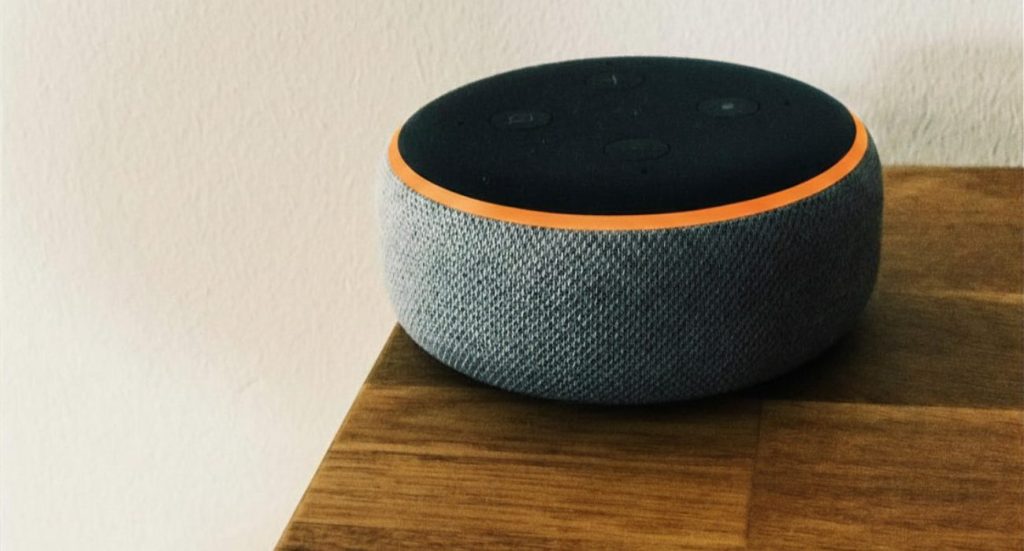
TL;DR: Restart your Echo Dot first by unplugging it for 10 seconds. If that doesn’t fix the problem, the reset method depends on your generation and whether you want to keep your smart home connections. Newer Echo Dots use the Action button for a standard reset or the Volume Down and Microphone Off buttons for a full factory reset. Once the light turns orange, the speaker is in setup mode and ready to get back online.

In this guide:
- Restart, reset, or deregister? Here’s the difference
- How do I reset my Echo Dot by generation?
- Can you reset an Echo Dot through the Alexa app?
- What happens after you reset your Echo Dot?
- Common Echo Dot reset problems
- How do I remove my Echo Dot from my Amazon account?
- To wrap up
- FAQs
Your Alexa speaker ignores you mid-sentence, won’t reconnect after you changed the network, or is suddenly just sitting there doing nothing. Start with a restart; it fixes plenty of everyday glitches without changing anything. If that doesn’t work, the next step is to restore the unit.
The exact steps depend on which generation you own and whether you want to keep existing connections, so here’s how to choose the right process without wiping more than you need to.
Restart, reset, or deregister? Here’s the difference
These terms get mixed up a lot, but they don’t all do the same thing:
- A restart simply powers the Echo device off and back on, so none of your preferences change. That’s the first thing to try when one of your Alexa devices is freezing, dropping its connection, or acting strangely.
- A factory restore goes a step further. On newer generations, Amazon lets you restore the unit while keeping certain connected-home connections intact, or perform a full factory reset that clears personal information and stored preferences.
- Deregistering is different again: it removes the device from the account it’s registered to, which is especially important if you’re selling it or giving it to someone else.
How do I reset my Echo Dot by generation?
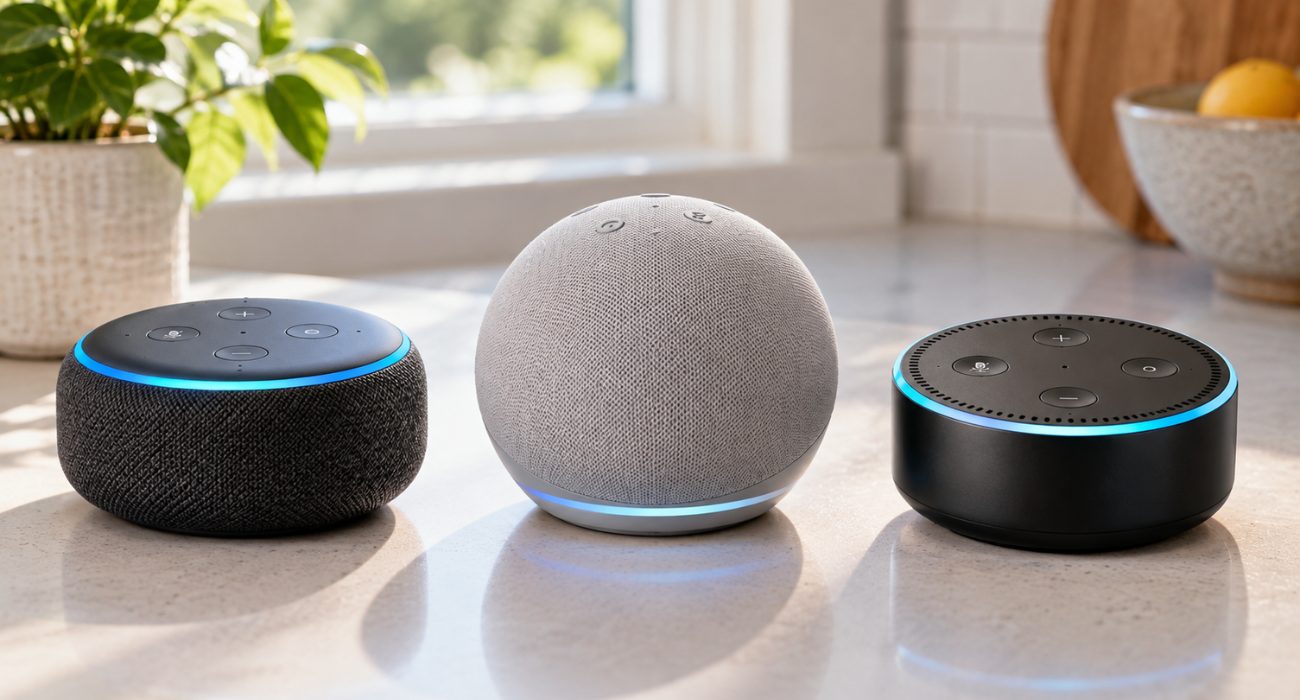
Amazon gives newer Alexa devices two ways to start fresh. The less disruptive option can preserve existing connected-home connections, while a full factory reset clears personal information and returns the device closer to its factory defaults. If you’re troubleshooting, start with the first option. If you’re selling or giving the speaker away, perform the full factory reset instead.
Echo Dot (2nd, 3rd, 4th, and 5th generation)
For 2nd through 5th generation models, follow these steps to keep your existing smart home connections:
To reset it and keep your smart home connections:
- Press and hold the Action button for about 20 seconds.
- Wait for the light ring to turn off and come back on.
- Once the Echo Dot enters setup mode, follow the Alexa app instructions to reconnect it.
Need to perform a full factory reset instead? Press and hold the Volume Down and Microphone Off (mute) buttons together for about 20 seconds. This returns the device to its factory defaults and removes personal information and connected smart home devices.
Echo Dot (1st generation)
The original Amazon Echo model handles the process differently. Flip the speaker over and locate the small recessed reset button on the bottom.
- For the standard reset, use a paper clip or similar thin tool to press the reset button briefly.
- To perform a full factory reset, press and hold the reset button for about eight seconds.
Wait for the light ring to turn off and come back on. Once it’s ready for configuration, follow the app prompts to get the device back online.
Can you reset an Echo Dot through the Alexa app?
Some Alexa app versions and devices may show additional reset or device-management options, but the available controls can vary. For an Echo Dot that won’t respond or connect, the physical reset instructions for your generation are the more reliable route.
You can still use the Amazon Alexa app to review the device, get it back online after the process, or remove it from your account if you’re giving it away.
What happens after you reset your Echo Dot?
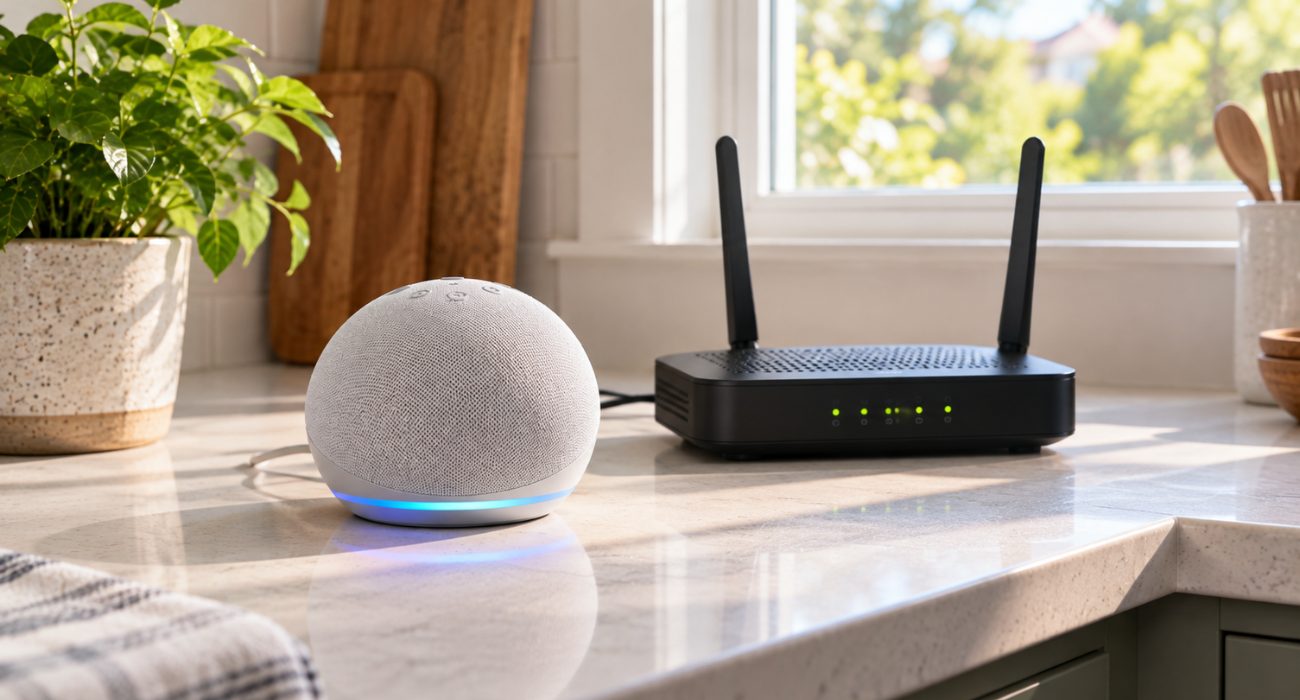
Don’t worry if the device doesn’t immediately come back online. Give the light ring a moment to cycle. When it changes color, the Alexa speaker is ready for the next step. If the ring stays blank or blue, unplug it, wait about 30 seconds, plug it back in, and try once more.
Not sure what the color is telling you? Our guide to Alexa’s orange light explains what the different colors mean during configuration and troubleshooting.
Getting the device back online usually takes about five minutes. Keep Bluetooth enabled on your phone and follow any permission prompts from the Amazon Alexa app. Then:
- Open the app and tap Add Device.
- Choose Amazon Echo, then select the model you’re setting up.
- Follow the on-screen steps for your generation.
- Select your network and enter the password.
- Wait for the app to confirm that Alexa is back online.
If the device still has trouble connecting to your network after all that, restoring it probably isn’t the answer anymore;the issue may be on the router side. Our guide on connecting Alexa to a new Wi-Fi network covers that separately, and if the connection keeps dropping across more than one device in your home, our wireless network installation team can take a look at what’s actually happening on your router.
Common Echo Dot reset problems
If the reset doesn’t go as planned, don’t assume the Echo is broken. A few common issues can keep it from entering setup mode, showing up in the Alexa app, or reconnecting to the network. Start with the symptom that matches what you’re seeing below.
| Problem | What to try |
| Light never turns orange | Double-check the steps for your generation and make sure you’re using the correct button combination. |
| Alexa device stays unresponsive | Unplug it, wait 30 seconds, plug it back in, then follow the restore steps again. |
| Alexa app can’t find the device | Confirm Bluetooth and Location are enabled, keep your phone nearby, and make sure the light ring indicates the device is ready to be added. |
| Won’t connect to the network | Test the connection on another device first, retype the password carefully, and move the speaker closer to the router while you add it again. |
| The button method still doesn’t work | Leave it unplugged for a full minute this time, then try again. If nothing happens after another attempt, the hardware itself may need attention. |
How do I remove my Echo Dot from my Amazon account?
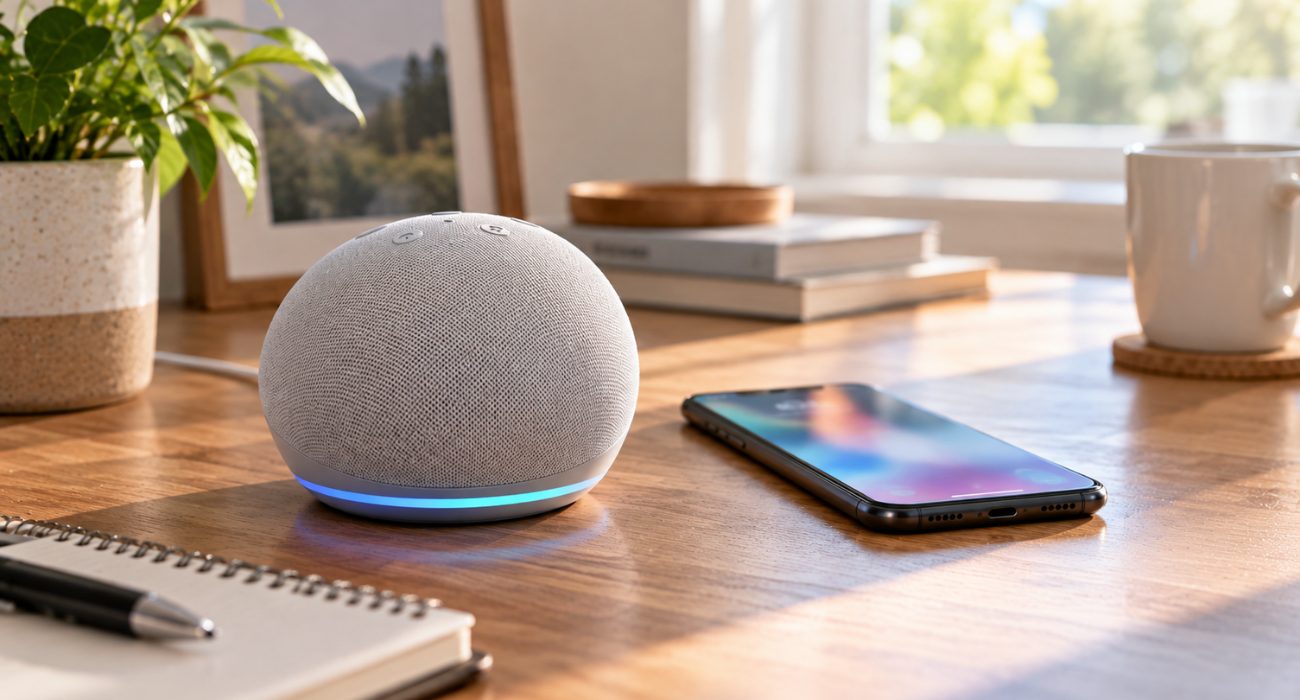
Selling an old Alexa device or handing it down to someone else? Deregister it first so it isn’t left tied to you.
- Open the Alexa app and go to Devices.
- Locate the speaker you want to remove.
- Open its account or registration options.
- Follow the prompts to confirm.
If the app looks a little different on your phone, look for the device’s registration information rather than relying on the exact position of the option.
If the speaker reconnects but other Alexa devices still aren’t responding, the problem may be with the individual smart home connection. For example, here’s how to troubleshoot Philips Hue and Alexa when your lights won’t link properly.
To wrap up
Getting an Alexa speaker working again is usually straightforward once you know which generation you’re dealing with. Start with a restart for everyday glitches, then follow the appropriate steps if Alexa still isn’t responding or the device refuses to connect. Save a full factory reset for situations where you really need to clear everything and start fresh.
If other connected devices are dropping offline too, the speaker may not be the real problem. The issue could be your network or the way everything is linked together. Geeks on Site can help with smart speaker and hub installation and get your connected home working properly again.
FAQs
What's the difference between restarting and resetting an Echo Dot?
A restart simply powers the device off and back on without changing its preferences. A factory reset goes further and can clear personal information and save connections. For an occasional glitch, restart it first; if the problem keeps coming back, follow the reset method for your generation.
Can I reset my Echo Dot without the Alexa app?
Yes. You can perform a physical reset even when the app can’t reach the speaker, which makes the button method useful when the device has stopped responding.
Why won't my Echo Dot connect to Wi-Fi after a reset?
A mistyped password, weak signal, or router issue can all cause connection trouble. Move the device closer to the router, re-enter the password, and test the network on another device before trying the reset process again.
Does a factory reset delete my Alexa skills and routines?
A factory reset clears the Echo Dot’s personal information, personal information and locally stored connections. Some Alexa features associated with your Amazon account may still be available when you set the speaker up again, but you may need to reconnect or reconfigure devices and integrations.
Last Updated on September 11, 2026