At Geeks on Site, we know how important seamless smart home entertainment is. If you’re wondering how to connect Apple Music to Alexa without the hassle, we’ve got you covered.
In just a few steps, you can link your accounts, play Apple Music on Echo devices, and use simple voice commands to control your music hands-free.
What You Need Before You Start
Before you begin, make sure you have:
- An active Apple Music subscription.
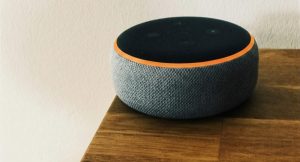
- A compatible Alexa-enabled device like an Echo Dot, Echo Show, Fire TV, or Sonos speaker.
- The latest versions of both the Apple Music and Alexa apps installed on your devices.
These steps help ensure smooth connectivity and prevent issues during setup.
Step 1: Confirm Your Subscription and Device Compatibility
We always recommend verifying your Apple Music subscription first. You can check this in the iTunes app or your iPhone’s Settings. Without an active subscription, Alexa won’t be able to stream music from your account.
Next, confirm that your Alexa-enabled device supports Apple Music. Most Echo devices do, and once you link your Apple Music account, it will apply to all of them automatically, no need to repeat the process for each one.
Step 2: Link Apple Music to Alexa
Now that everything’s ready, let’s connect Apple Music to Alexa:
- Open the Alexa app on your phone.
- Tap More > Settings > Music & Podcasts.
- Select Apple Music and tap Enable to Use.
- Log in with your Apple ID and follow the on-screen instructions to complete the connection.
Once you’ve authorized the link, Alexa will be able to access your Apple Music account.
Step 3: Set Apple Music as the Default Music Service
To make playing music effortless, set Apple Music as your default music service so Alexa automatically uses it without you needing to specify:
- Go back to Music & Podcasts in the Alexa app settings.
- Tap Default Services.
- Select Apple Music as the default under the “Music” category.
This ensures Alexa won’t default to another source, keeping your experience smooth and consistent.
Step 4: Play Apple Music on Echo Devices
Now you’re ready to enjoy your music library with just your voice. Whether you’re relaxing, working, or entertaining guests, Alexa makes controlling playback simple.
Basic voice commands:
- “Alexa, play [song name] on Apple Music.”
- “Alexa, play my playlist.”
Advanced commands:
- “Alexa, play [artist name] on Apple Music.”
- “Alexa, play the album [album name] from Apple Music.”
- “Alexa, shuffle my playlist on Apple Music.”
These commands make it easy to customize playback and access exactly what you want to hear.

Troubleshooting Common Issues
Even with the right setup, you might encounter a few hiccups. Here’s how we recommend fixing them:
Connection problems:
- Double-check your Wi-Fi connection.
- Ensure both the Apple Music and Alexa apps are updated.
- If issues persist, deregister your device and set it up again.
Playback errors:
- Make sure your device is online and connected.
- Update your apps to the latest version.
- Restart your Alexa device if playback keeps failing.
If your Echo recently switched routers or networks, reconnect Alexa to your new Wi-Fi network before troubleshooting Apple Music itself.
Need Help Setting Up?
If you run into issues connecting Apple Music to Alexa or want to explore more smart home solutions, we’re here to help. At Geeks on Site, we specialize in smart home installations, device optimization, and troubleshooting, all designed to make your technology work seamlessly for you.
Final Thoughts
Connecting Apple Music to Alexa is quick and straightforward, and it can dramatically improve your home entertainment experience. With the right subscription, a compatible device, and a few simple steps, you’ll be streaming your favorite tracks hands-free in no time.
From basic voice commands to multi-room synchronization, Alexa makes it easier than ever to enjoy your Apple Music library.
And if you ever need assistance, our team at Geeks on Site is always ready to help.
Frequently Asked Questions
Yes, most Echo devices, like Echo Dot and Echo Show, support Apple Music once your account is linked.
Open the Alexa app, go to Settings > Music & Podcasts > Default Services, and choose Apple Music.
Check your subscription status, Wi-Fi connection, and app updates. These steps usually resolve the problem.
Yes. Create a multi-room music group in the Alexa app to stream Apple Music on multiple devices at once.
Last Updated on September 7, 2026