Is your printer refusing to print because of a paper jam? This article will walk you through clear, simple steps to CLEAR PAPER JAM and get your printer back in working order in no time. Follow these instructions to solve the issue and prevent future jams, ensuring smooth operation.
Key Takeaways
- Common causes of paper jams include overfilled trays, incorrect paper types, and worn-out rollers; understanding these can help in prevention.
- Prioritize safety before clearing a jam by turning off and unplugging the printer, and ensure thorough access by removing all paper from trays.
- Regular maintenance, such as inspecting and cleaning rollers, and using the correct paper, is essential to prevent future jams and maintain printer performance.
Common Causes of Printer Paper Jams
Understanding the causes of paper jams helps in preventing them. Overfilled trays are a common issue. When overloaded, the printer struggles to feed paper correctly, causing jams. Don’t exceed the fill line when loading paper.
Using incorrect paper size or type is another frequent issue. Many printers are designed for specific paper sizes and weights; using the wrong size can cause misalignment and feeding problems, potentially resulting in an error message. Check your printer’s manual for recommended printing specifications.
Worn-out rollers are also a major cause of jams. These rollers grip and feed paper, and if they lose their grip, paper won’t move smoothly. Regularly inspecting and replacing rollers can significantly reduce jams.
Debris and moisture in the paper path can obstruct smooth paper movement, causing jams. Using high-quality paper and storing it in a dry place can help prevent damaged paper. Understanding these causes enables proactive steps to avoid jams.
Turn Off and Unplug the Printer
Before clearing a paper jam, prioritize safety. Turn off and unplug the printer device before any maintenance. This simple step prevents injuries and protects the printer from damage caused by unexpected movements during jam clearing.
Disconnecting the power source ensures safety while working inside the printer. This is crucial for laser printers with high-voltage components. Safety is the top priority when handling electronic devices.
Remove All Paper from Trays
To address a paper jam effectively:
- Remove all paper from both the input and output trays.
- This provides better visibility and access to locate any jammed sheets inside the printer.
- Ensure no sheets are left in the trays, as this is crucial for proper clearance.
Pull out the paper tray completely to gain easier access to any jammed paper. This also helps identify if pieces of paper are stuck in the paper path. Clearing the trays sets the stage for thorough inspection and removal of jammed paper.
Open the Printer Cover
To clear a paper jam from your printer:
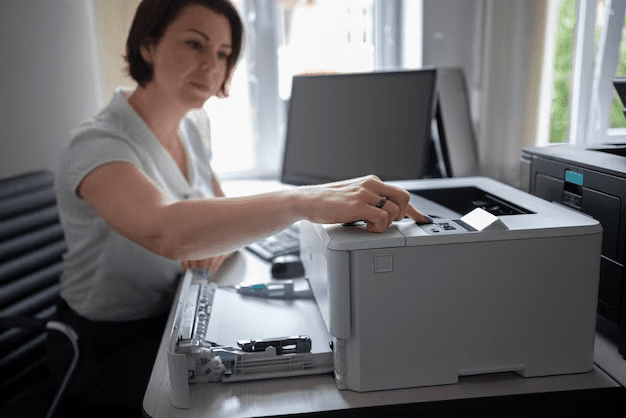
- Open the main cover of your printer following the manufacturer’s guidelines.
- Look for jammed paper in the input and output trays.
- Check under the cover and possibly the rear access door for jammed paper.
- Open all access doors to alleviate pressure on the jammed paper, making it easier to remove.
To remove jammed paper from your printer:
- Gently pull on the stuck paper, doing so slowly to prevent tearing.
- Pull the jammed paper in the direction of normal paper flow to avoid damaging the printer.
- If your printer has a rear access door, check there as well.
Follow on-screen instructions provided by your printer’s software to guide you through the simple steps of the process. These steps ensure you open the right access panels and don’t miss any hidden jams in the machine.
Locate and Remove Jammed Paper
After opening the printer cover, locate and gently remove the jammed paper. Look closely for any visible paper pieces and pull them out carefully to avoid tearing. If the paper tears, use tweezers to gently remove any remaining fragments of the printer paper jam.
To carefully remove jammed paper:
- Firmly grasp the loose paper and pull slowly to ensure it comes out in one piece.
- If the paper is jammed inside, be patient and avoid excessive force to prevent damaging components.
- Remove all fragments to prevent future jams.
After removing the jammed paper, check for any remaining pieces inside the printer. Clearing all fragments ensures smooth operation once you restart it.
Inspect and Clean Rollers
Inspect and clean the rollers to prevent jams and future jams. Ensure they move freely and are clear of debris. Dust and debris buildup can cause jams, so regular cleaning is essential.
Use a lint-free cloth dampened with isopropyl alcohol to clean the rollers effectively. This ensures they maintain a good grip on the paper and feed it smoothly. Regular maintenance significantly reduces the risk of jams.
Ensure the rollers turn freely and are clean from any small paper scraps. Regular inspection and cleaning of the paper path help avoid jams and ensure optimal performance.
Reload Paper Correctly
To prevent additional jamming when adding new paper to the tray:
- Straighten the paper stack.
- Ensure proper paper loading to avoid feeding issues.
- Adjust the paper guides gently against the edges of the paper to improve alignment.
Ensure the print side of the right paper faces the correct direction as indicated by the packaging. For most printers, this means the print side faces down, except for top-loading printers where it faces up. Correct orientation prevents misfeeds and jams and ensures the print head functions properly.
Plug In and Restart the Printer
Reconnect the power supply and turn the printer back on. Restarting helps reset any internal errors and ensures the printer’s sensors are functioning correctly. If a jam error persists, restarting can help reset the sensors.
Load paper into the tray and print a simple document to test print if you need to fix a paper jam. This confirms the print job has cleared the jam and the printer is back to normal operation.
Preventive Measures to Avoid Future Jams
Preventive measures can significantly reduce the risk of future jams. These include:
- Using paper that meets the recommended weight for your printer to help avoid jams.
- Using high-quality paper.
- Storing paper in a dry place to prevent moisture absorption.
Proper paper handling is crucial. Here are some guidelines to follow:
- Avoid opening a new ream unless it will be used soon.
- Use the oldest paper first to prevent moisture buildup.
- Fan the remaining paper before loading to prevent sheets from sticking together. Additionally, remember to store paper properly to maintain its quality and avoid creating excess paper.
Regular maintenance is essential for optimal performance. Clean the rollers regularly clean and check for smooth movement. Ensure the paper is placed in the tray with the correct side facing up, as indicated by the packaging, to prevent misfeeds.
Start by listing some forbidden forms of the keyword “avoid paper jams” according to the rule 5.
Avoid overloading the paper tray, as exceeding the fill line can cause jams. Following these measures keeps your printer running smoothly and avoid paper jams.
When to Seek Professional Help
Sometimes, despite your best efforts, paper jams persist. For recurring issues or complex problems related to paper jamming:
- Seek professional help.
- If you can’t find the jammed paper or the printer continues to malfunction, consult the printer manual.
- Contact the manufacturer for guidance. If the printer is still not functioning, it may be because it has paper jammed.
Geeks on Site can assist with ongoing hp printers issues and offer professional solutions. Geeks on Site provides expert help with in-home and online tech support, ensuring your printer issues are resolved efficiently and effectively.
Summary
In conclusion, dealing with paper jams doesn’t have to be a daunting task. By understanding the common causes, safely turning off and unplugging your printer, removing all paper from trays, and carefully locating and removing jammed paper, you can resolve most jams quickly and easily. Regular maintenance, such as inspecting and cleaning rollers, and proper paper handling can prevent future jams.
Remember, if the problem persists, seeking professional help from services like Geeks on Site can ensure your printer remains in optimal condition. By following these steps, you can keep your printer running smoothly and avoid the frustration of unexpected paper jams.
Frequently Asked Questions
What should I do if my printer keeps jamming?
If your printer keeps jamming, it’s essential to consult your printer’s manual for troubleshooting steps and consider seeking professional help if issues persist. Taking these measures can often resolve recurring problems effectively.
Why is it important to turn off and unplug the printer before clearing a jam?
It is essential to turn off and unplug the printer before clearing a jam to prevent accidents and protect the printer from potential damage during the process. Taking these precautions ensures safety and preserves the integrity of your equipment.
How often should I clean the rollers in my printer?
You should clean the rollers in your printer every few months using a lint-free cloth and isopropyl alcohol to prevent jams and ensure smooth operation. Regular maintenance is essential for optimal printer performance.
What type of paper should I use to avoid jams?
To avoid jams, use high-quality paper that meets your printer’s recommended weight and specifications. Additionally, store the paper in a dry place and handle it properly.
When should I seek professional help for my printer?
You should seek professional help for your printer when you experience recurring paper jams or complex issues that troubleshooting cannot resolve. Timely intervention can save you from further damage and ensure proper functionality.
Last Updated on July 23, 2025