

TL;DR: AirPods work just fine with Dell laptops. Just turn on Bluetooth, put your AirPods into pairing mode, select them from your Dell’s Bluetooth settings, and you’re ready to go.
A lot of people assume AirPods only work with Apple devices, but that’s actually a myth. Since they use standard Bluetooth, they can connect to Windows laptops, Android phones, tablets, smart TVs, and plenty of other Bluetooth-enabled devices. So, if you have the standard AirPods, AirPods Pro, or AirPods Max, you’ll be connected in just a couple of minutes.
In this guide:
How to know if your Dell has Windows 10 or 11
Before you get started, it’s worth checking which version of Windows you’re using, since the menus look slightly different.
The easiest way to tell is by looking at your taskbar. If the Start button sits in the bottom-left corner of your screen, you’re using Windows 10. If it’s centered, you have Windows 11.
The pairing process is nearly identical on both versions. You’ll just find the Bluetooth settings in slightly different places.
If your Dell has Windows 10
🌐 How to pair your AirPods
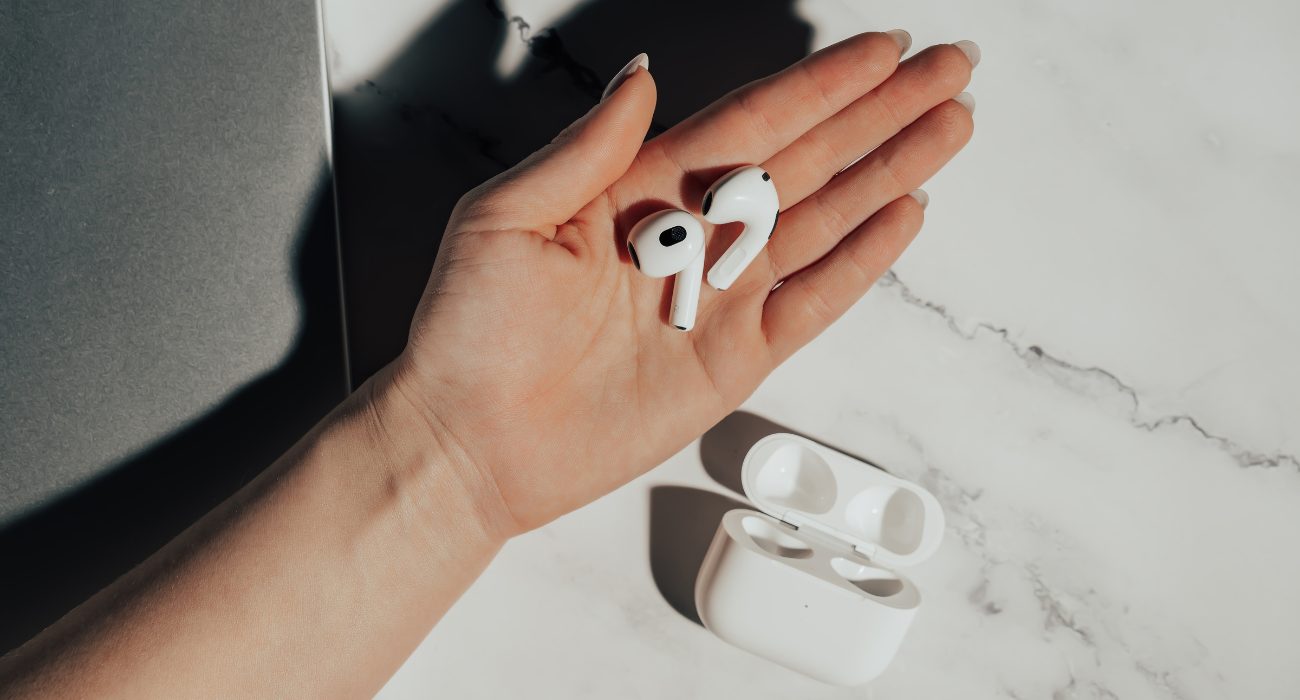
- Make sure both AirPods are inside the charging case, then leave the lid open.
- Press and hold the setup button until the status light begins flashing white.
- Next, open the Start menu on your Dell and click Settings.
- From there, head to Devices and confirm Bluetooth is turned on.
- Select Add Bluetooth or other device, then choose Bluetooth.
- When your AirPods appear, click them to finish pairing.
⛓️💥 How to disconnect your airpods
Once your AirPods have been paired, they’ll usually try to reconnect to whichever device they were last connected to. If your Dell grabs the connection when you actually want to use your phone, simply put the AirPods back in the case and close the lid. They’ll disconnect automatically.
You can also disconnect them manually by going to Settings > Devices, selecting your AirPods, and clicking Disconnect.
✨ Although this guide focuses on Dell laptops, the pairing process is very similar on other Windows PCs. If you’re using a different brand, check out our guide on how to connect AirPods to a Windows computer.
If your Dell has Windows 11
🌐 How to pair your airpods
- Leave your AirPods in the charging case and keep the lid open.
- Hold the setup button until the status light begins flashing white.
- Open the Start menu, then click Settings.
- Next, select Bluetooth & devices from the menu on the left.
- Click Add device, choose Bluetooth, then select your AirPods when they appear in the list.
⛓️💥 How to disconnect your airpods
Closing the charging case disconnects your AirPods automatically.
If you’d rather disconnect them from Windows, open Quick Settings by clicking the Wi-Fi, volume, or battery icon near the clock, select the arrow beside Bluetooth, find your AirPods, and click Disconnect.
Quick fix: Connected but no sound
If Windows says your AirPods are connected but the sound is still coming through your laptop speakers, the audio output is probably still set to your laptop speakers.
Click the Volume icon in the taskbar, open the list of available audio devices (sometimes labeled Choose a playback device), and select your AirPods.
Windows occasionally sticks with the previous audio output, even after a Bluetooth device connects, so this is one of the first things worth checking.
If you’re using Zoom, Microsoft Teams, Discord, or another app, make sure it’s also set to use your AirPods as the audio output. Some apps keep using your laptop speakers even after Windows switches to your AirPods.
🧐 If your AirPods still don’t play any sound after selecting them as the audio output, check out our guide on how to fix computer sound issues for more troubleshooting steps.
Troubleshooting: AirPods won’t connect
If your AirPods aren’t showing up in the Bluetooth list, or they appear but won’t connect to your laptop, here are a few things you can try.
🔋 1. Check the battery
AirPods need enough charge to enter pairing mode. So we recommend putting your AirPods back in the charging case, leaving the lid open, and making sure the case still has some battery left.
🛜 2. Turn Bluetooth off and back on
Sometimes the simplest fix really is the right one. Just turn Bluetooth off, wait about 10 seconds, then switch it back on. This refreshes the connection and often clears up minor Bluetooth glitches.
💻 3. Remove the device and pair it again
If your AirPods appear in the Bluetooth list but won’t connect, or they keep disconnecting, remove them and pair them again from scratch.
- Windows 10: Open Settings > Devices > Bluetooth & other devices, select your AirPods, and click Remove device.
- Windows 11: Go to Settings > Bluetooth & devices, click the three dots next to your AirPods, and choose Remove device.
Then repeat the pairing steps above.
🔄 4. Reset your AirPods
If removing the device doesn’t help, try a full reset.
Leave the AirPods in the case, close the lid, and wait about 30 seconds. Open the lid again, then press and hold the setup button for around 15 seconds until the light flashes amber and then white.
The amber flash lets you know the reset was successful. Once it starts flashing white, pair them again like you would a brand-new device.
⚡ 5. Restart your Dell
Still having trouble? Restart your laptop. Restarting your laptop refreshes Bluetooth and clears temporary glitches that can prevent devices from connecting properly.
🤓 6. Check the Bluetooth driver
If you’ve tried everything above and your AirPods still won’t connect, the Bluetooth driver may be the real issue. Outdated drivers are a surprisingly common cause of pairing problems.
If you’d rather not troubleshoot drivers yourself, Geeks on Site technicians can help update your Bluetooth driver and get everything working again.
If you’re having trouble connecting bluetooth devices or they fail to connect be sure to talk to our PC support technicians because there may be a problem with your bluetooth driver.
Wrapping up
Connecting AirPods to a Dell laptop is actually much easier than most people expect. Since they use standard Bluetooth, they work with Windows just as they do with many other Bluetooth devices.
You can use your AirPods on a Dell laptop for work, online classes, gaming, video calls, or just listening to music. Either way, pairing only takes a couple of minutes. And if something doesn’t work the first time, the troubleshooting steps above usually solve the problem without much effort.
If you’re also getting set up for video calls, here’s how to connect a webcam to your computer and make sure it’s ready to use.
FAQs
Why won't my AirPods show up in Bluetooth?
In most cases, the AirPods aren’t in pairing mode, the battery is too low, or they’re still connected to another device. If they still don’t appear, remove the existing pairing (if there is one) and pair them again from scratch.
How do I reset AirPods that won't pair?
Put your AirPods back in the charging case, close the lid, and leave them there for about 30 seconds and then open the case again. Press and hold the setup button until the status light flashes amber and then white. Once it starts flashing white, they’re ready to pair again.
How can I tell if my AirPods are in pairing mode?
If the status light is flashing white, your AirPods are in pairing mode and ready to be connected.
What does the light on the AirPods case mean?
A flashing white light means your AirPods are ready to connect to a new device. An amber light usually means they’re charging, need charging, or are being reset. During a reset, you’ll see the light flash amber before it switches back to white.
How do you put AirPods in pairing mode without the button?
You can’t. The setup button is what puts AirPods into pairing mode. If it isn’t responding, make sure the case has enough battery, close and reopen the lid, then try again. If the button is physically damaged, you’ll likely need help from Apple Support.
Do AirPods work with any device?
Yes! As long as a device supports Bluetooth, you can pair your AirPods with it. That includes Windows laptops, Android phones, tablets, and many smart TVs.
Some Apple-exclusive features, like automatic device switching and a few advanced audio features, won’t be available outside the Apple ecosystem.
Last Updated on September 8, 2026



